How to Schedule a Task?
 By Bhumika Karki
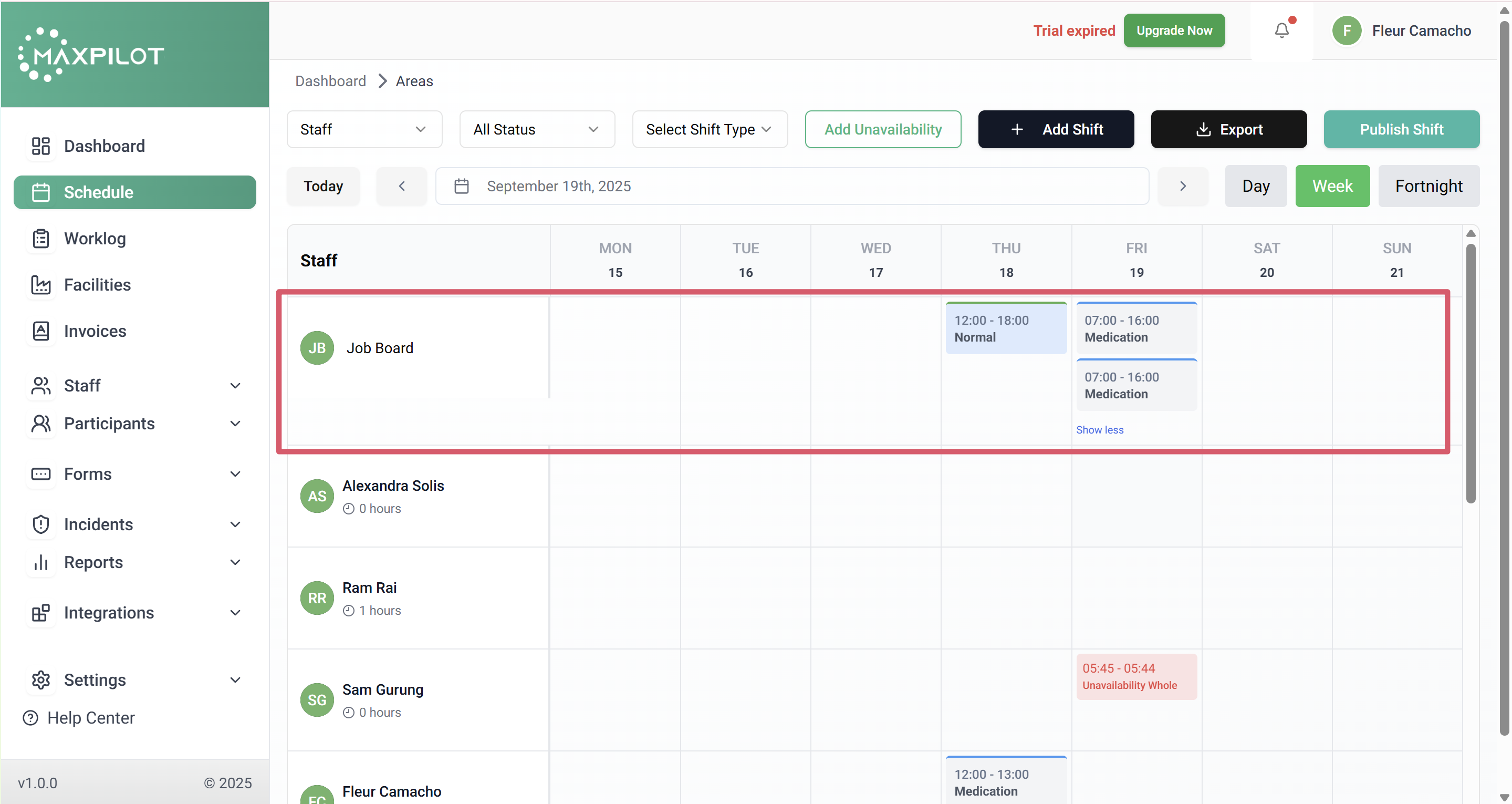
Want to schedule a task? First, you’ll need to add a shift from the Schedule page. If you’re not sure how to add a shift, check out our step-by-step guide here.
Tasks are small, actionable activities that staff members are expected to complete during their shift.
They help break down the overall responsibility into clear steps — for example, recording medication, checking vitals, updating client notes, or assisting with personal care.
Using tasks ensures that important actions are not missed and that accountability is maintained throughout the shift.
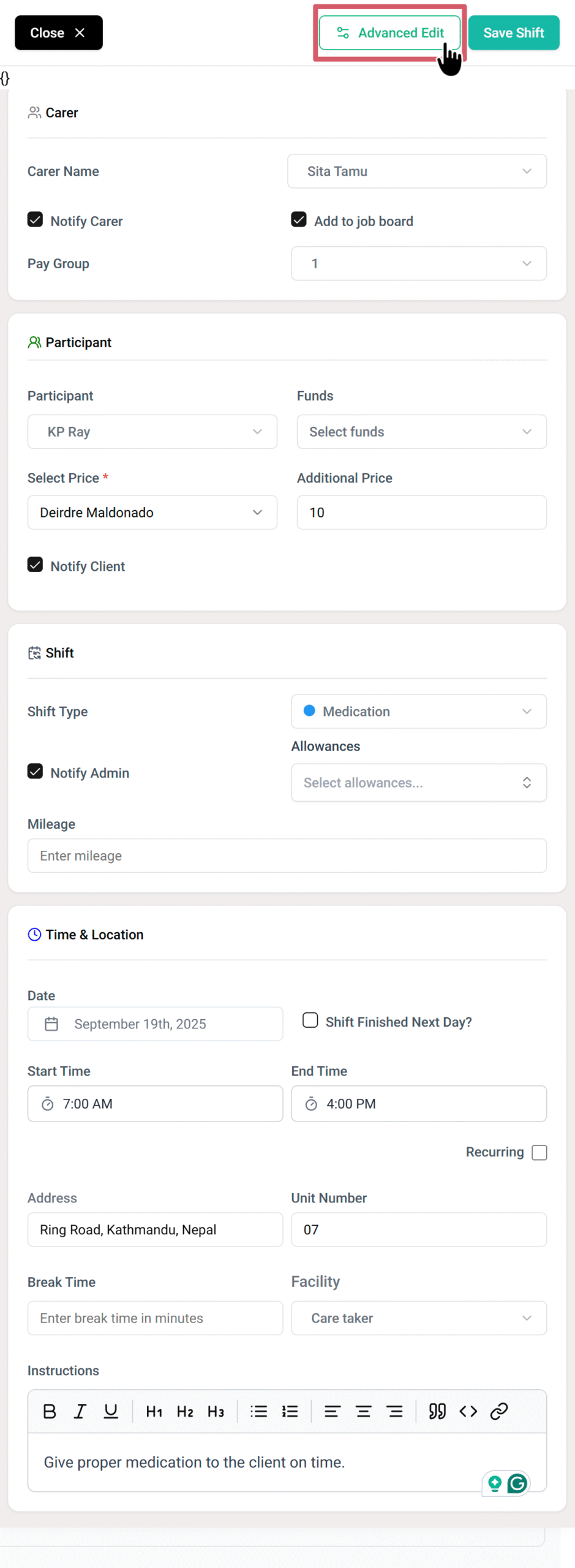
Once you’ve created a shift, you’ll see an option called Advanced Edit in the Add Shift form. This is where you can schedule specific tasks linked to the shift.
Step 1: Open the Shift in Advanced Edit
After filling out all necessary shift details, click Advanced Edit at the top-right corner of the Add Shift form.
This opens additional configuration options, including the Tasks section where you can define and manage individual tasks related to the shift.
Step 2: Add a Task
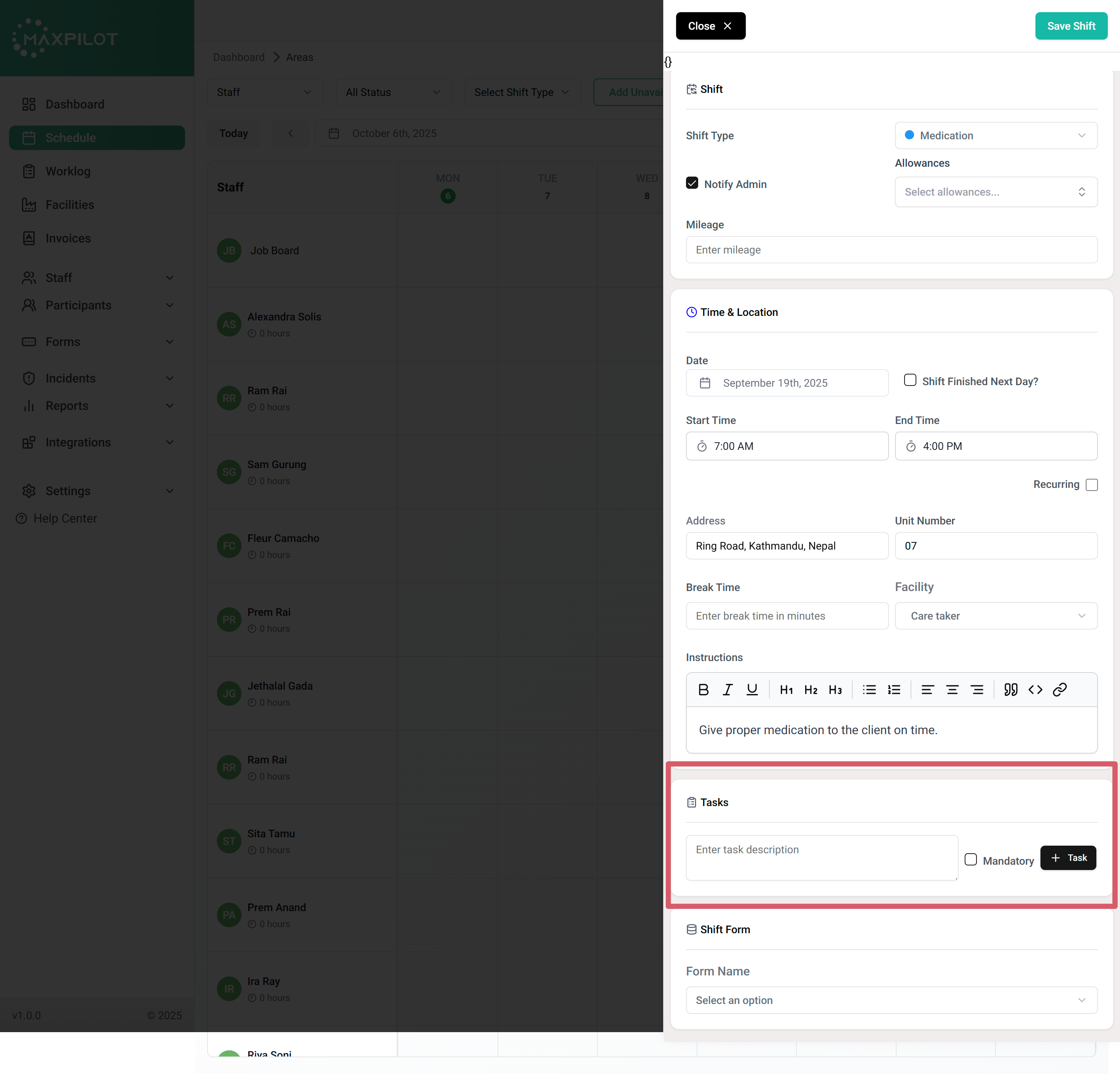
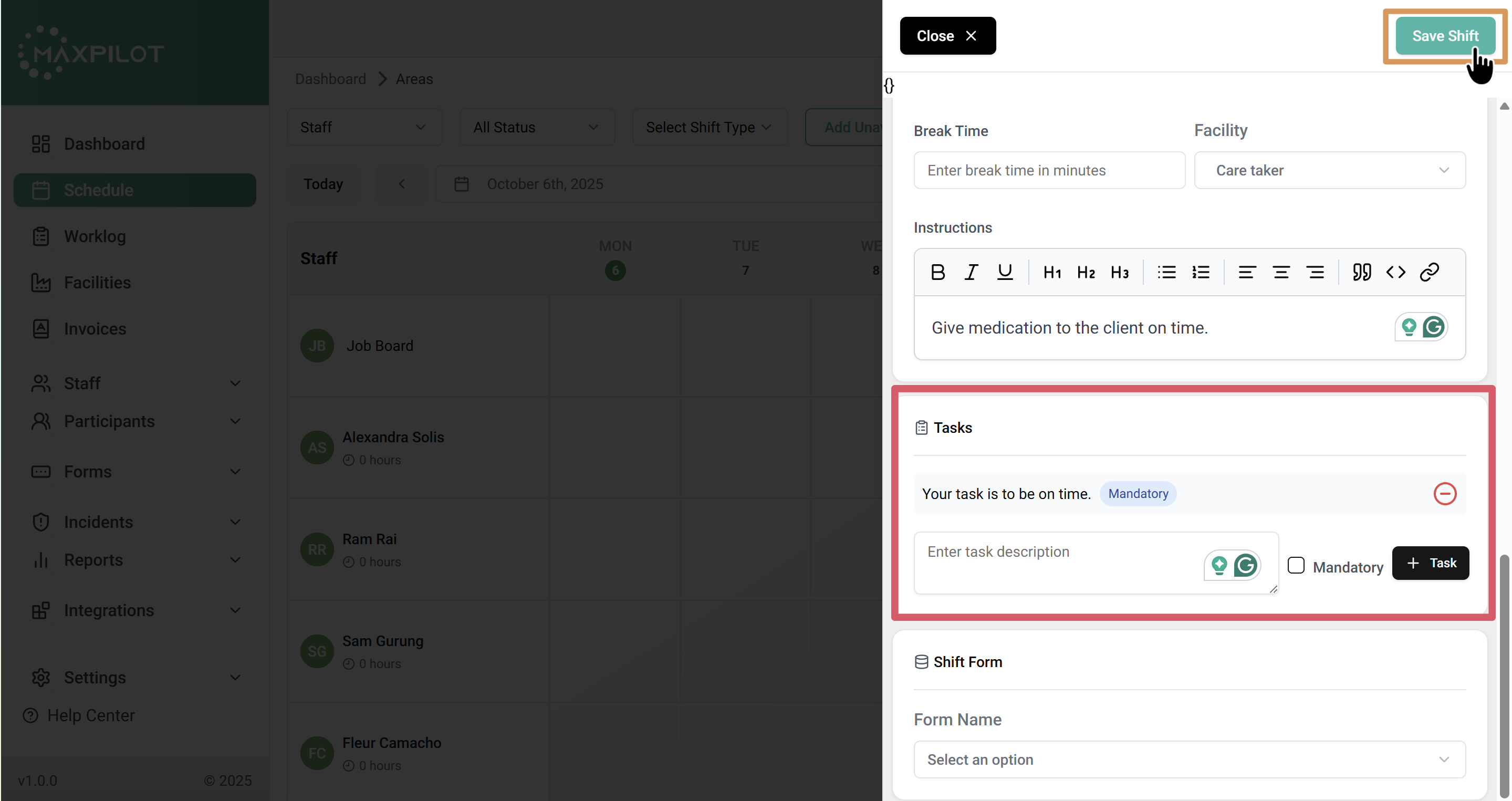
Scroll down to locate the Tasks section.
In the Enter task description field, type the specific task you want to assign.
For example:
“Give medication to the client on time.”
“Check and document vital signs before 8 AM.”
“Ensure client logs are updated before the shift ends.”
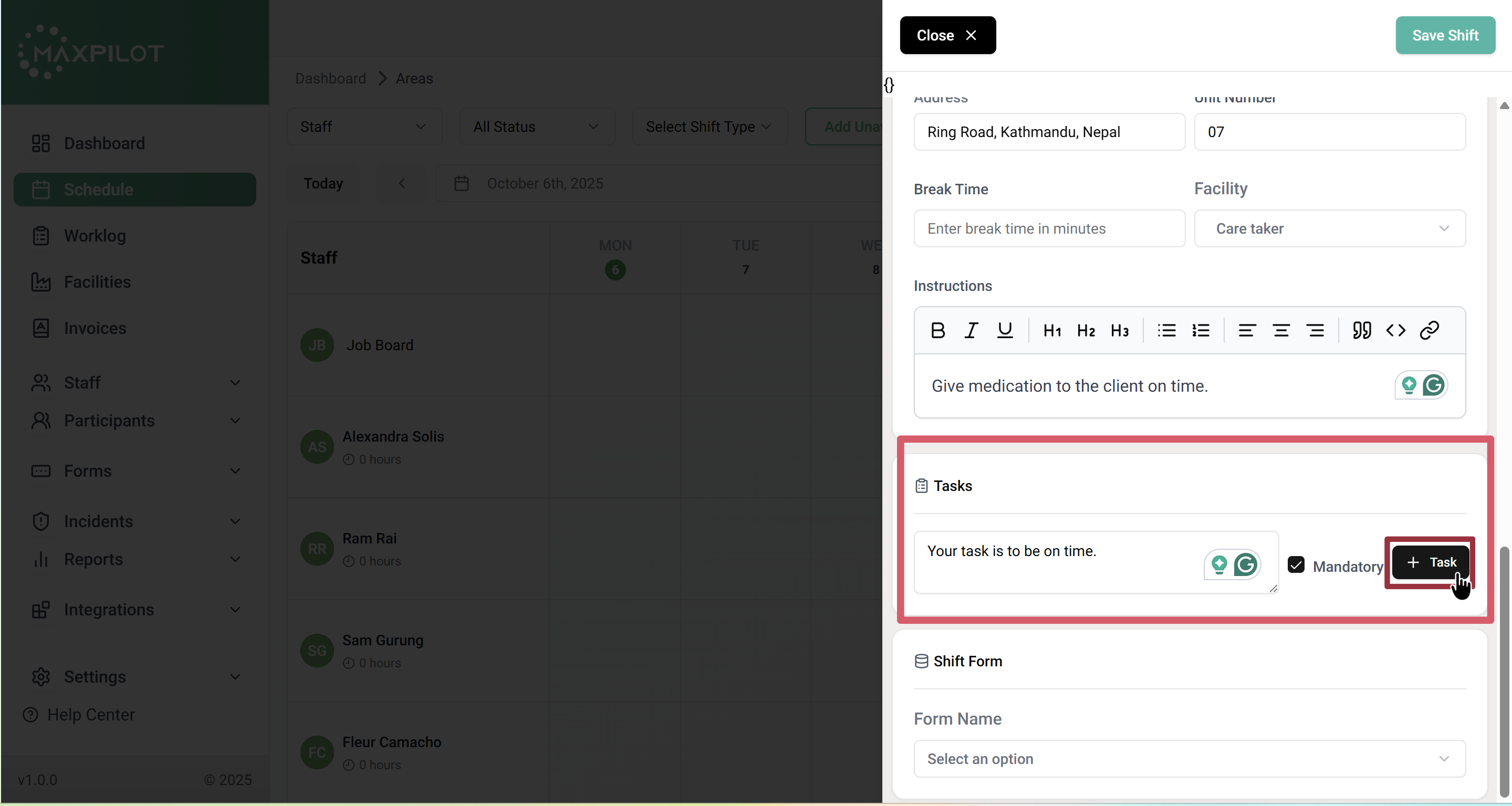
If the task is crucial, tick the Mandatory checkbox; this makes it a required action that the staff must complete before finishing their shift.
Once ready, click + Task to add it.
You can add multiple tasks under a single shift as needed.
Step 3: Review and Save
After adding all the necessary tasks, review the shift details one final time — such as the Carer, Participant, Shift Type, and Time & Location information.
When everything looks correct, click Save Shift in the top-right corner.
The system will save both the shift and its assigned tasks together.
Step 4: View Scheduled Task
After saving, the newly created shift (with its tasks) will appear on the Schedule calendar.
You can click on the shift to view or edit the tasks anytime.
This allows staff to clearly see what needs to be done during their shift and ensures that important duties are always completed on time.