How to Edit a Ticket?
 By Bhumika Karki
Need help creating a new ticket instead?
👉 Click here to Learn How to Add a Ticket.
Editing a ticket in Maxpilot allows you to update ticket details, manage discussions, and keep all team members aligned with the latest information. Whether it’s changing the status, updating priority, or adding notes, this guide will walk you through every step.
Step 1: Open Incidents
From the left-hand menu, click Incidents.
You will be directed to the Dashboard page where all the tickets are listed.
Step 2: Select the Ticket You Want to Edit
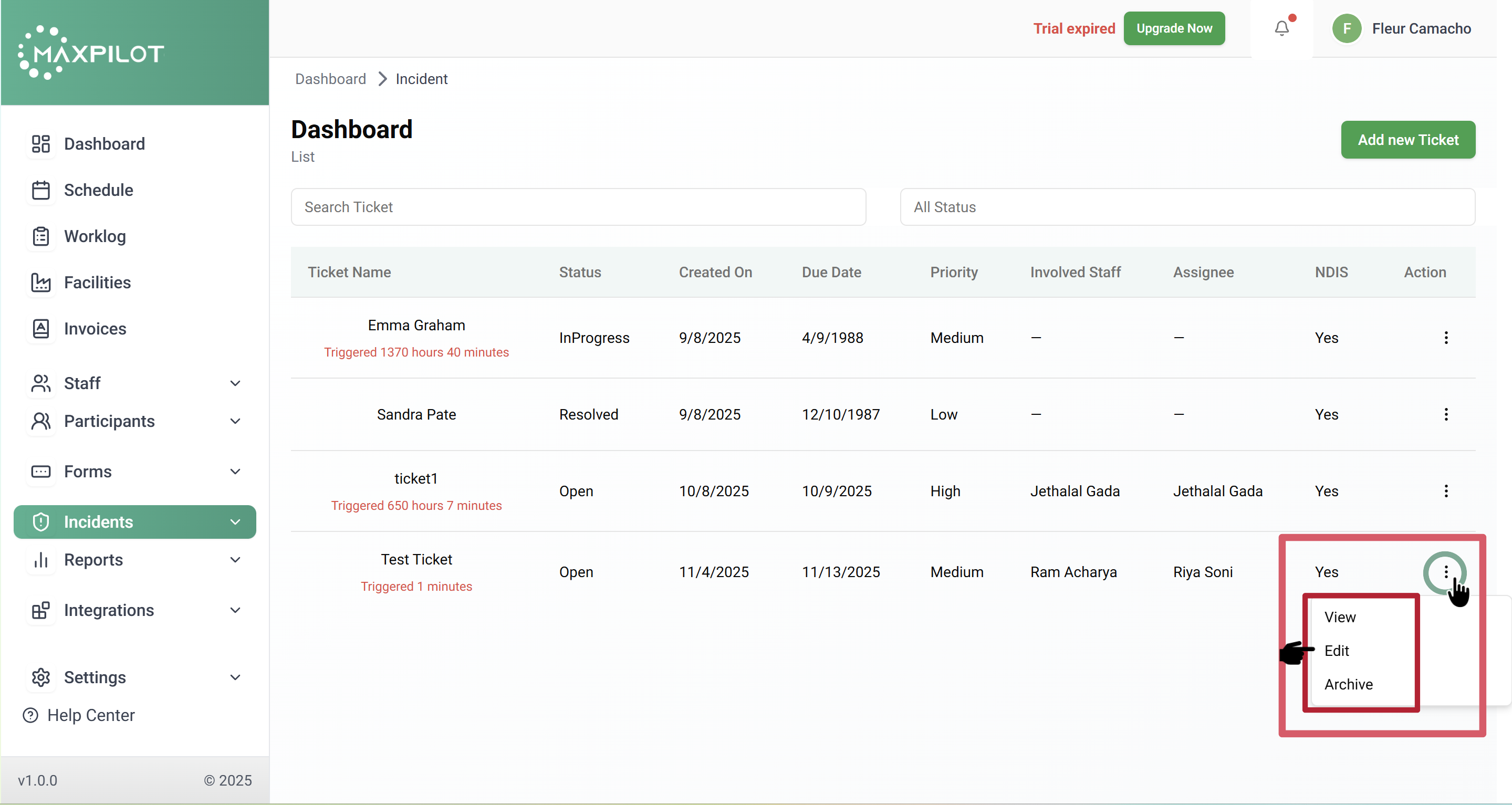
Find the ticket you want to modify and click on the three-dot (⋮) menu under the Action column.
From the dropdown options, select Edit.
💡 Tip: You can also use the View option to open the ticket and review its details before editing.
Step 3: Update Ticket Details
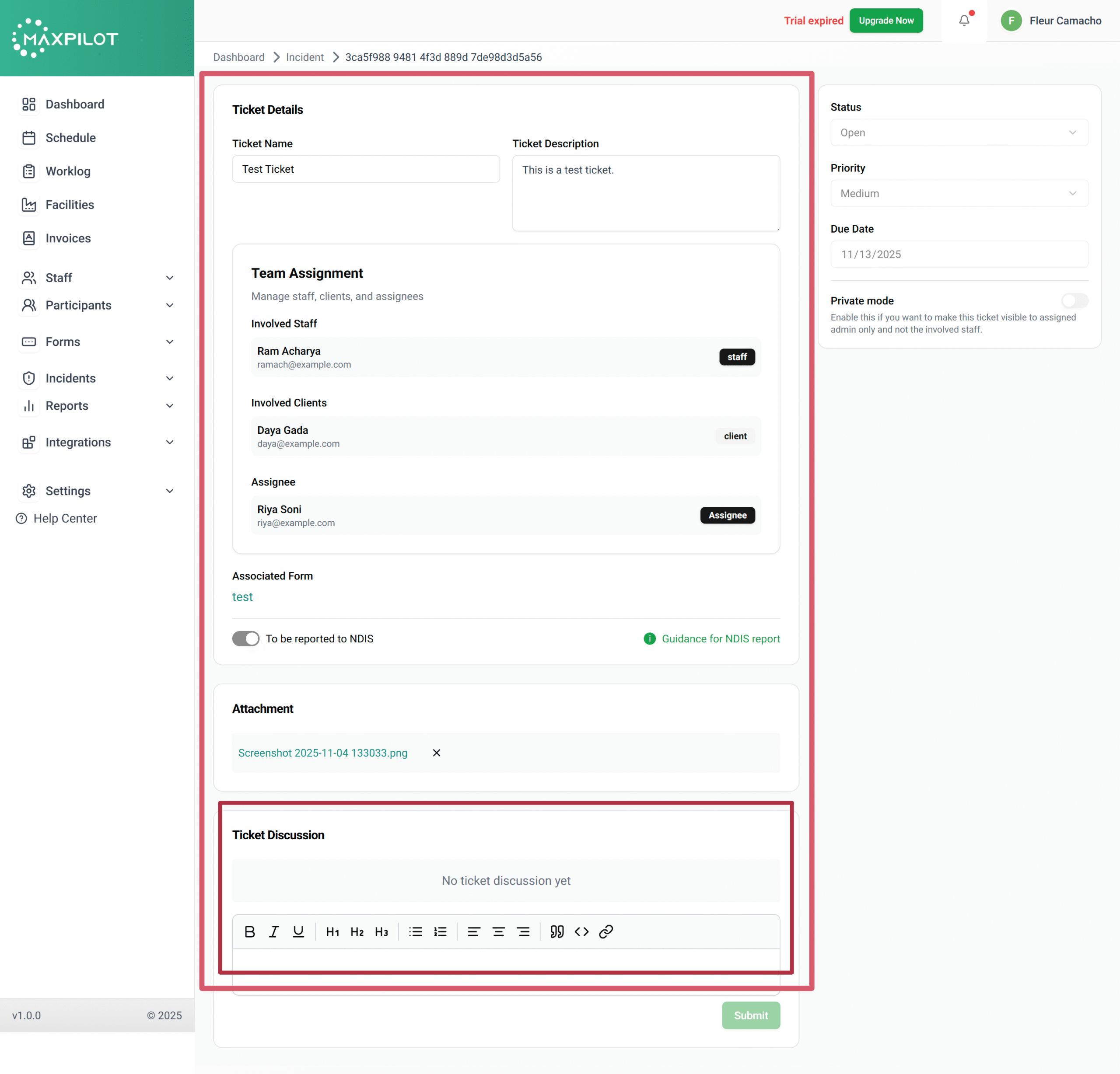
Once you click Edit, the ticket details page will open.
Here, you can modify fields such as:
Step 4: Add or Update Discussion
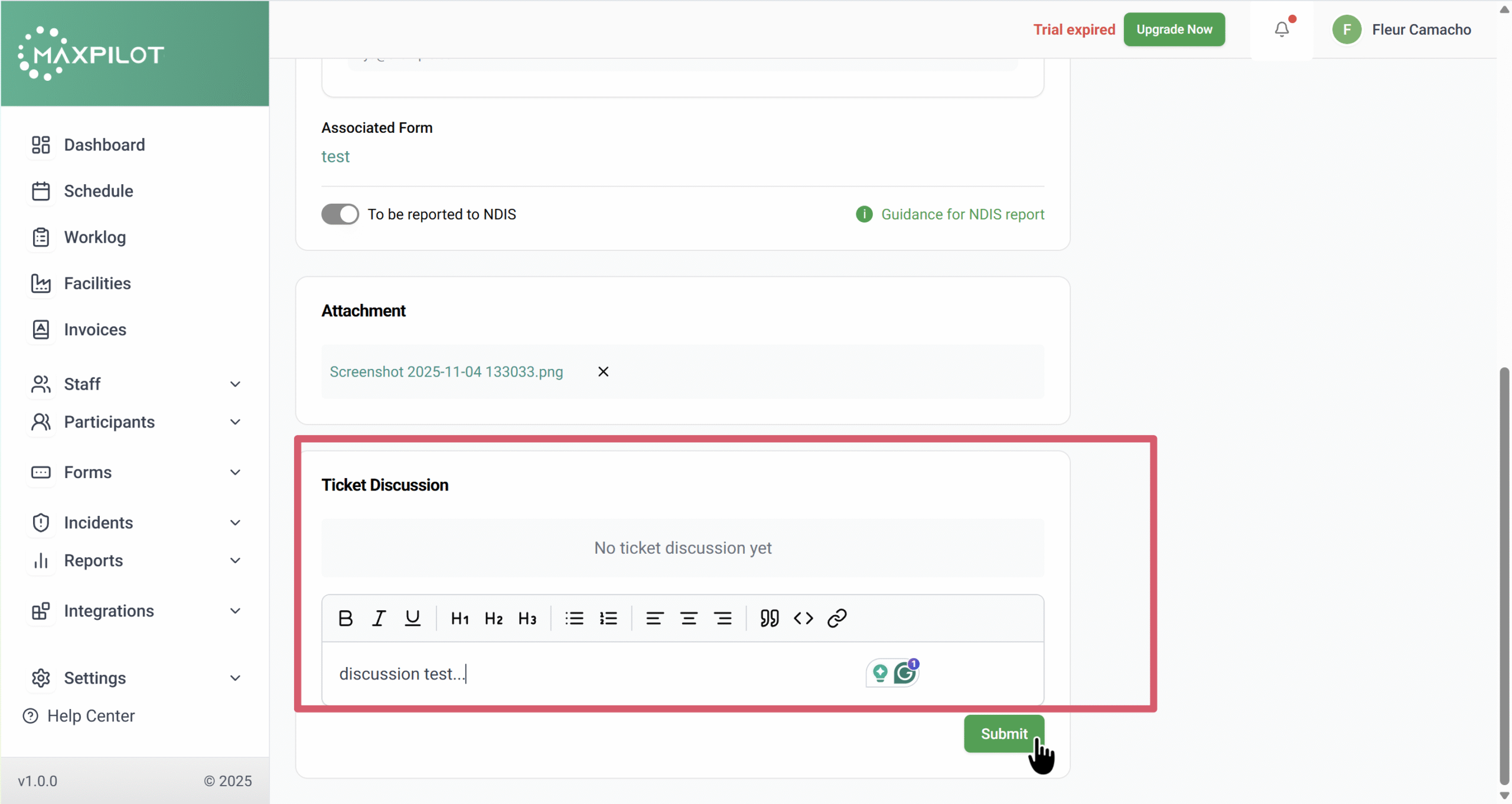
Scroll down to the Ticket Discussion section to add comments, progress notes, or updates.
Simply type your message and click Submit to save it.
💬 Discussions are visible to assigned staff, clients, and admins, ensuring clear communication and progress tracking.
Step 5: Save Changes
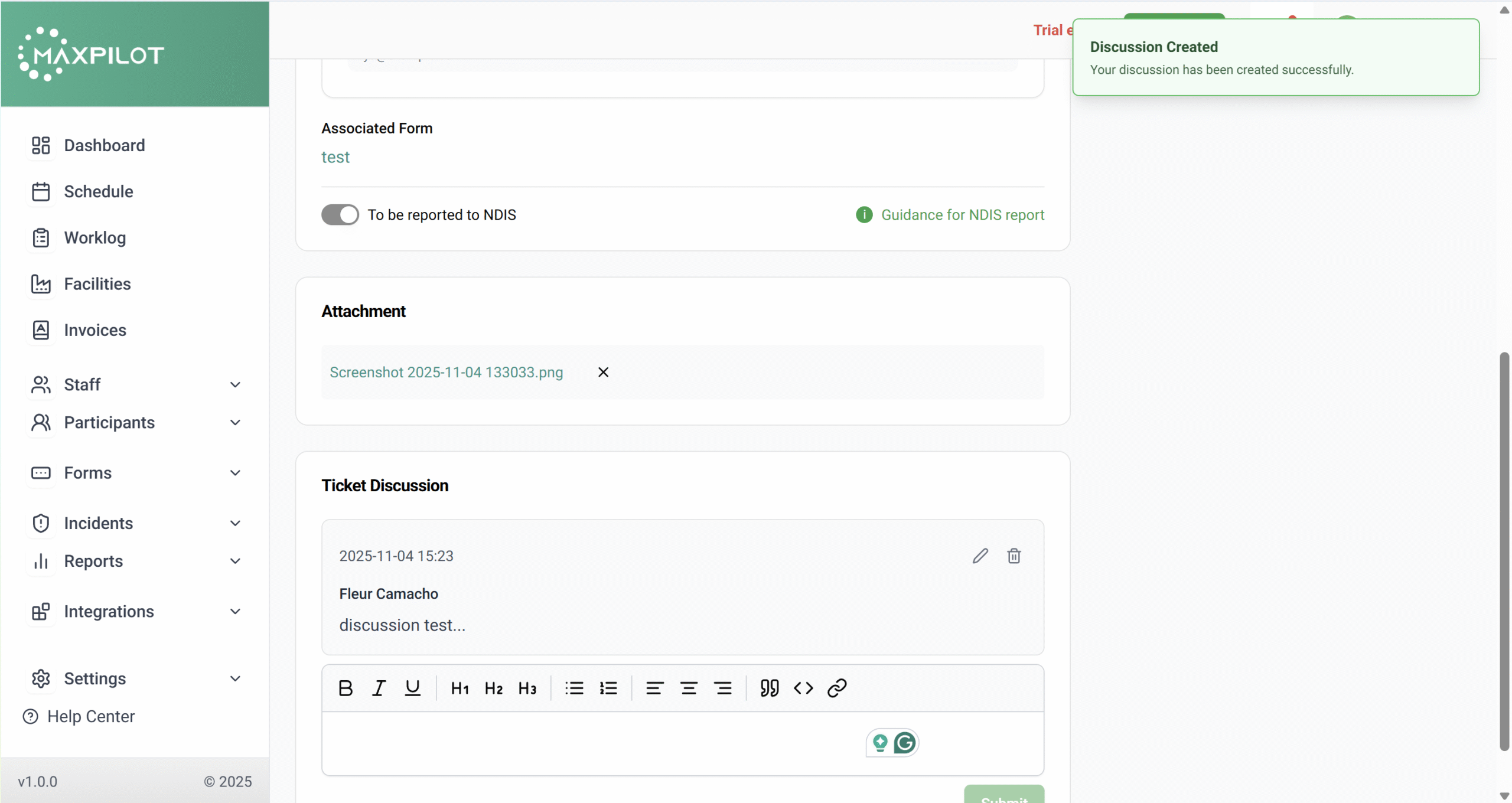
After making all necessary edits, scroll down and click Submit.
A confirmation message will appear indicating that your updates have been saved successfully.