
How to Add a Price Book?
 By Bhumika Karki
A Price Book in MaxPilot allows you to set and manage service rates based on time, day, or condition (like weekdays or public holidays). You can create multiple price books to organize different pricing structures.
Step 1: Open Price Settings
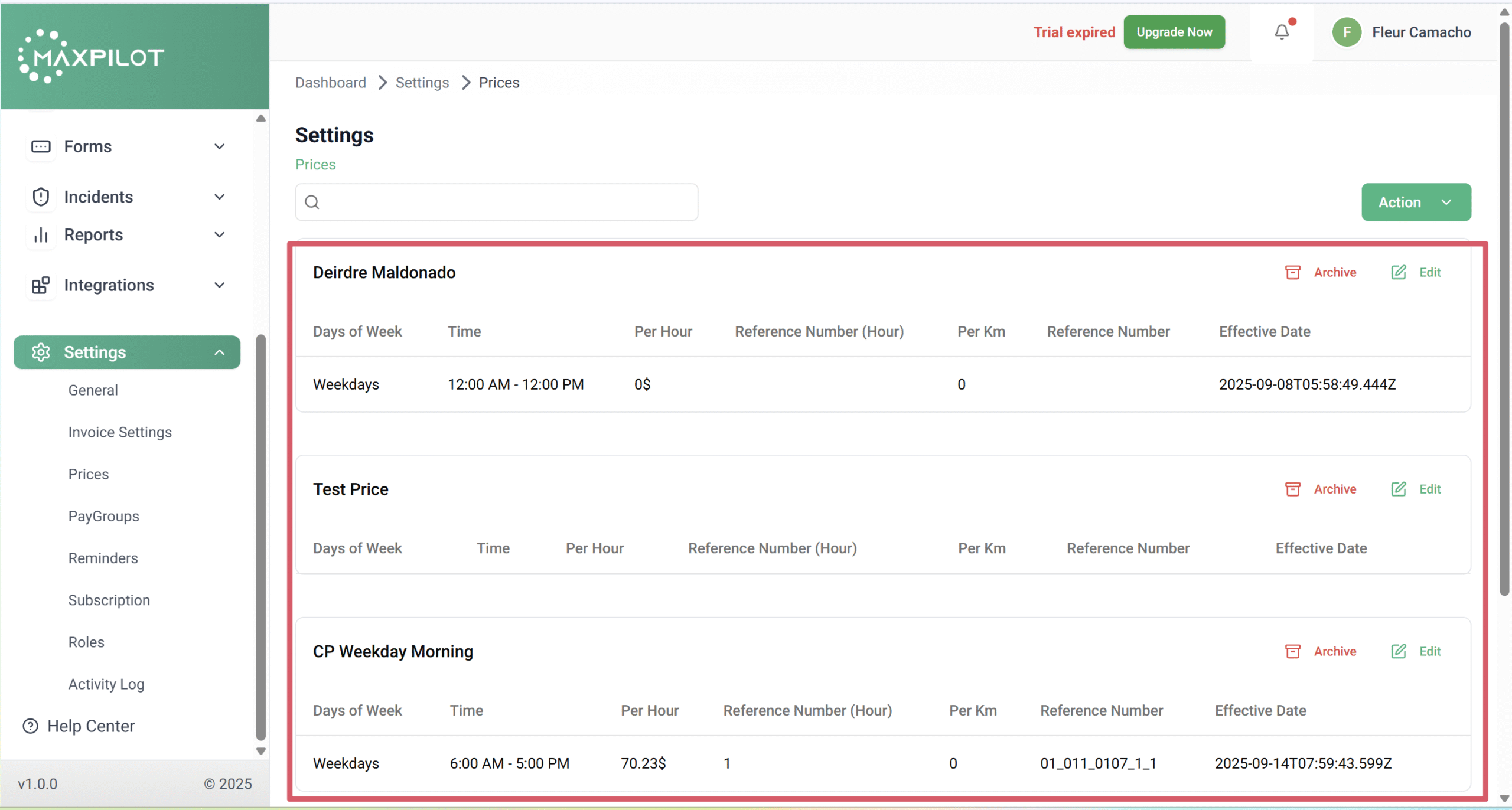
From the left-hand menu, go to Settings → Prices.
The Prices page will open, showing all existing price books.
Step 2: Click the Action Button
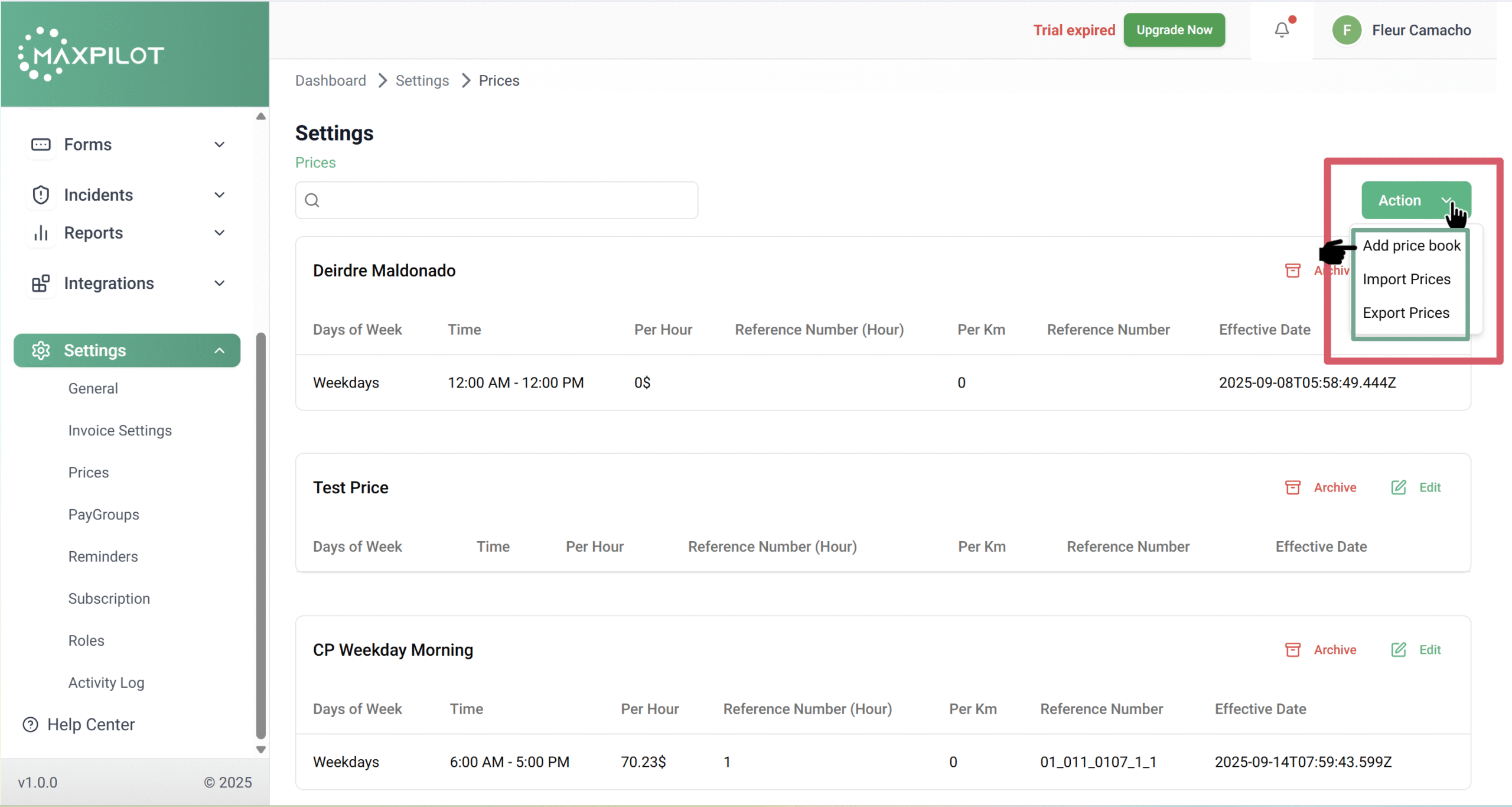
In the top-right corner, click the Action button.
A dropdown will appear with three options:
Select Add Price Book to create a new one.
Step 3: Fill Out Price Book Details
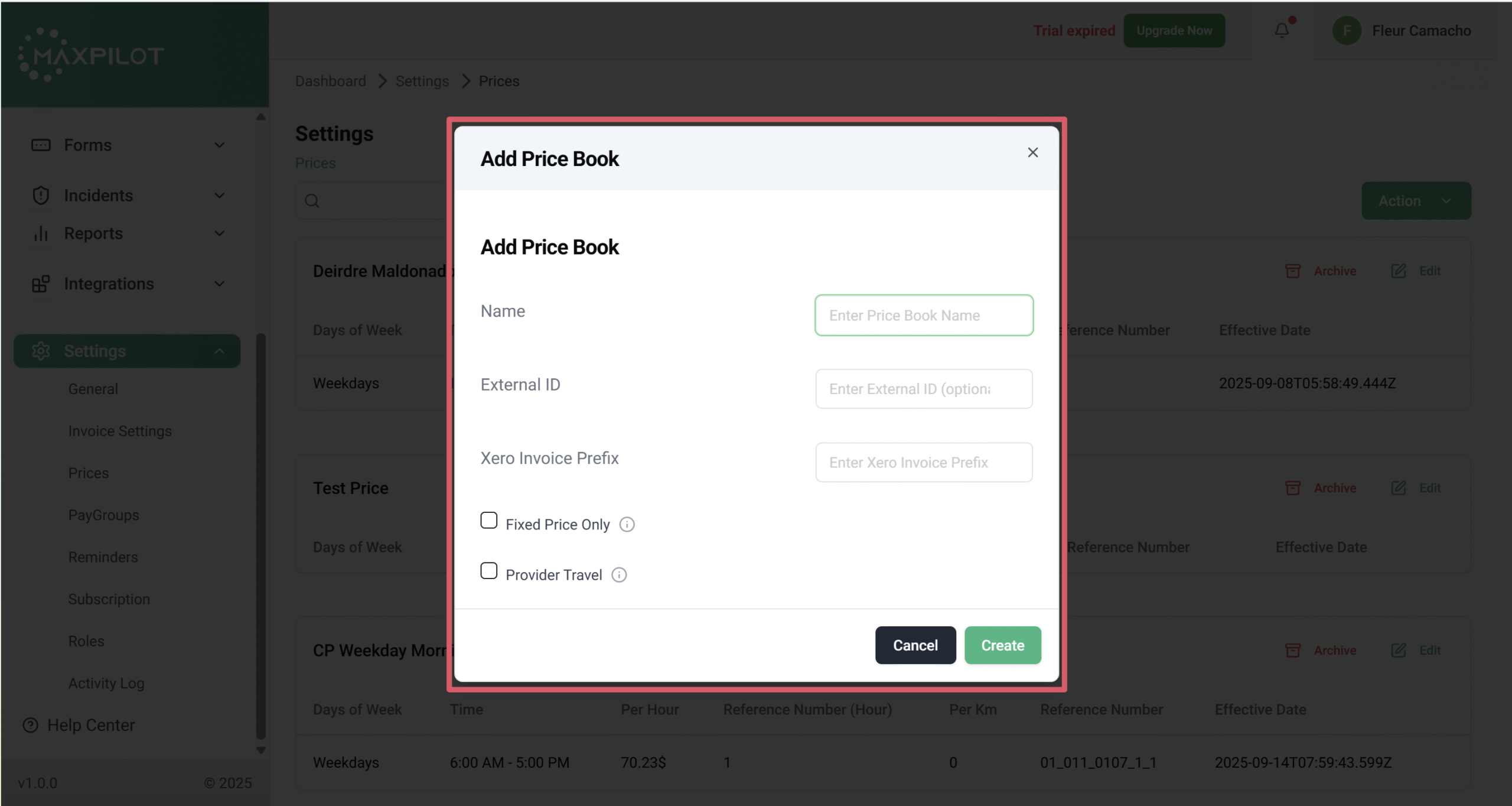
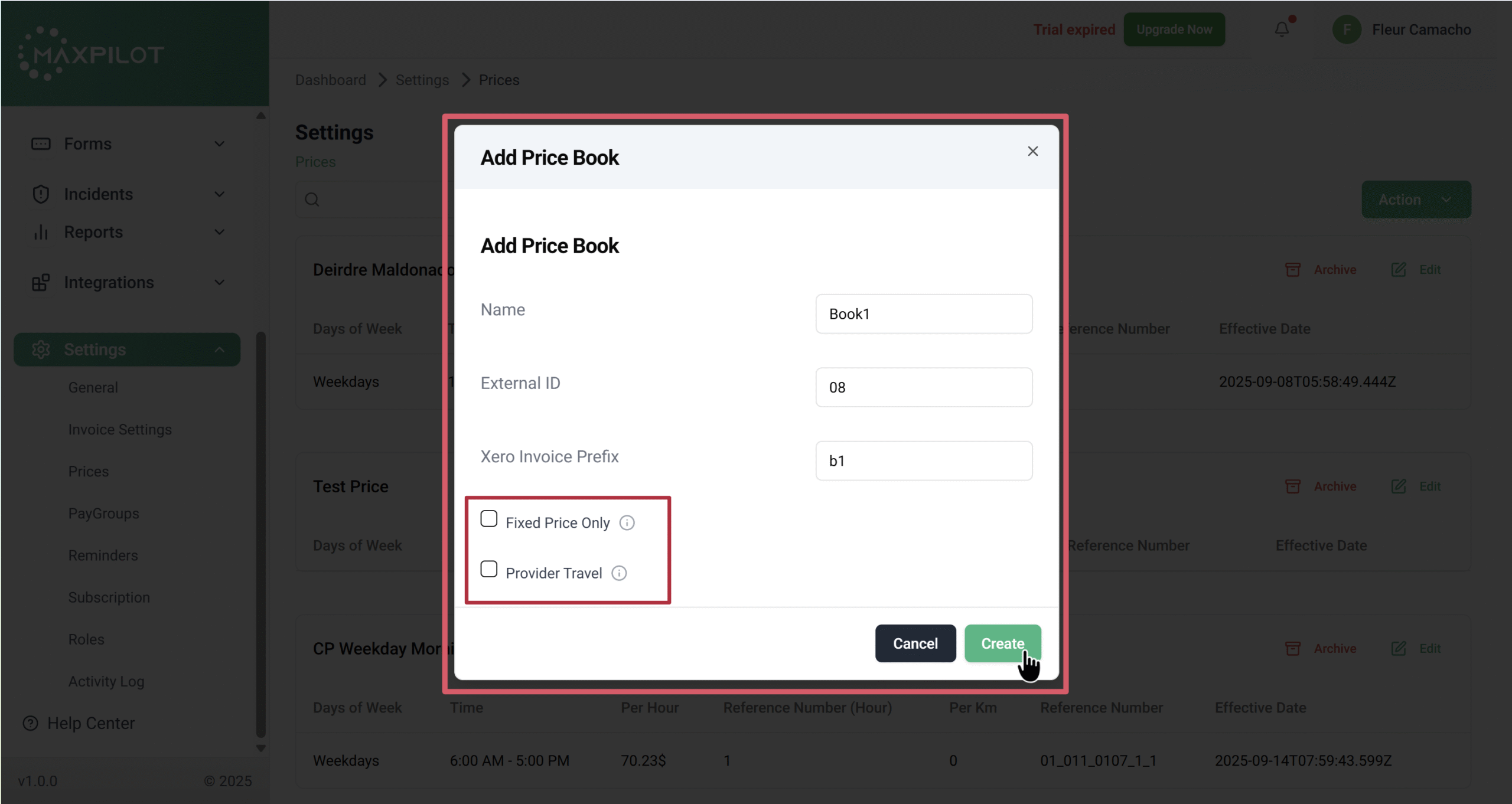
A form titled Add Price Book will appear.
After entering the details, click Create.
Your new price book will be added to the list.
Step 4: Edit the Price Book
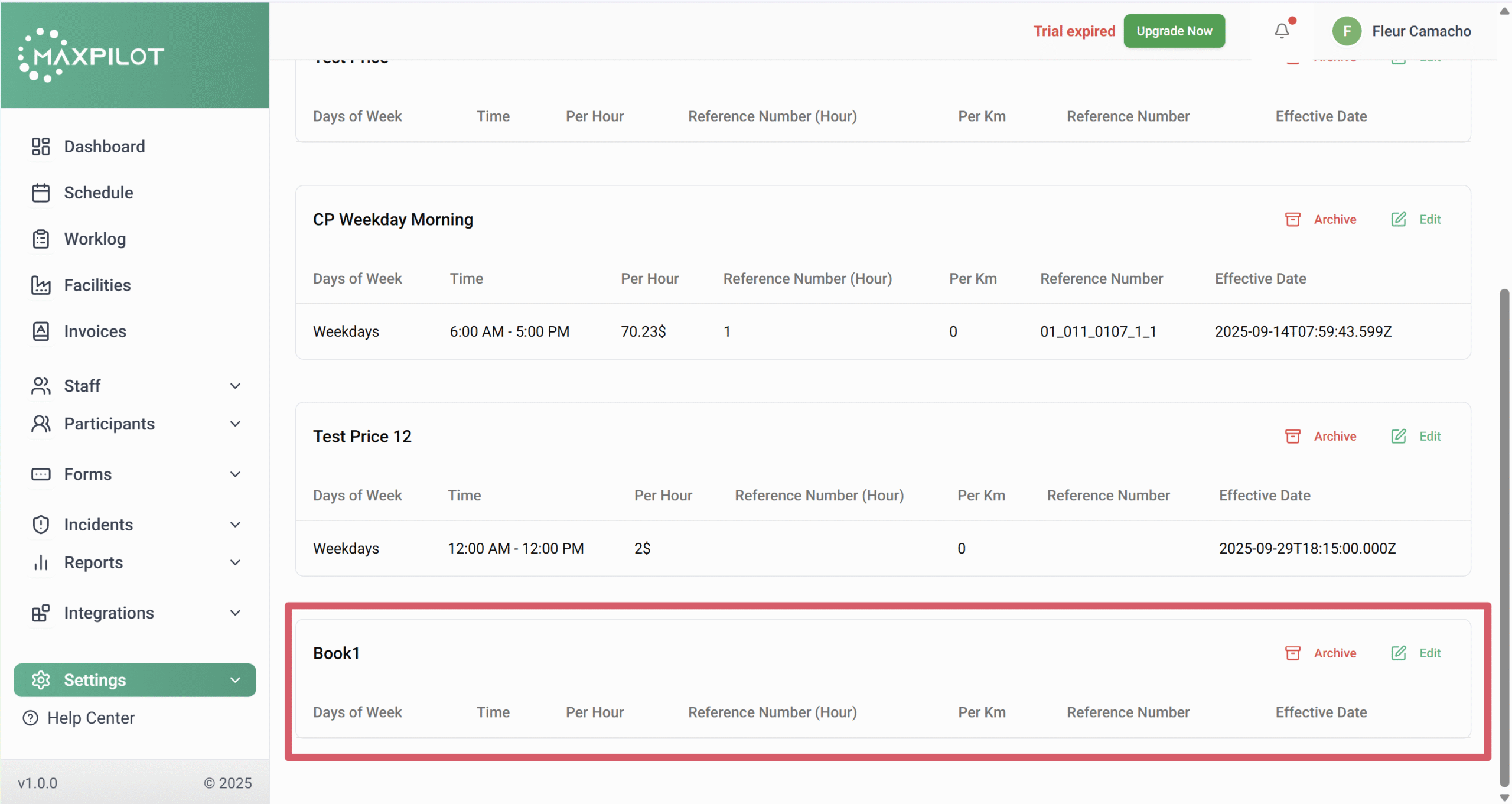
Once the price book is created, it will appear on the Prices page.
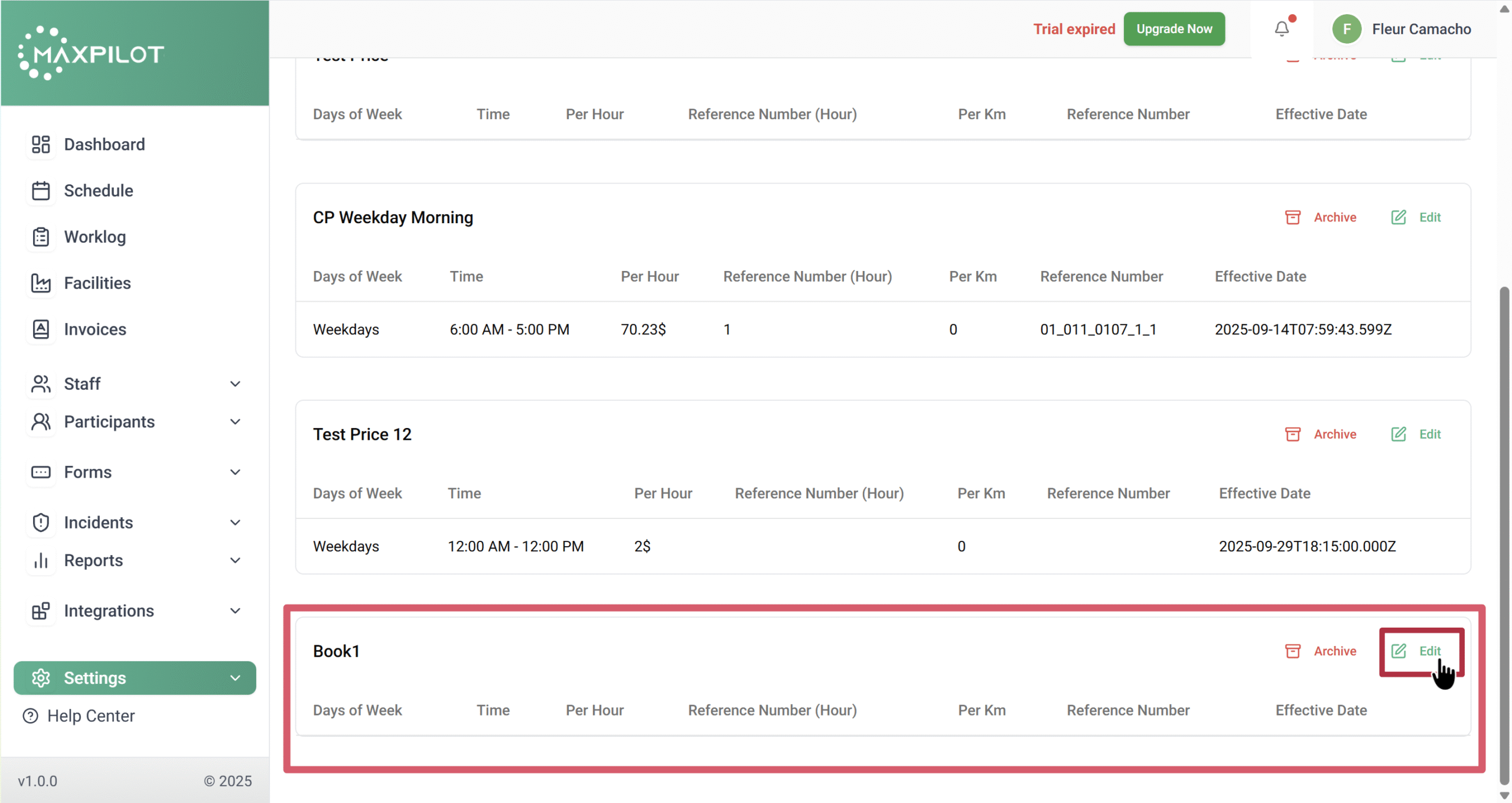
You can click the Edit button next to your new price book (e.g., Book1).
This allows you to add specific rate entries.
Step 5: Add Entries
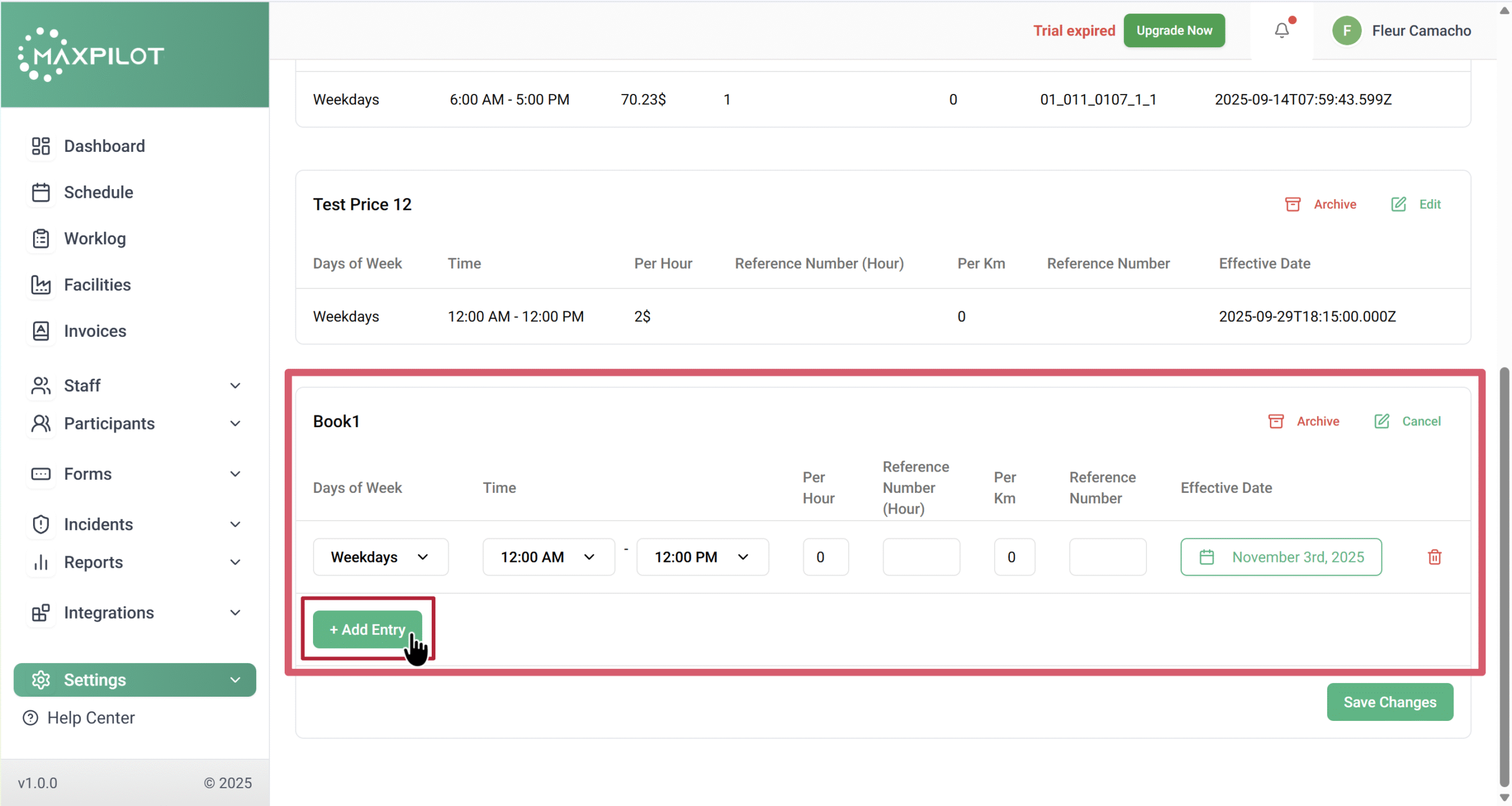
Inside the price book, click + Add Entry to add pricing details.
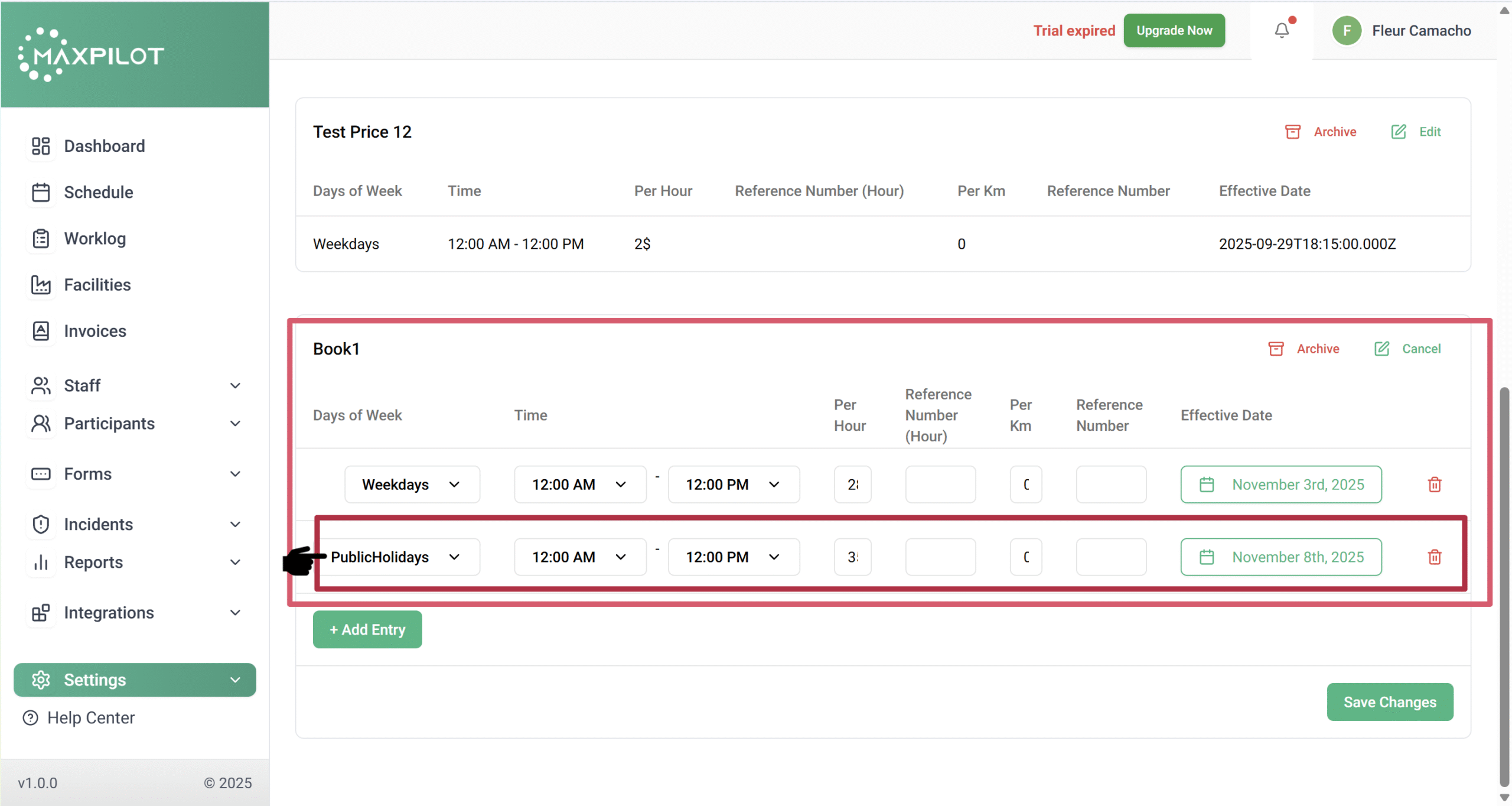
In the entry fields:
Click + Add Entry again to create multiple entries.
For example, you can set one rate for weekdays and another for public holidays.
Step 6: Save the Price Book
After adding all required entries, click Save Changes at the bottom.
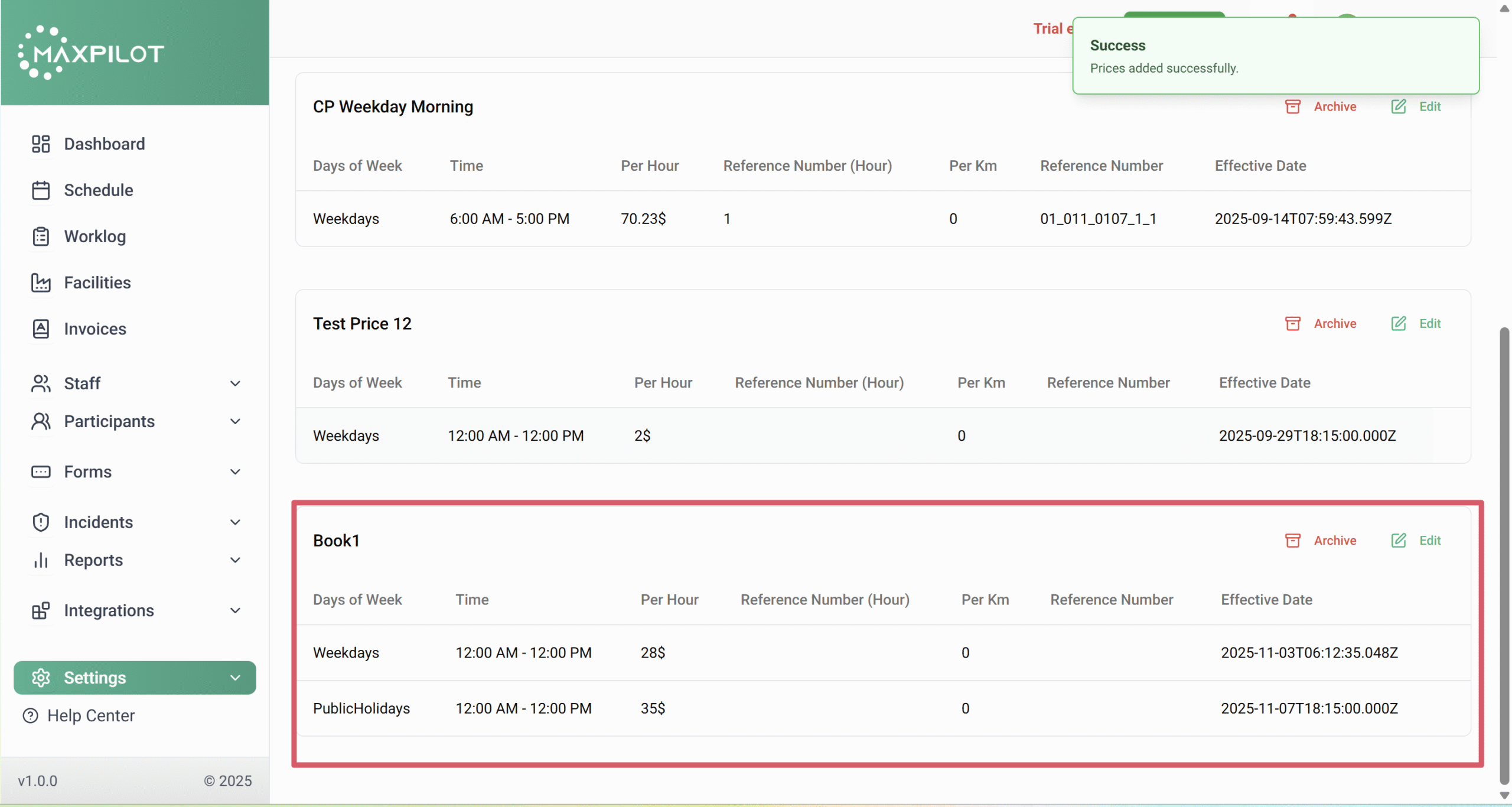
A confirmation message — “Prices added successfully” — will appear.
Your new price book will now display all added rates and details in the list.
Tip:
You can always: