Adding a new staff member in MaxPilot is your first step to properly managing your team. From setting up personal and work details to assigning roles and permissions, the process ensures each staff profile is clearly tracked and ready for scheduling, communication and reporting. Follow the steps below to get your team onboarded quickly and accurately.
Step 1: Navigate to the Dashboard
Log in to your MaxPilot account.
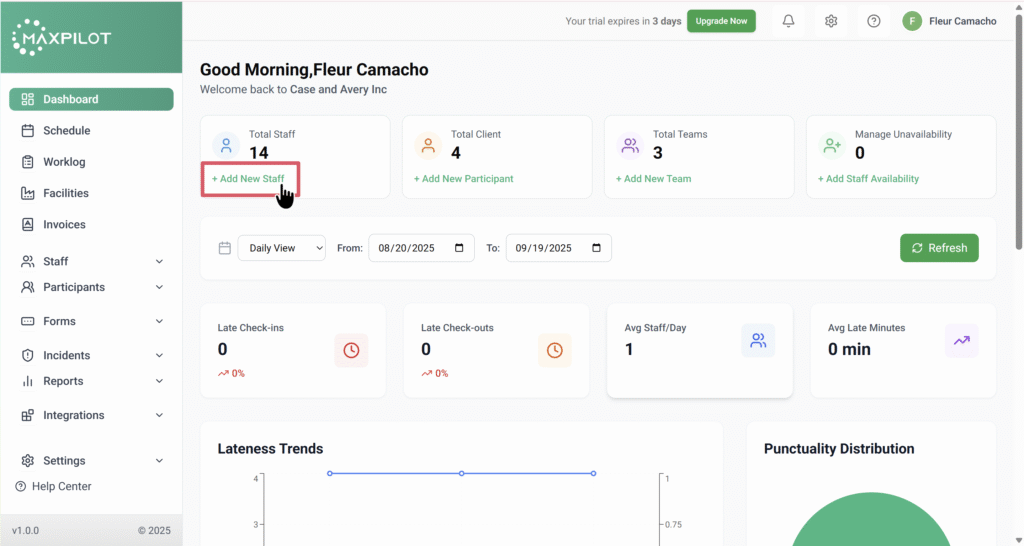
From the Dashboard, look for the “Total Staff” section.
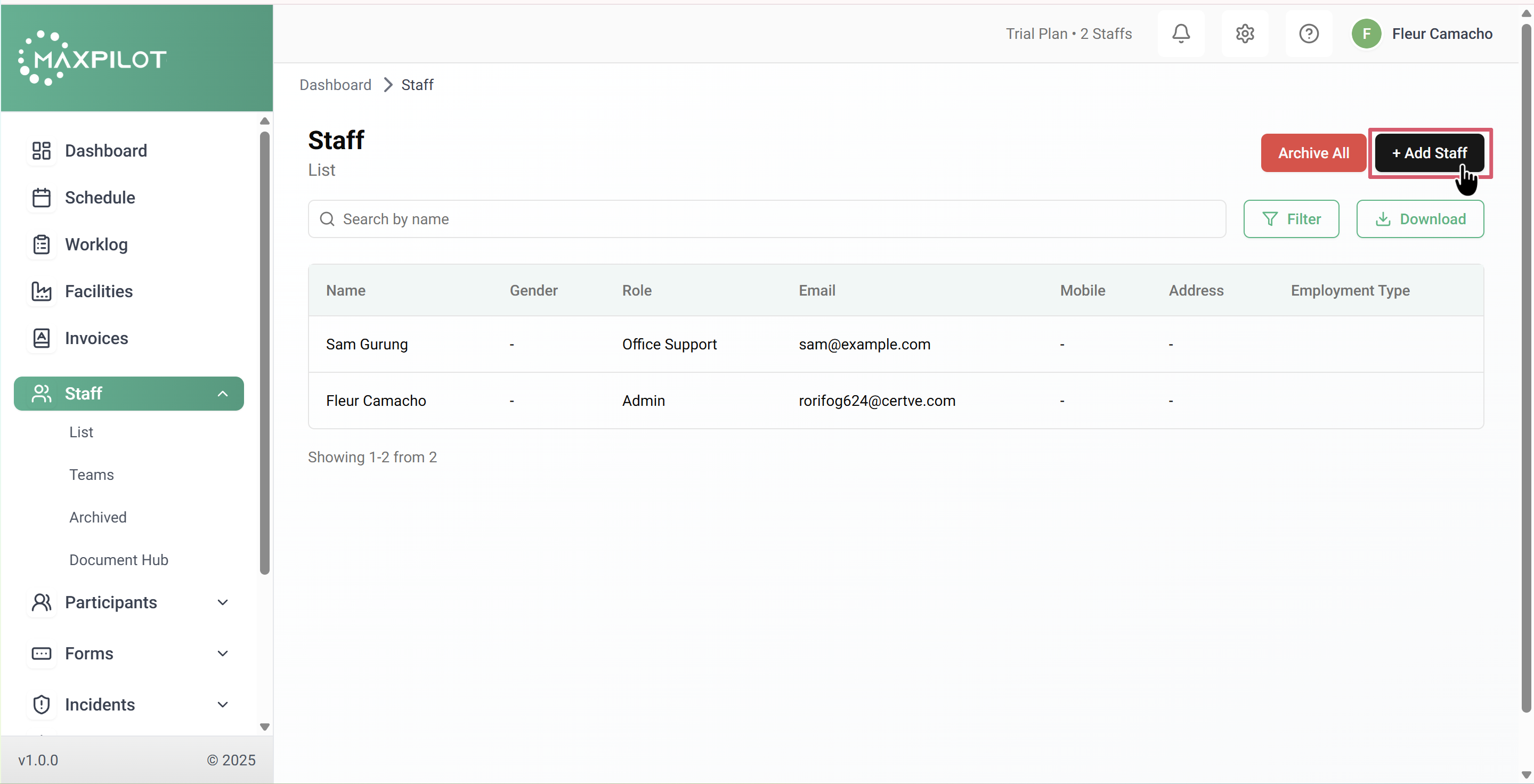
Click on “+ Add New Staff” (green link) OR go to Staff → List in the sidebar and press the “+ Add Staff” button on the top right.
Step 2: Enter Personal Details
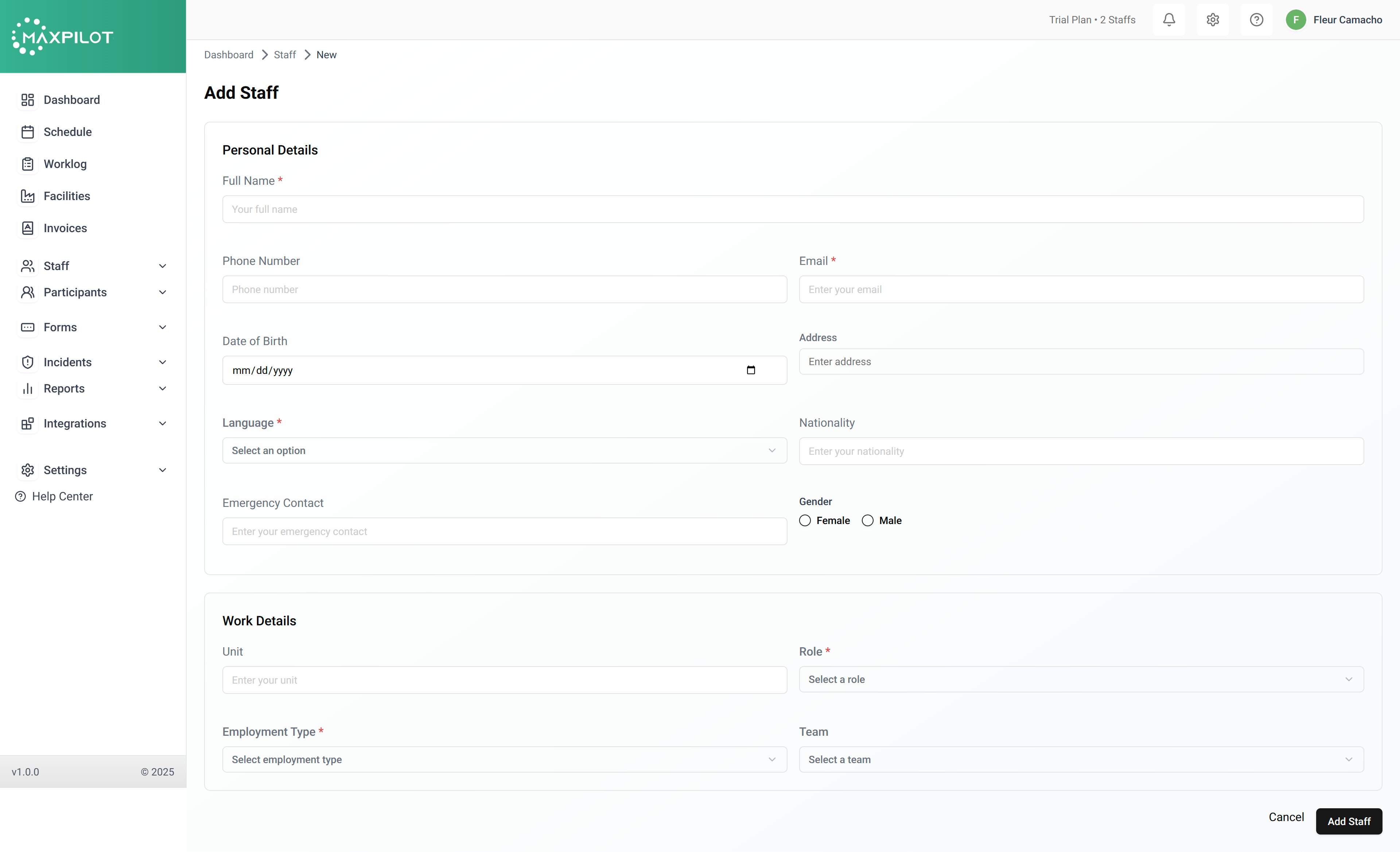
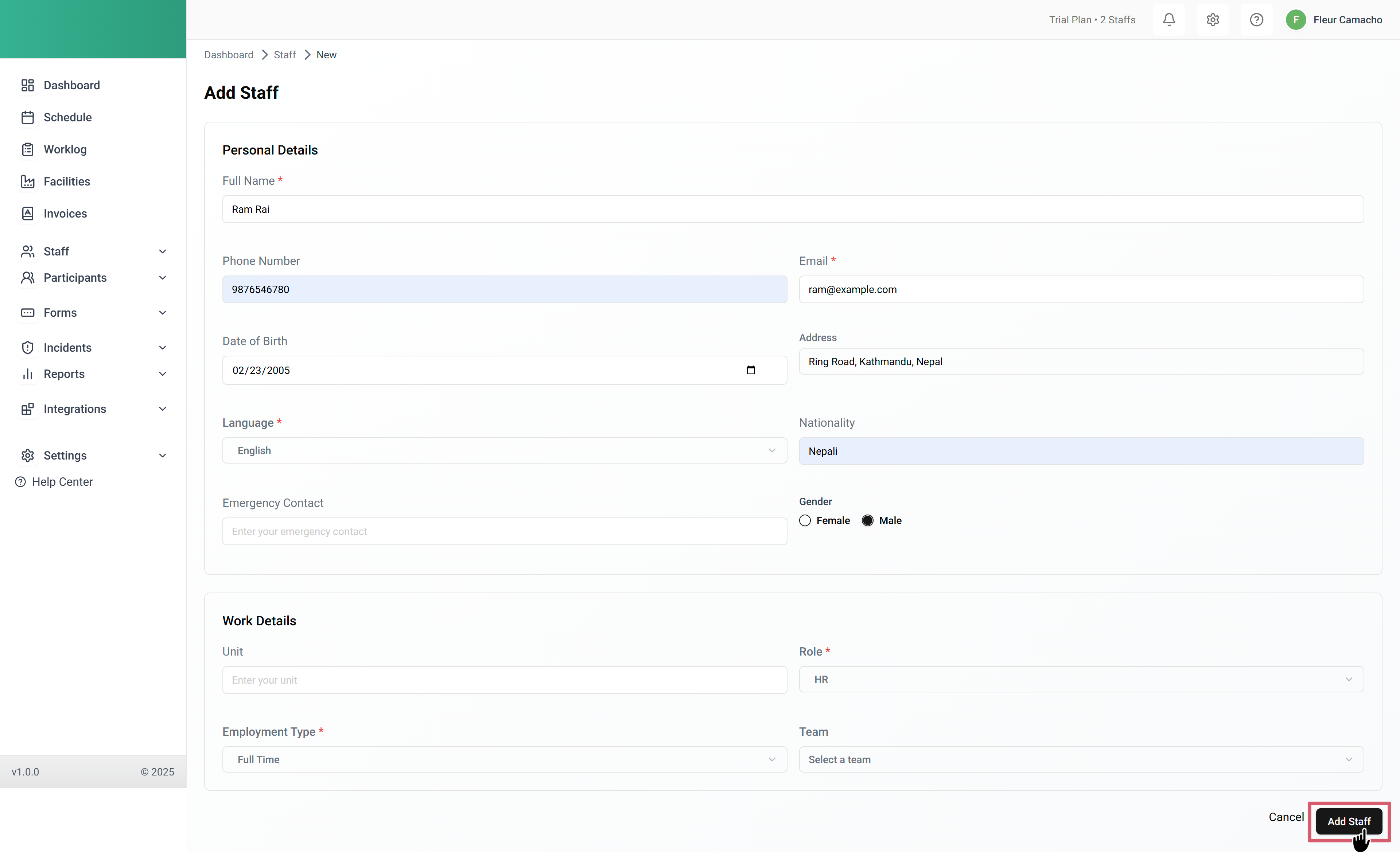
You will see the PersonalDetails form. Fill in the required fields:
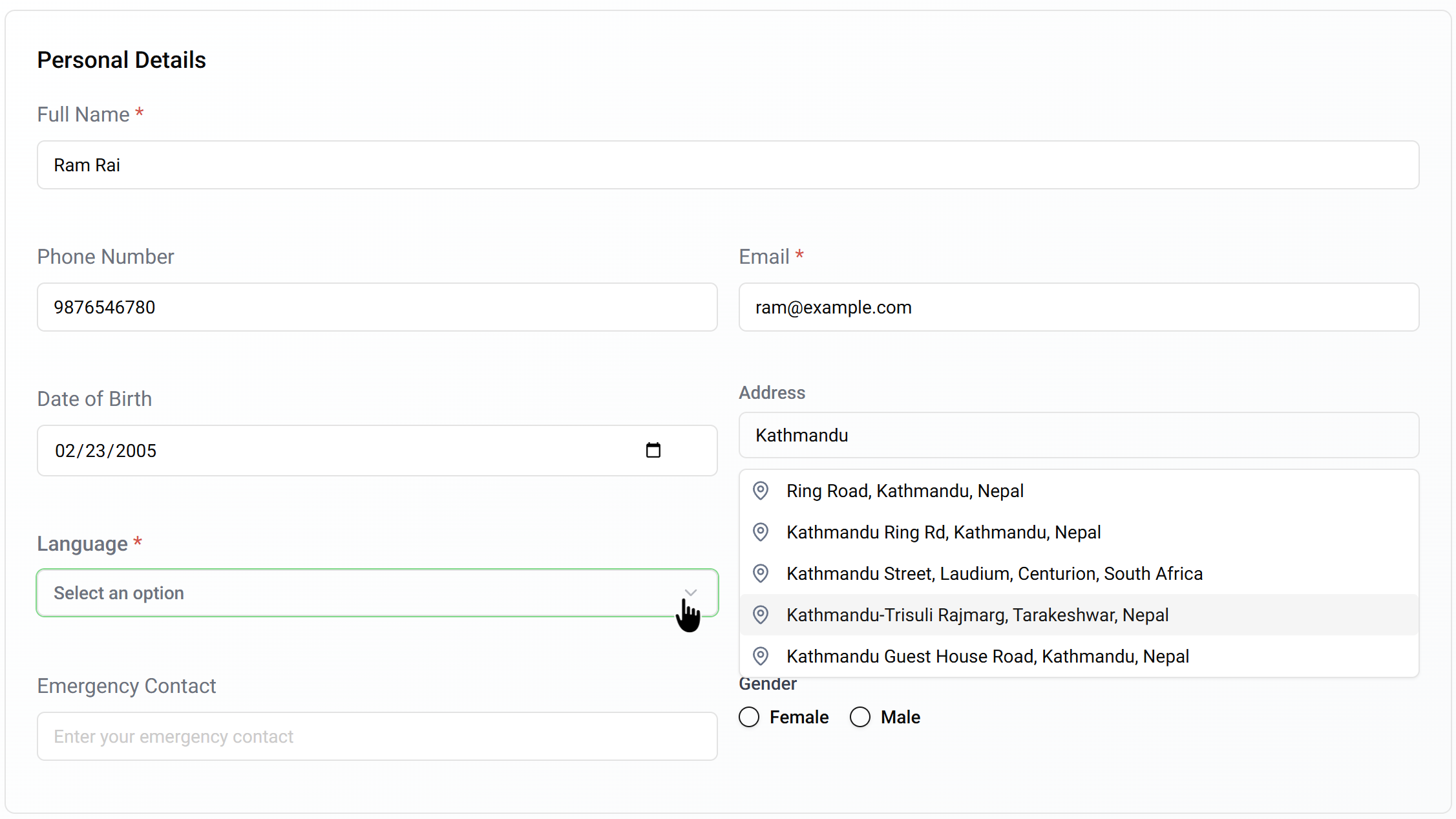
Full Name → Enter the staff’s complete name as it appears officially (e.g., Riya Soni).
Phone Number → Type a valid mobile or landline number for contacting the staff.
Email → Provide the staff’s working or personal email (this is required for login and notifications).
Date of Birth → Select the correct birthdate using the calendar picker.
Address → Enter the staff’s current residential address; the system will suggest matches as you type.
Language → Choose the staff’s preferred language from the dropdown (e.g., English, Hindi, Nepali, French).
Emergency Contact → Add the number of a family member or trusted person to reach in case of emergencies.
Gender → Select the staff’s gender (Male or Female).
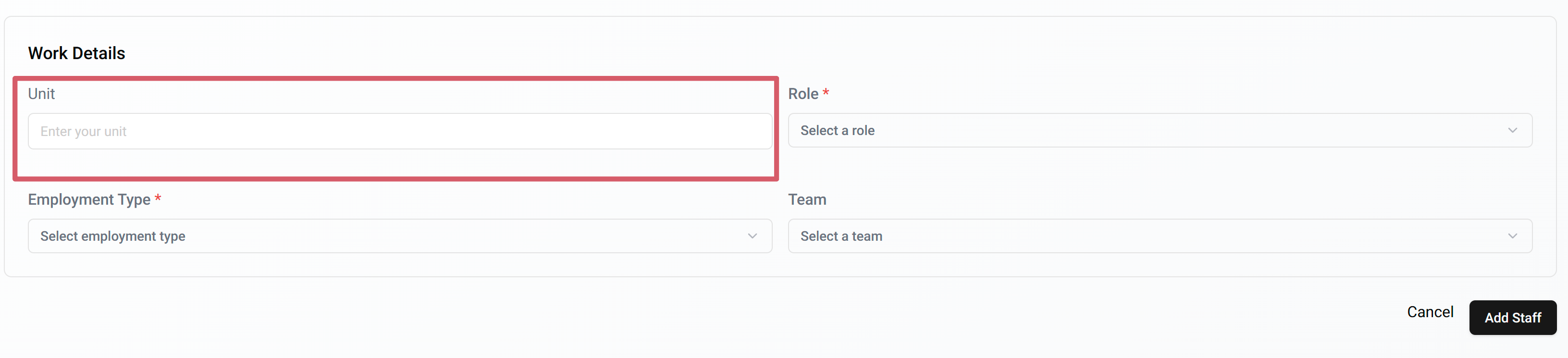
Enter the department or business unit the staff belongs to (e.g., Care Unit, Admin Unit).
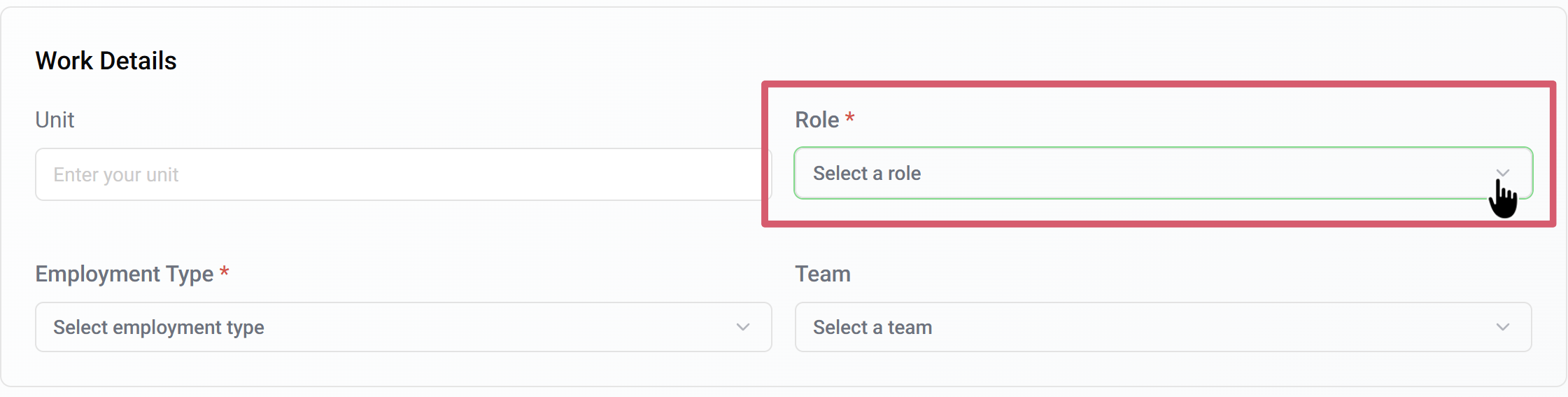
Role → Choose one of the predefined staff roles:
Carer → Staff who directly provide personal care and support to clients/participants.
Admin → Staff who manage office and system operations, including scheduling and data.
Coordinator → Staff who plan and coordinate services, ensuring clients and carers are properly matched.
HR → Staff responsible for recruitment, staff records, and human resource management.
Office Support → Staff who handle office tasks like reception, paperwork, and basic administration.
Ops (Operations) → Staff in charge of day-to-day service operations and smooth running of activities.
Kiosk → Staff who manage or work at service kiosks, helping participants with check-ins or queries.
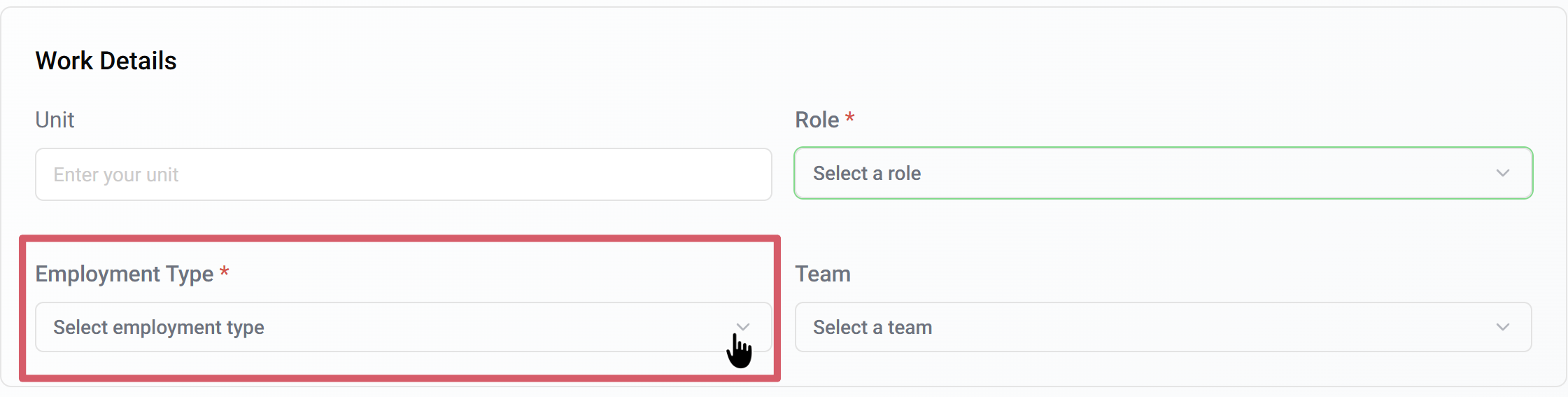
Employment Type → Select whether the staff is Full-Time, Part-Time, or Contract.
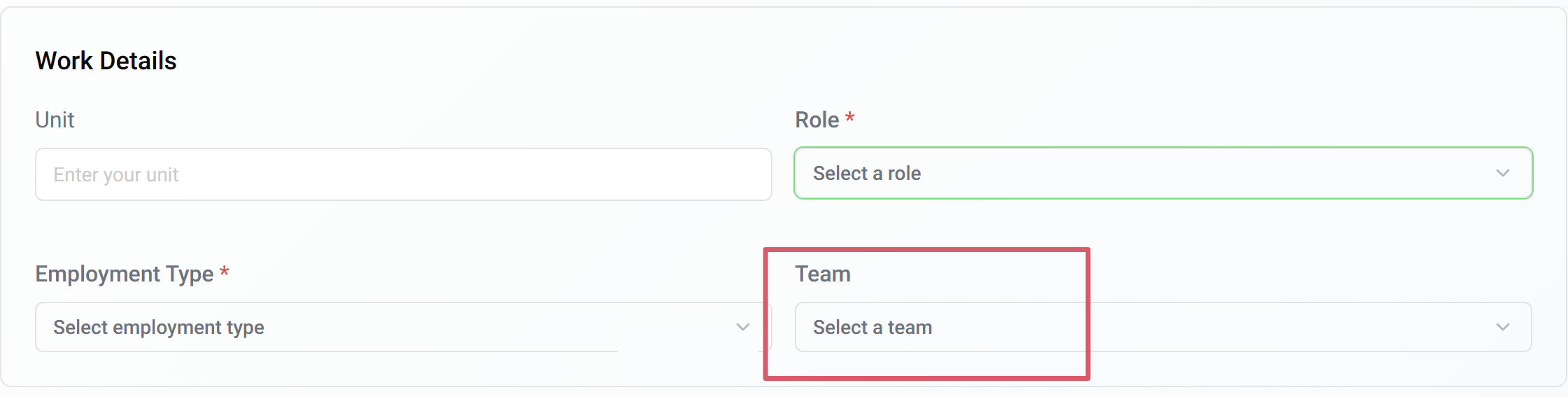
Team → If teams are already created, select the team to which the staff should be assigned (e.g., Team 7).
Once you have filled in both the personal and work details, the final step is to save the Staff. Scroll down and click the Save / Create Staff button. The system will confirm that the staff member has been successfully added.
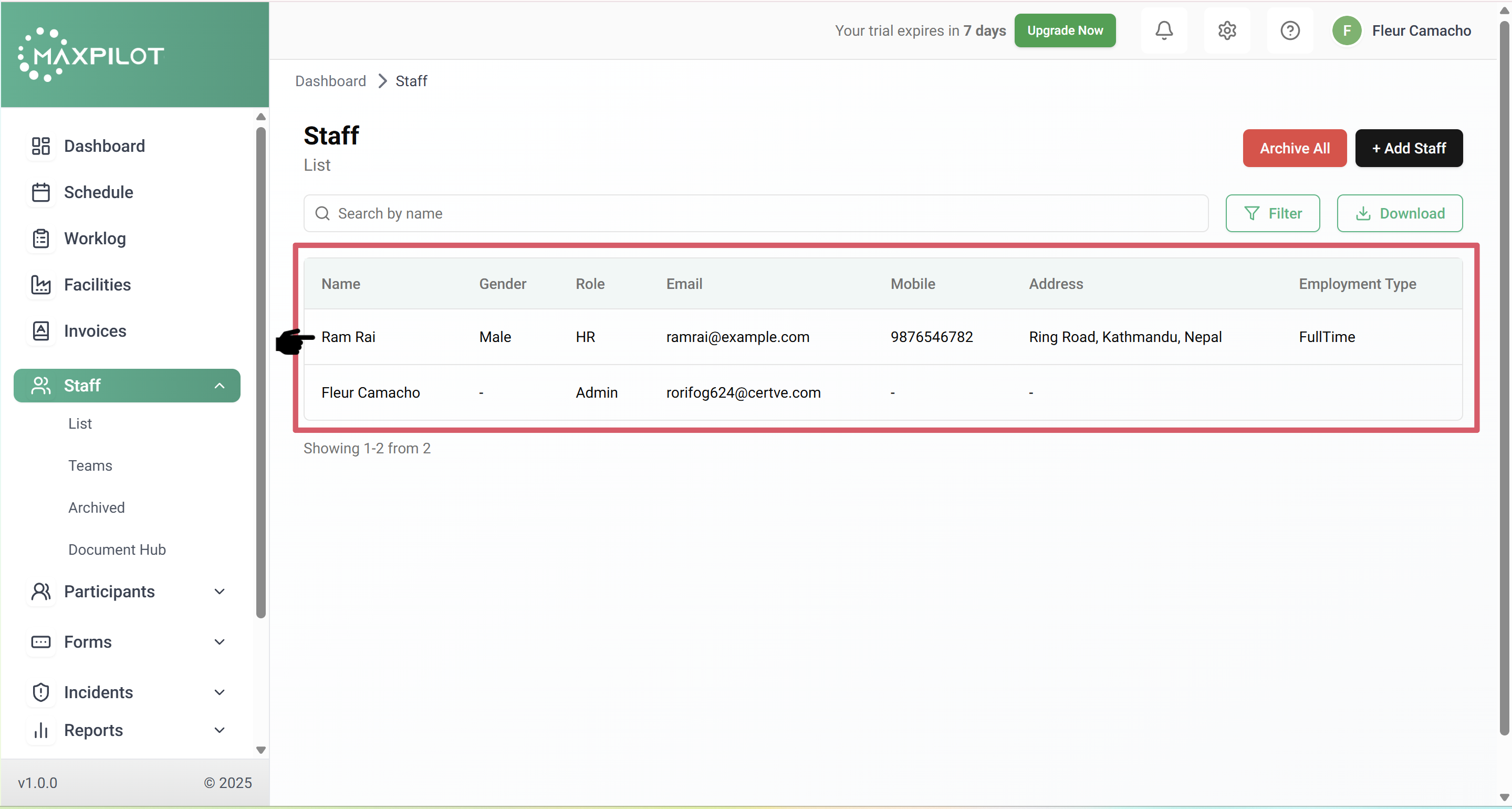
You will then be redirected back to the staff list page, where the new staff member’s name, role, email, and employment type will appear. You can search for them using the search bar or filter options.
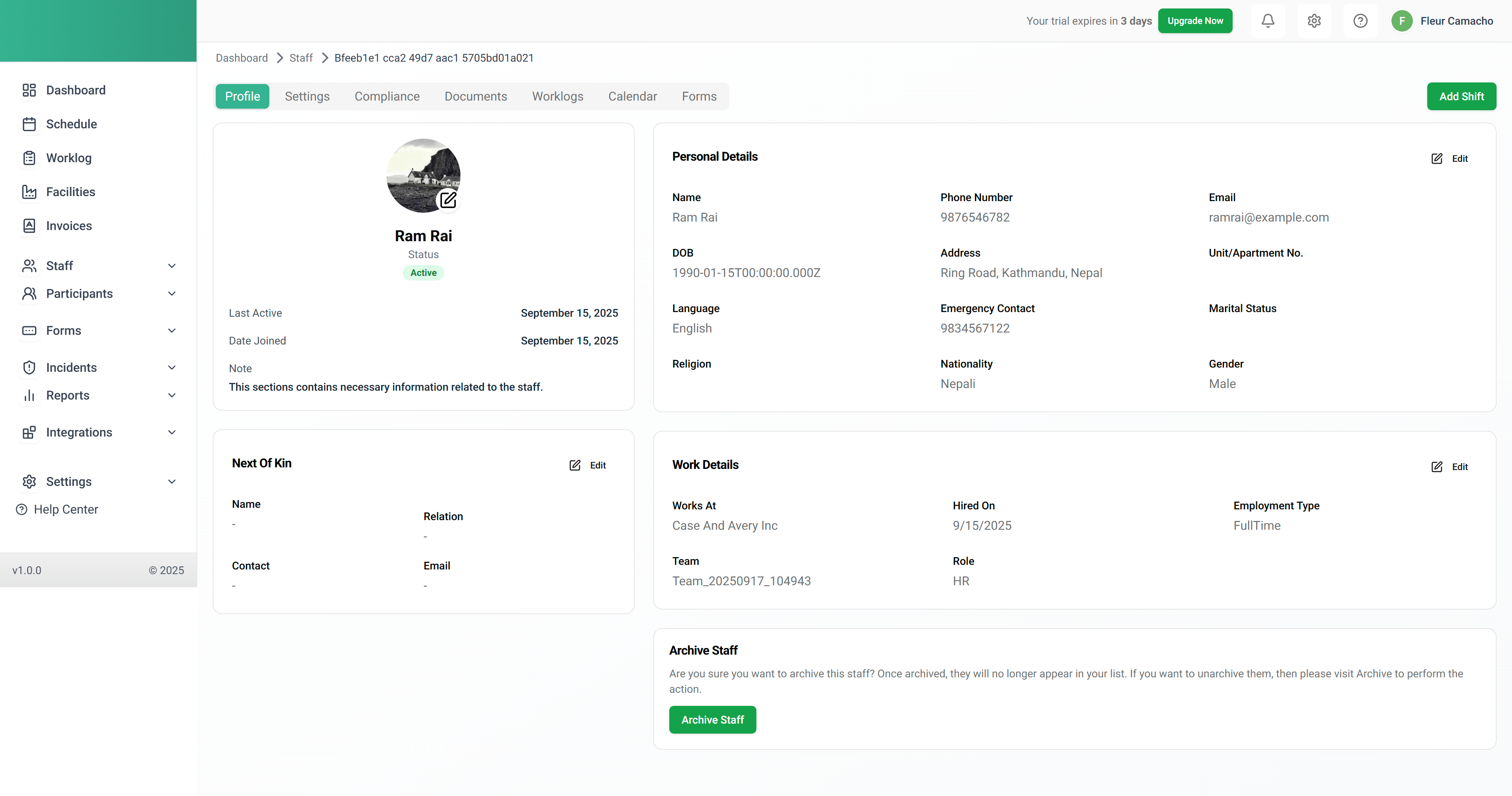
From here, you can also assign them to teams, update their details later by clicking their name, or manage their availability in the system.

 By Bhumika Karki