How to Add a Facility?
 By Bhumika Karki
Adding a facility in MaxPilot sets the stage for scheduling and operations at a location. From setting the type, property details, to its capacity for staff and clients. This process ensures the right place is ready for your services. Follow the steps below to get your facility added correctly.
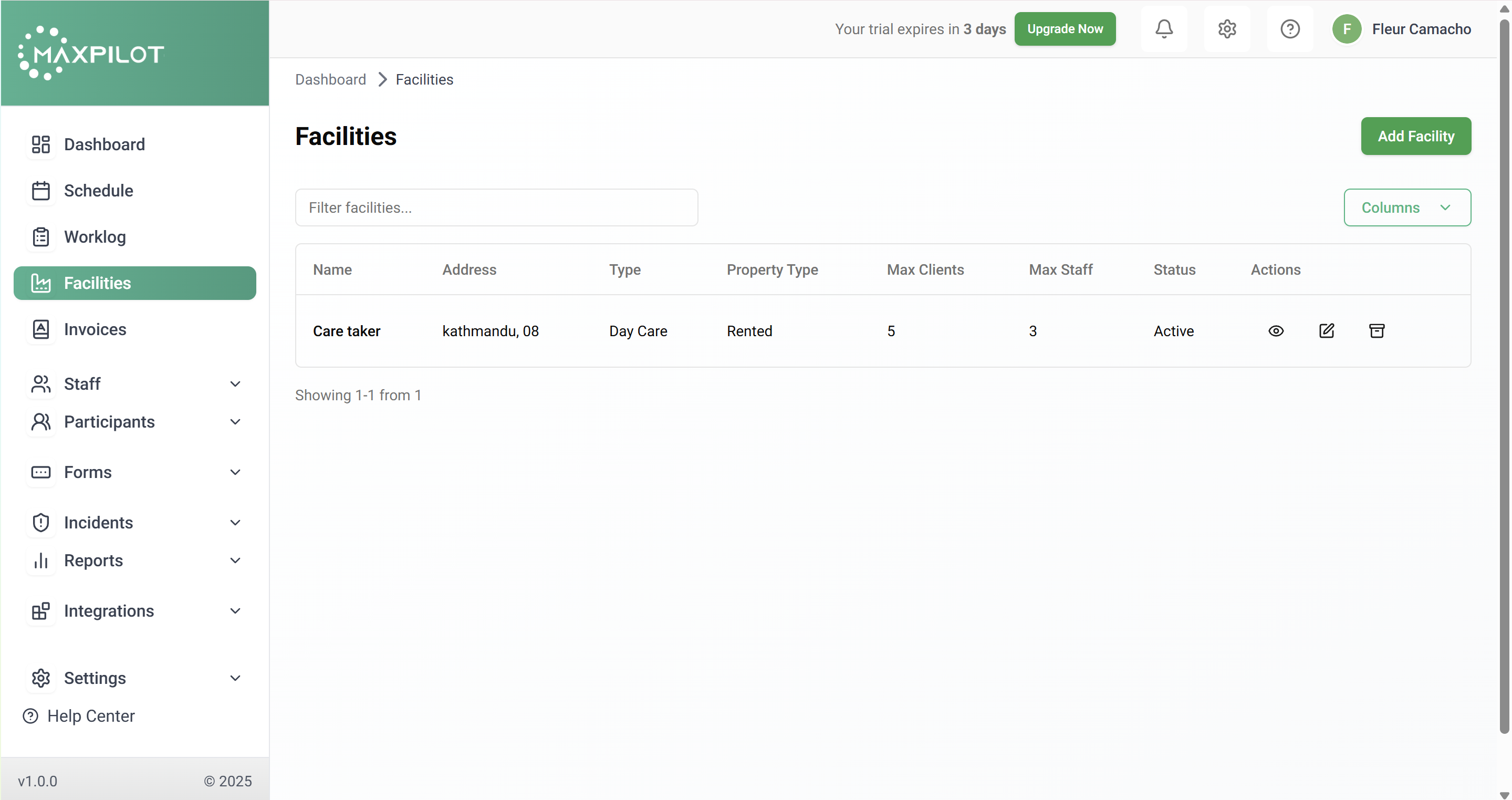
Step 1: Open Facilities
Step 2: Click Add Facility
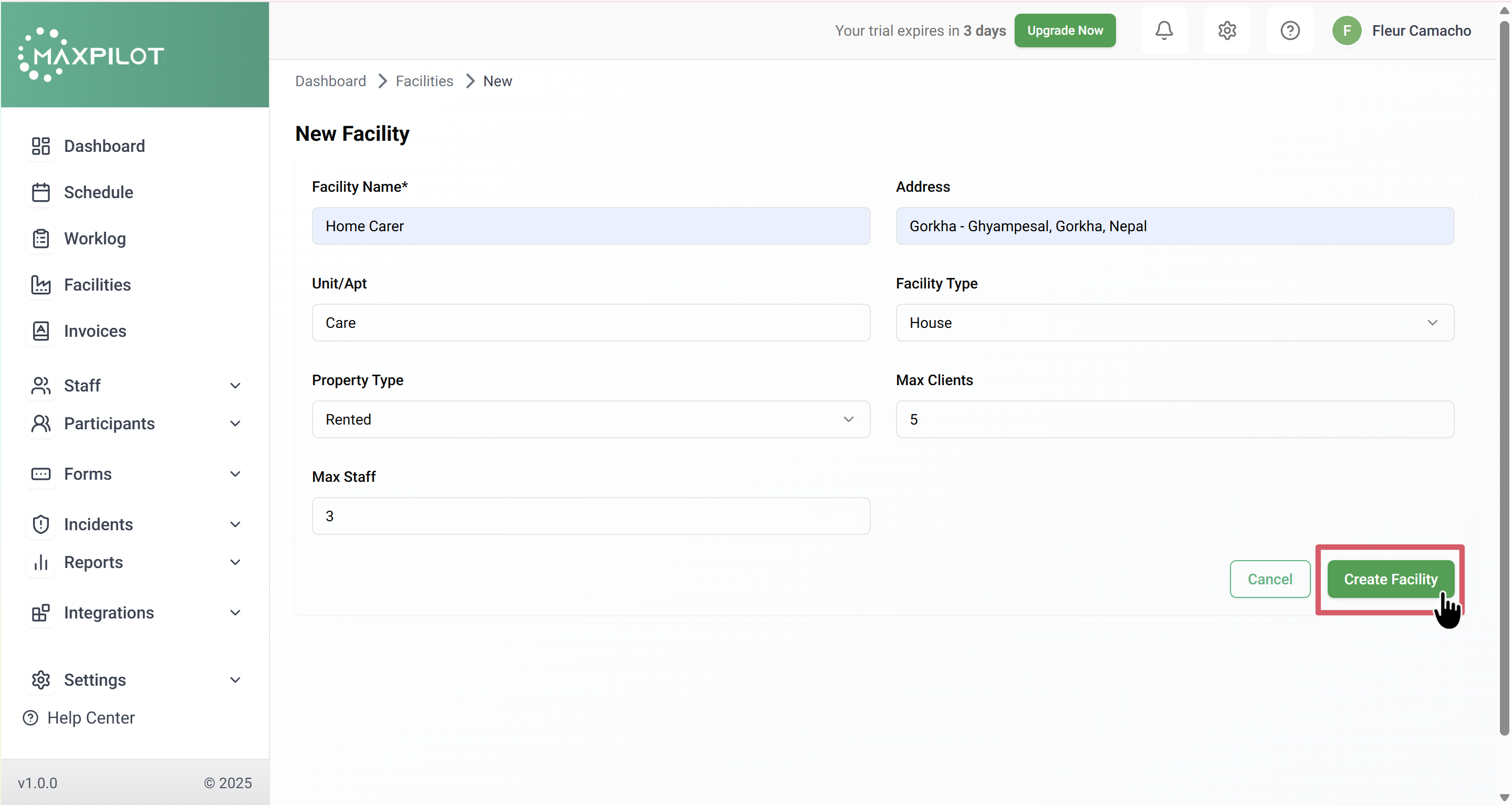
To add a new facility, go to the Facilities page and click the Add Facility button located at the top-right corner of the screen. Once clicked, a new facility form will appear, allowing you to enter the required details for the facility.

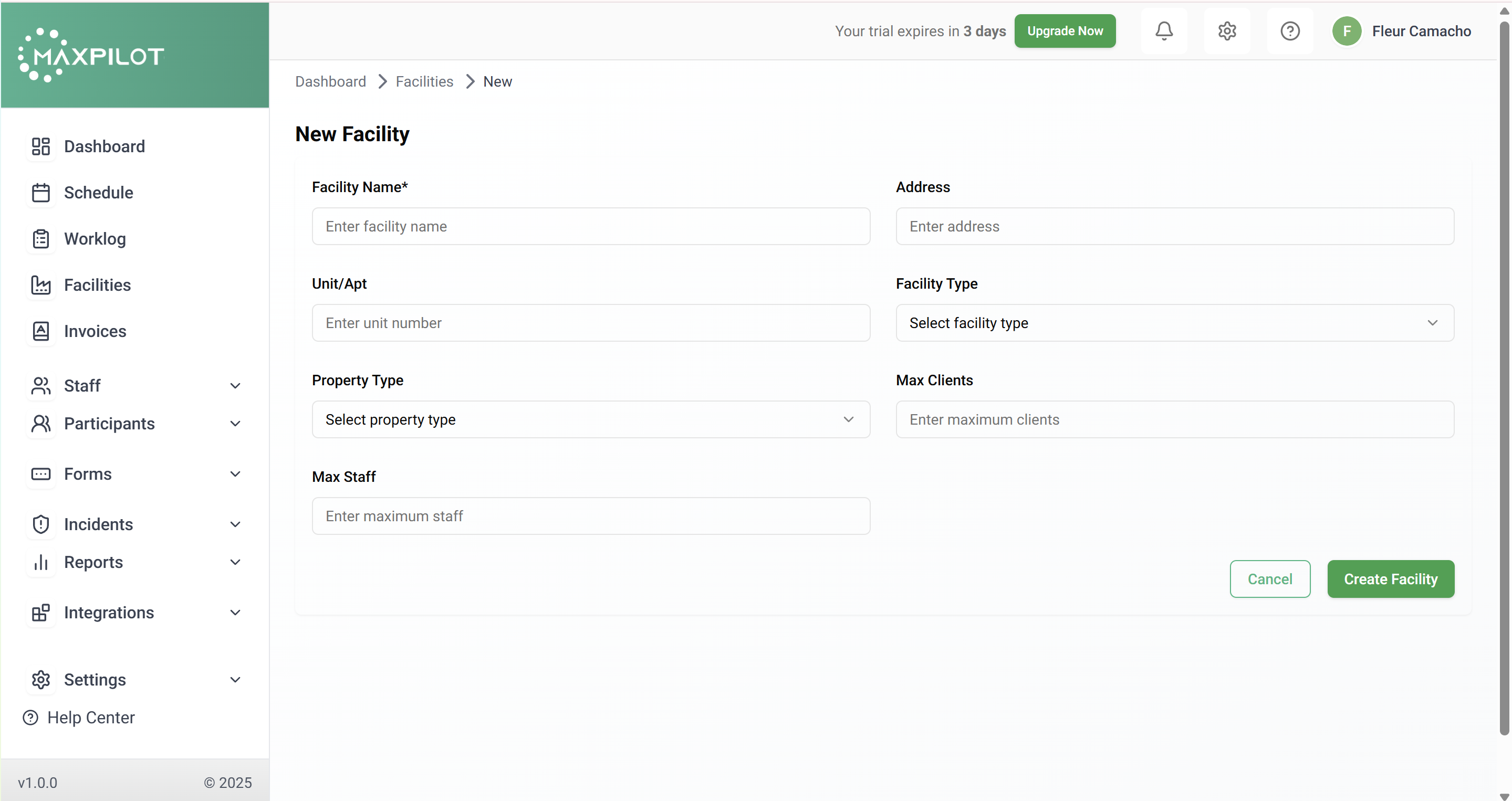
Step 3: Fill the New Facility Form
To create a new facility, begin by entering the Facility Name in the provided field (for example, Care Taker). Then, type the Address of the facility (e.g., Kathmandu, Nepal). If there is a Unit/Apt number, add it as well. This field is optional, so you can leave it blank if it does not apply.
Next, select the Facility Type. A facility type describes what kind of place the facility is, helping the system organize and group facilities by their purpose. From the dropdown, you can choose one of the following:
After that, choose the Property Type, which indicates whether the facility building is owned or rented. The options are:
Finally, enter the Max Staff, which defines the maximum number of staff members who can be assigned to this facility, and the Max Clients, which indicates the maximum number of clients the facility can accommodate
Step 4: Save the Facility
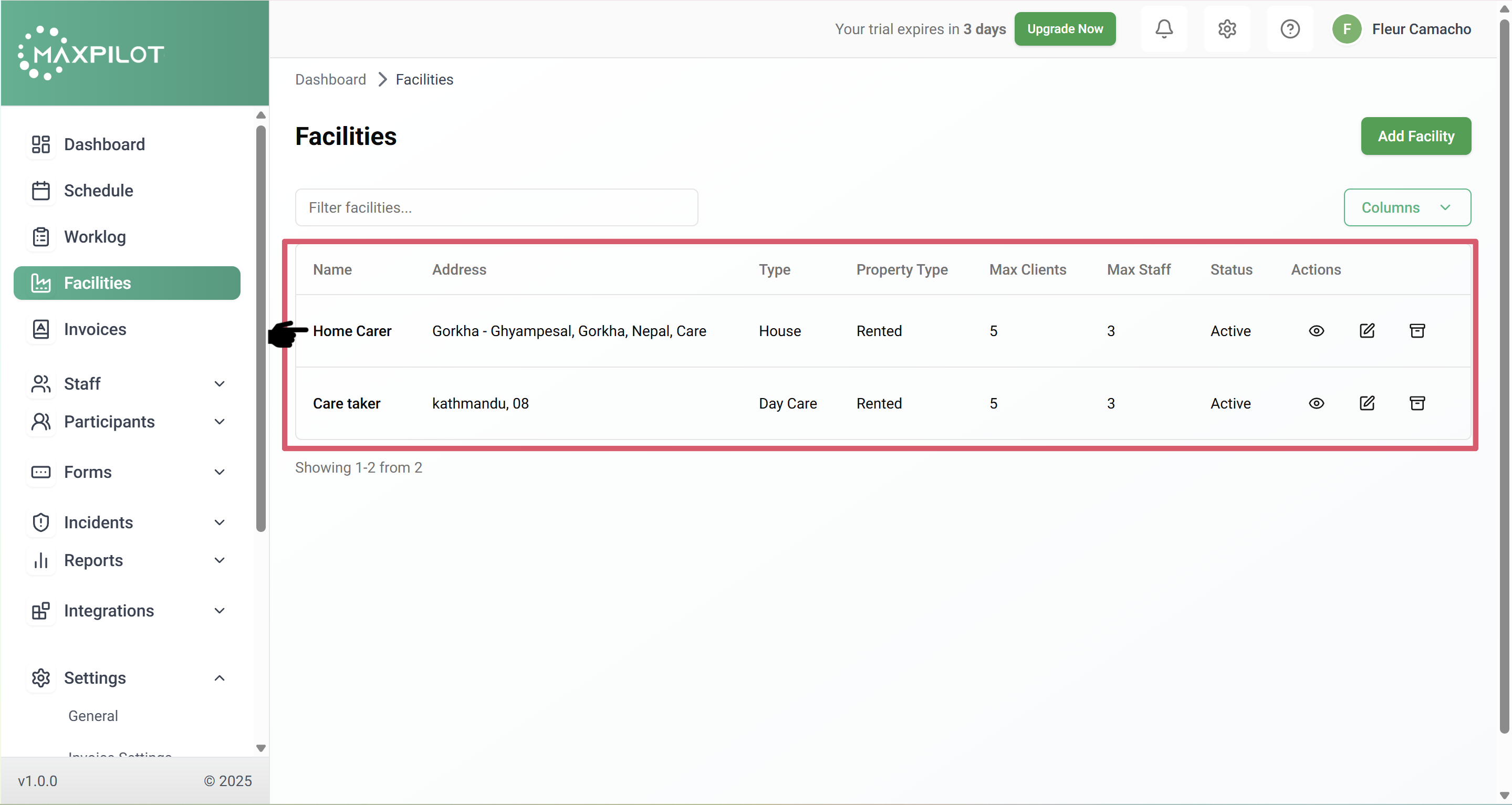
Once all the required fields in the form have been completed, click the Create Facility button to save your entry. The new facility will then appear in the list on the Facilities page, showing its details such as name, address, type, property type, and capacity for staff and clients. This confirms that the facility has been successfully created and is now ready to be managed within the system.