
Managing staff records effectively is essential for maintaining an organized workflow. In MaxPilot, the Archive feature allows you to remove inactive or departed staff members from your active list without permanently deleting their data. Archiving keeps your staff list clean and focused while still giving you the option to restore (unarchive) their profiles later if needed.
Why Use Archiving?
Archiving helps you:
Let’s look at how you can archive and unarchive staff in MaxPilot.
Archiving a Staff Member
1. Go to Staff List
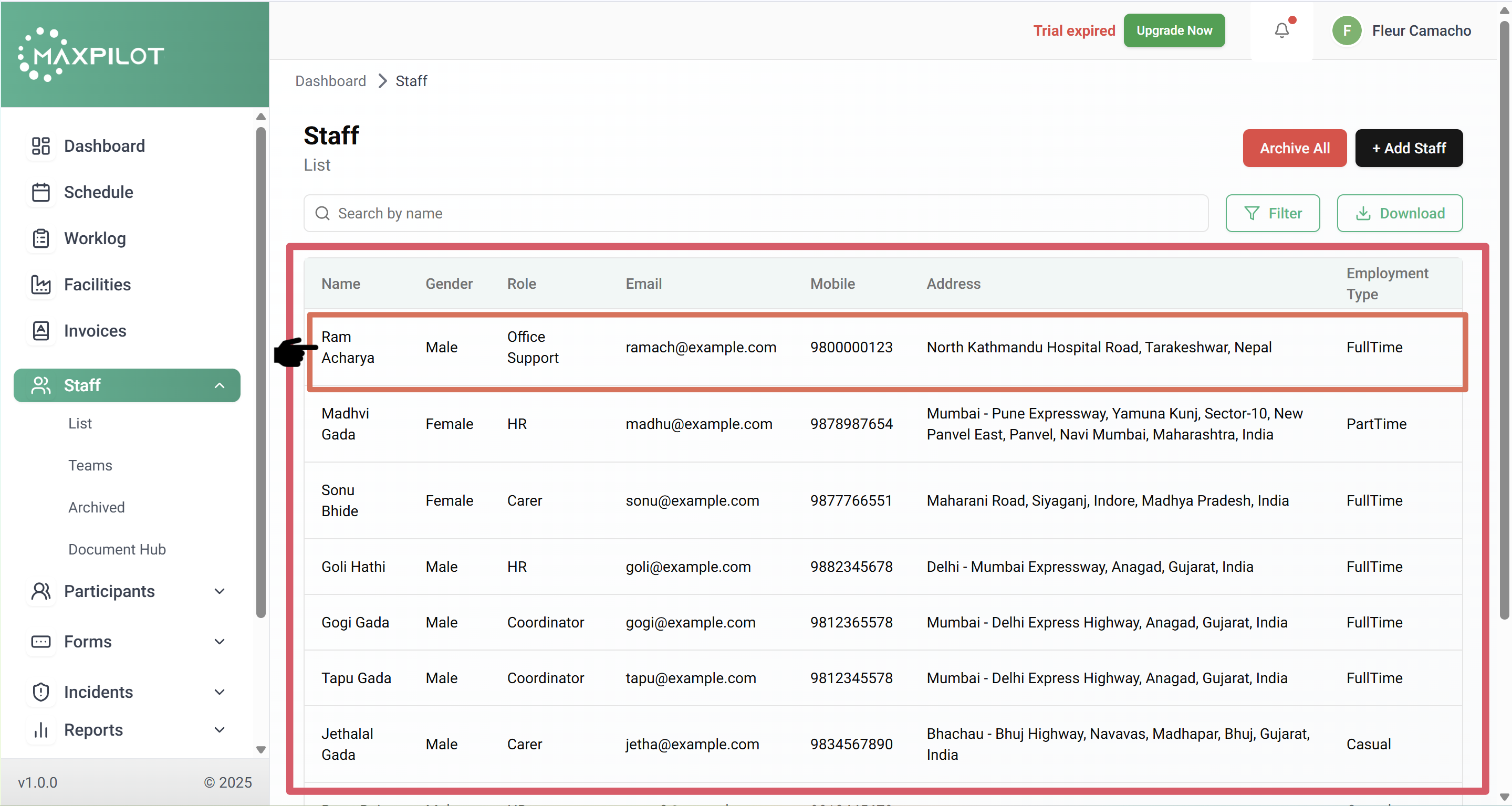
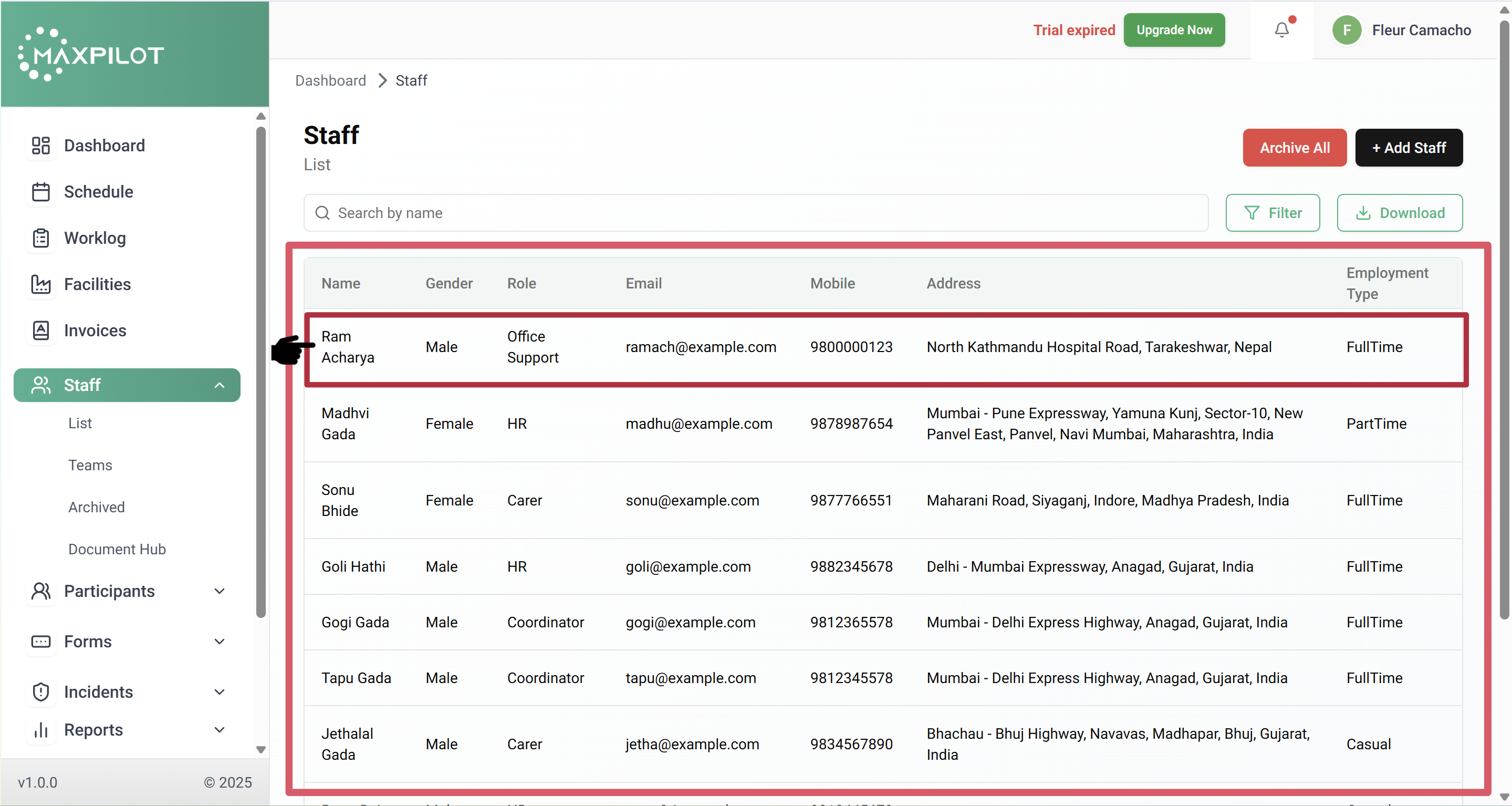
Navigate to the Staff → List section from the left-hand sidebar. You’ll see all the active staff members displayed in a table format.
2. Select the Staff Profile
Choose the staff member you want to archive. For example, click on Ram Acharya to open their profile.
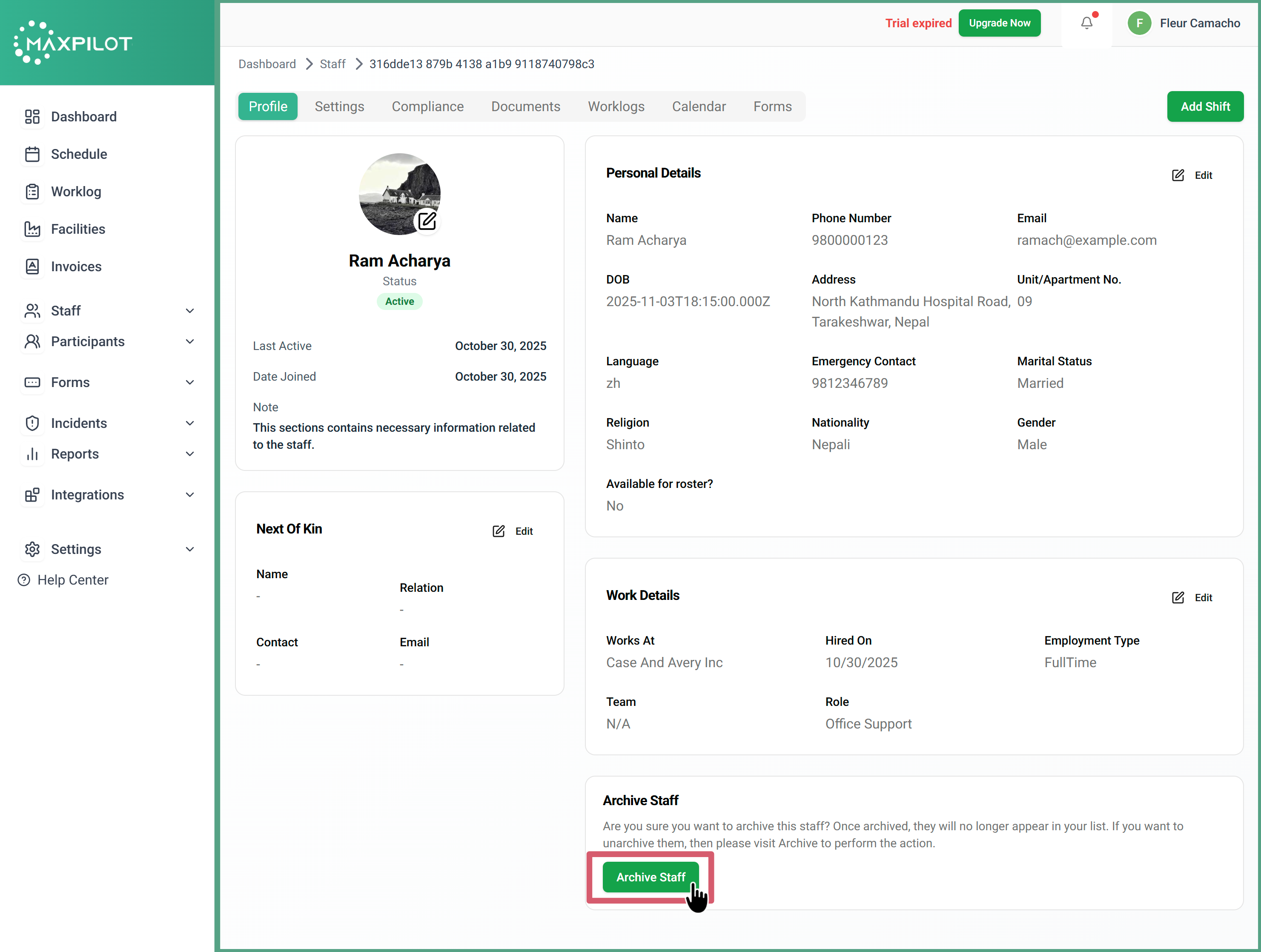
3. Archive Staff
Scroll to the bottom of the staff profile page and click the Archive Staff button. This will open a confirmation dialog.
4. Confirm Archiving
A pop-up will appear asking for confirmation. Click Archive to complete the process.
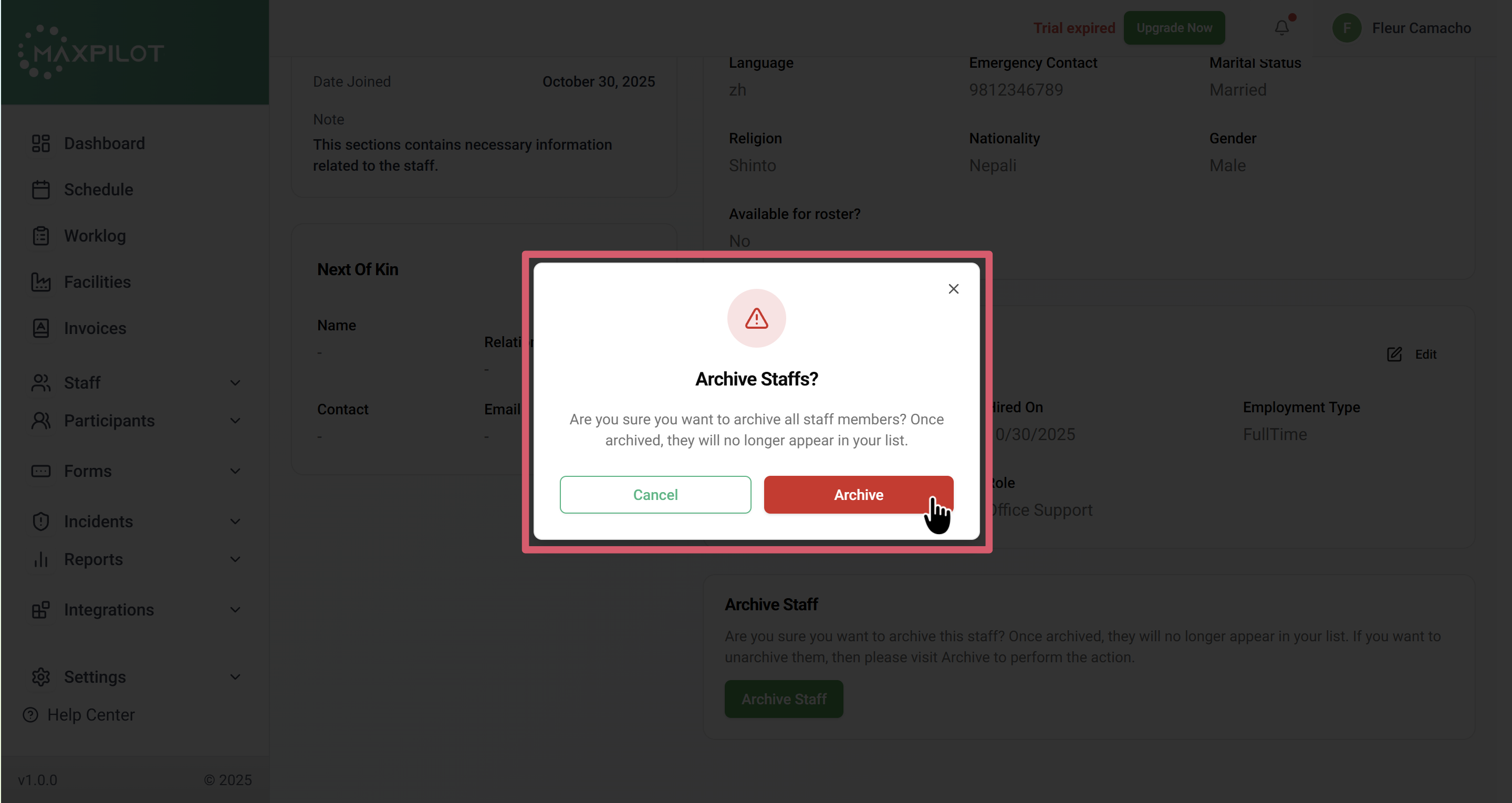
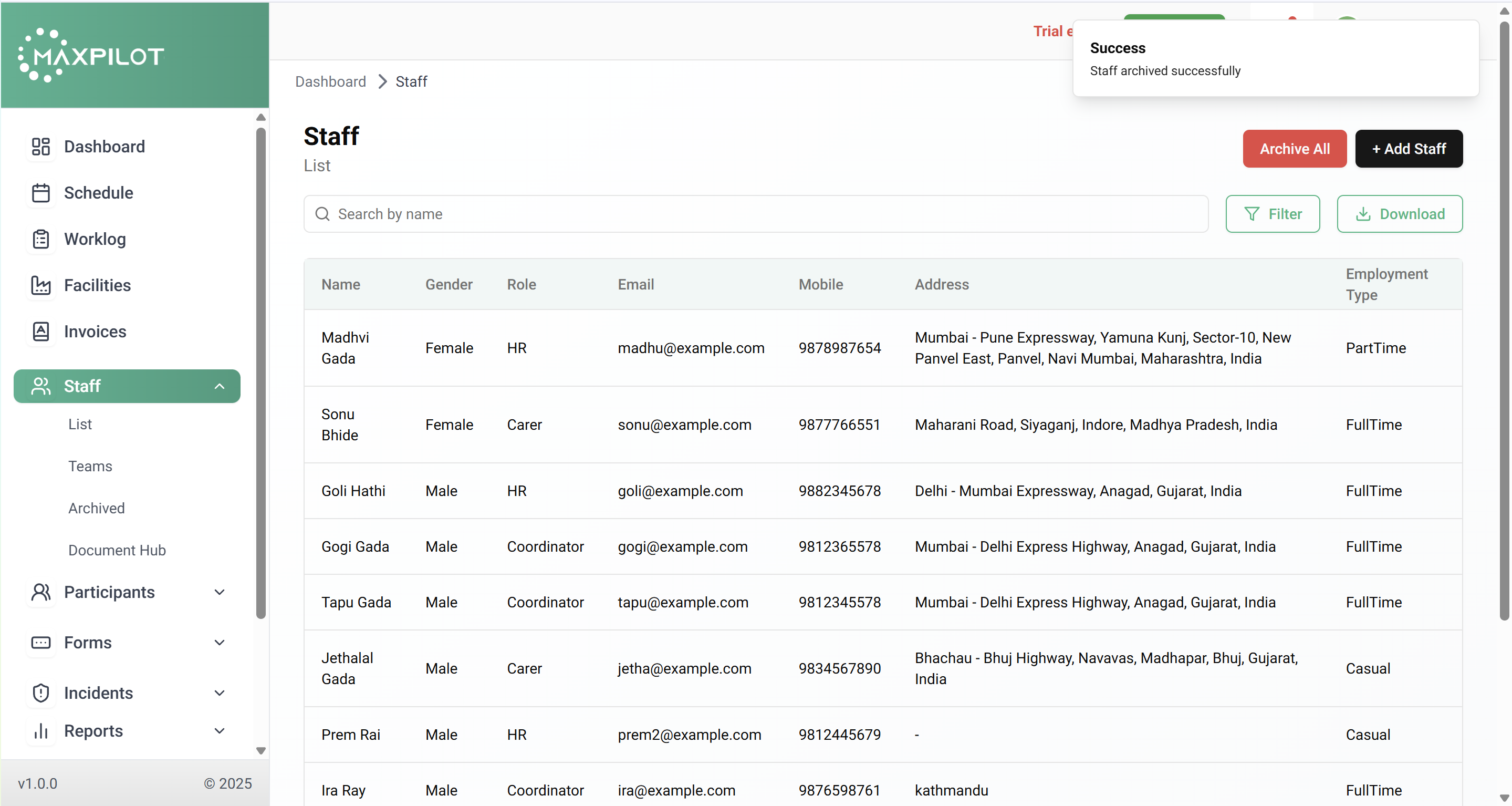
Once confirmed, the staff member will be moved to the Archived section and will no longer appear in your active list.
Unarchiving a Staff Member
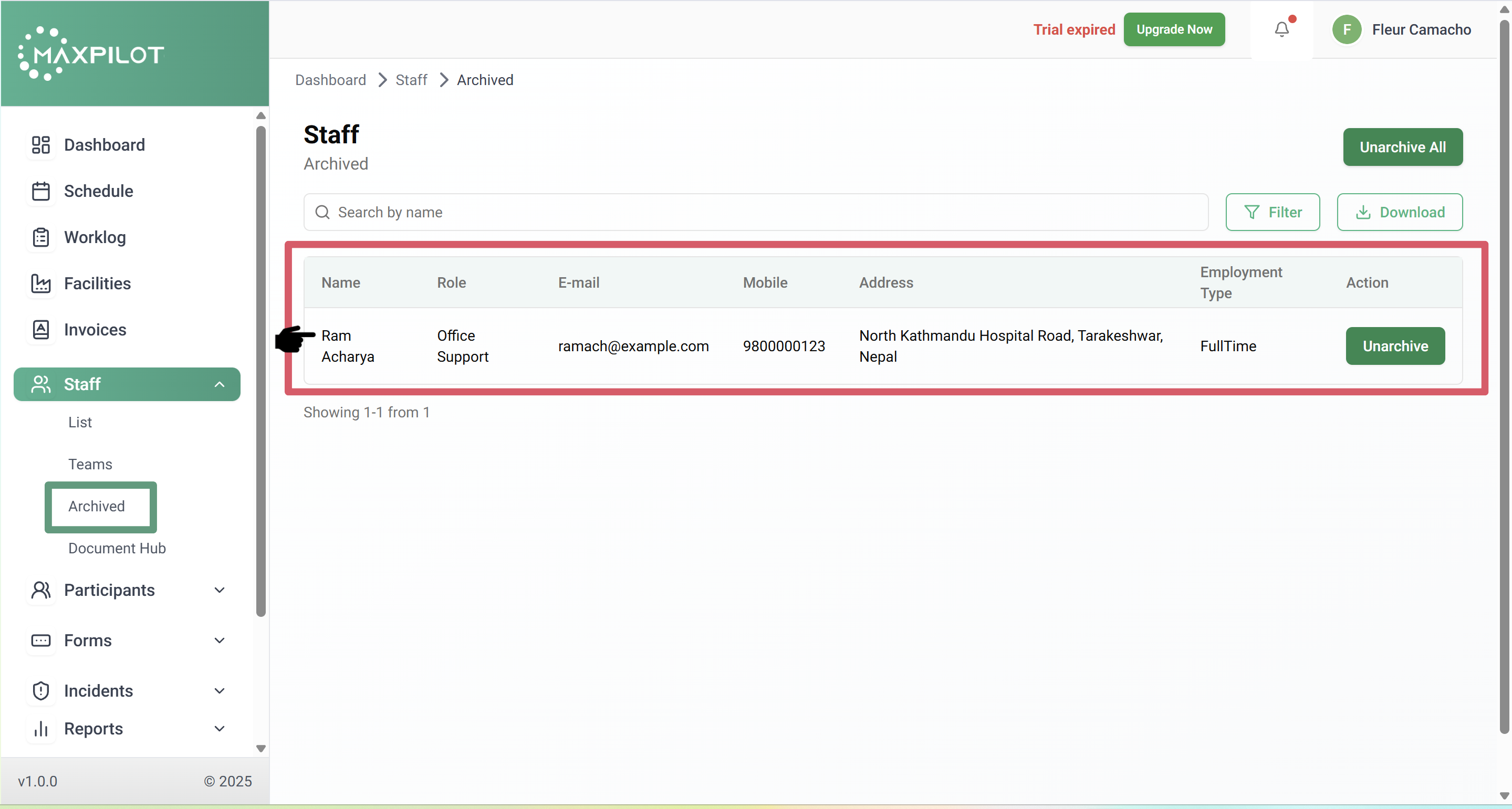
1. Navigate to Archived Staff
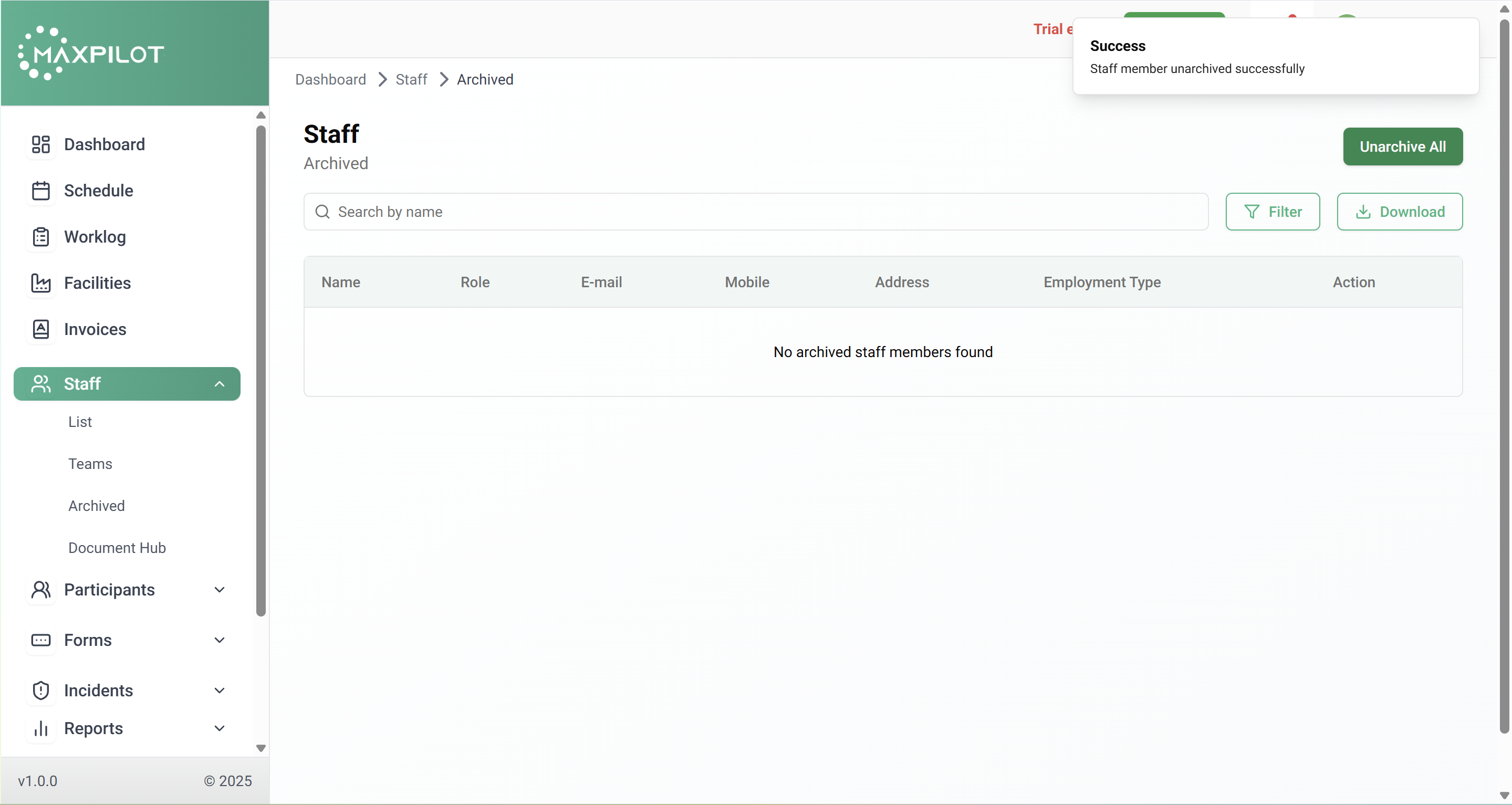
Go to Staff → Archived to view all archived staff profiles.
2. Select the Staff to Unarchive
Locate the staff member you wish to restore and click the Unarchive button next to their name.
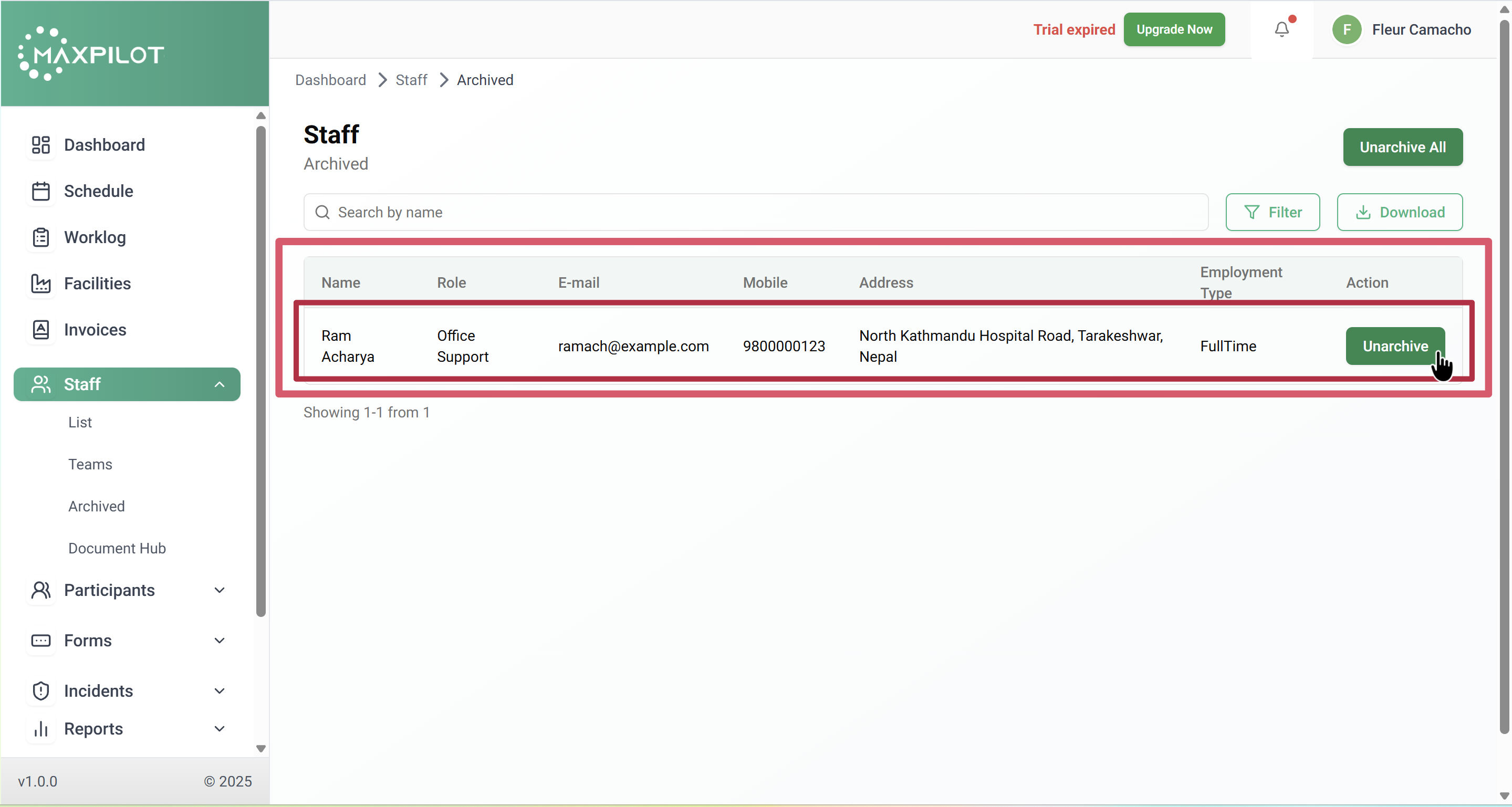
3. Confirmation Message
Once unarchived, a success message will appear confirming that the staff member has been restored to your active list.
The staff member will now reappear in your Staff → List section as active again.