

After successfully scheduling tasks, the next essential step in workforce management is to monitor and manage staff worklogs. This feature allows admins and managers to track staff activities, verify shift hours, and ensure accurate shift publishing and invoicing.
Let’s explore how to manage staff shifts step by step:
Step 1: Navigate to the Schedule Module
From the sidebar menu, go to Schedule.
Here, you’ll see the weekly or daily view of all staff shifts, along with unavailabilities and assigned duties.
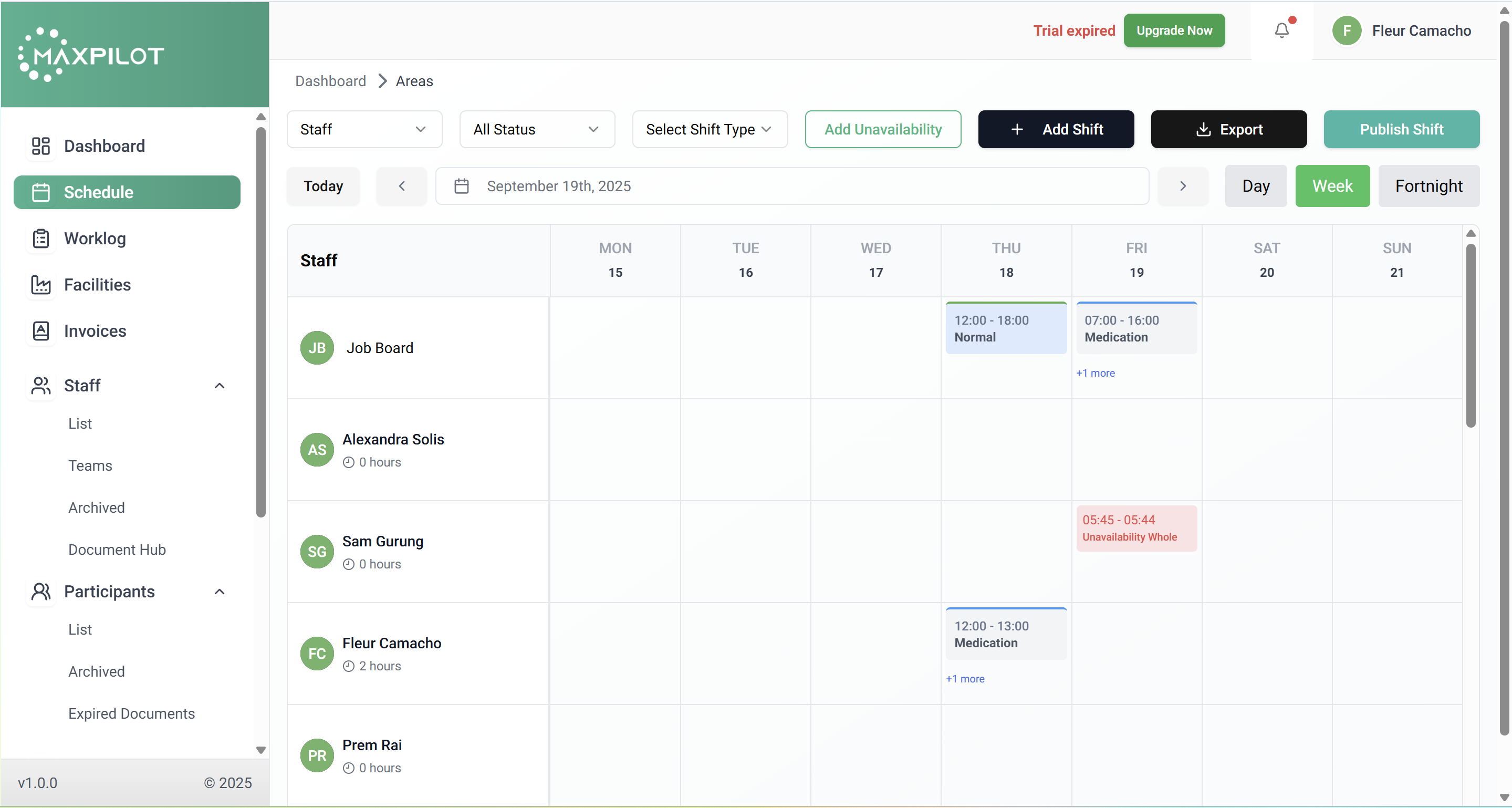
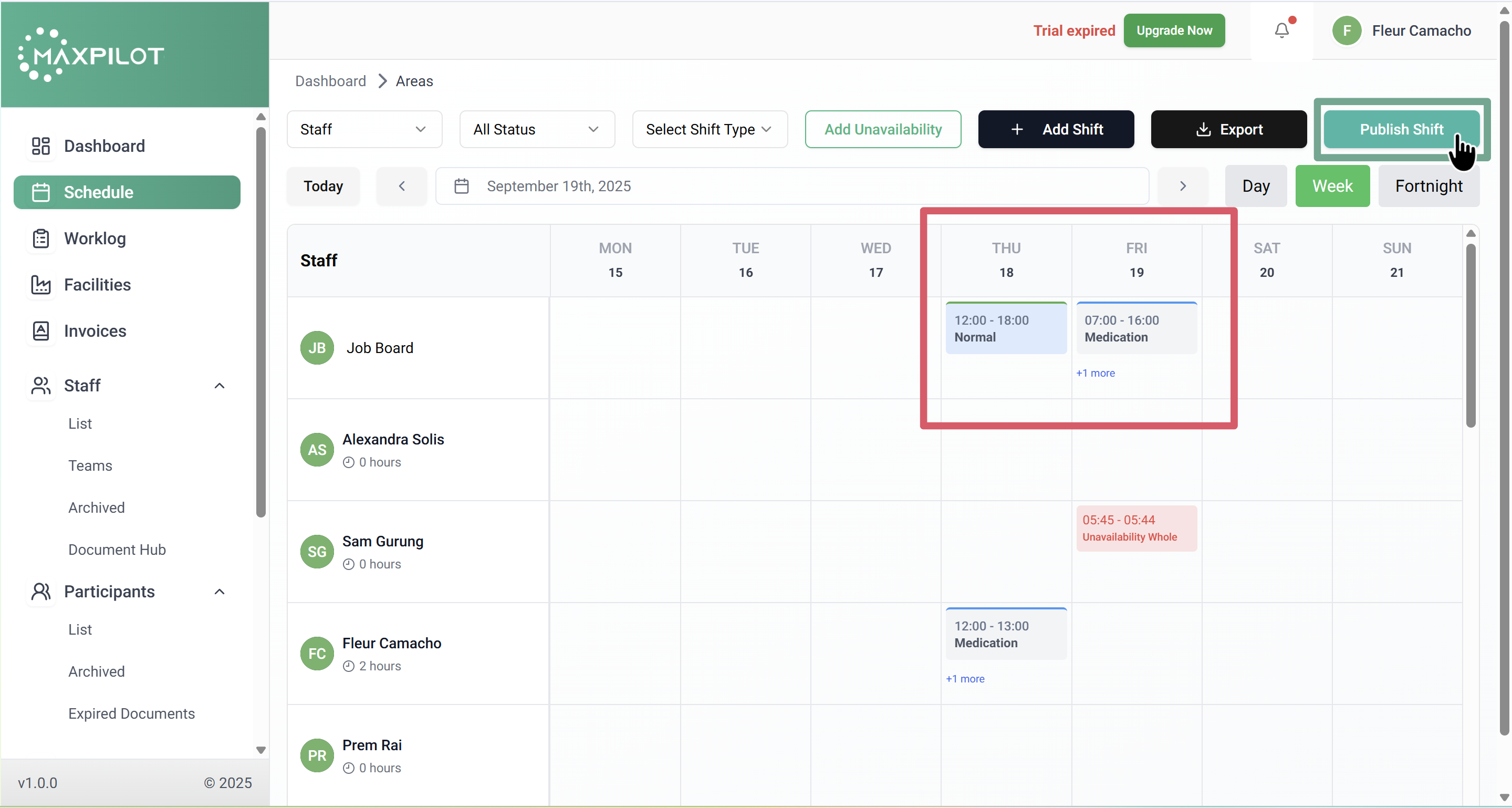
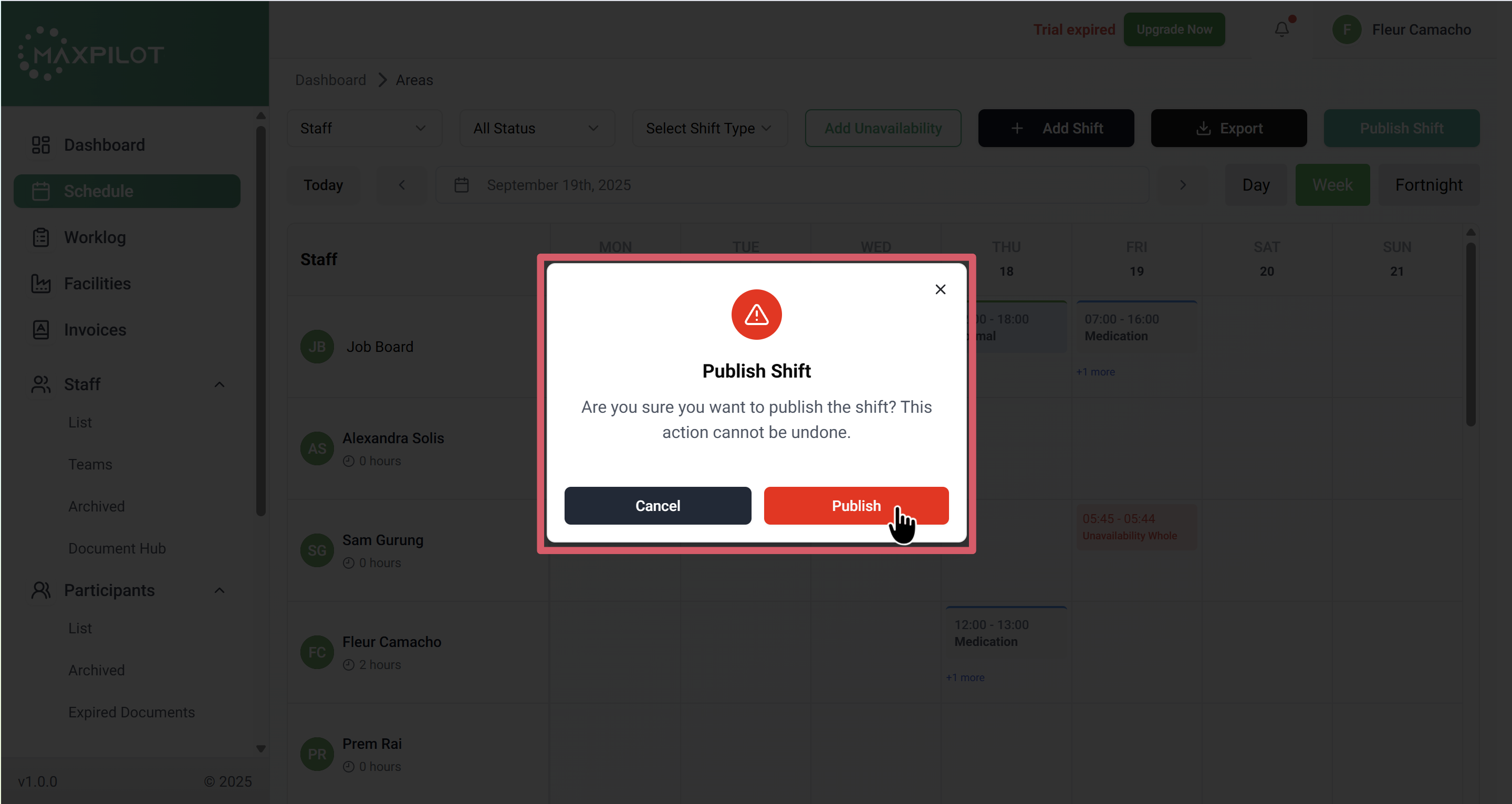
Step 2: Publish the Scheduled Shifts
Once you’ve added shifts for your staff, they must be published before they become active.
To do this:
This ensures that all created shifts are visible to the assigned staff and recorded in their worklogs.
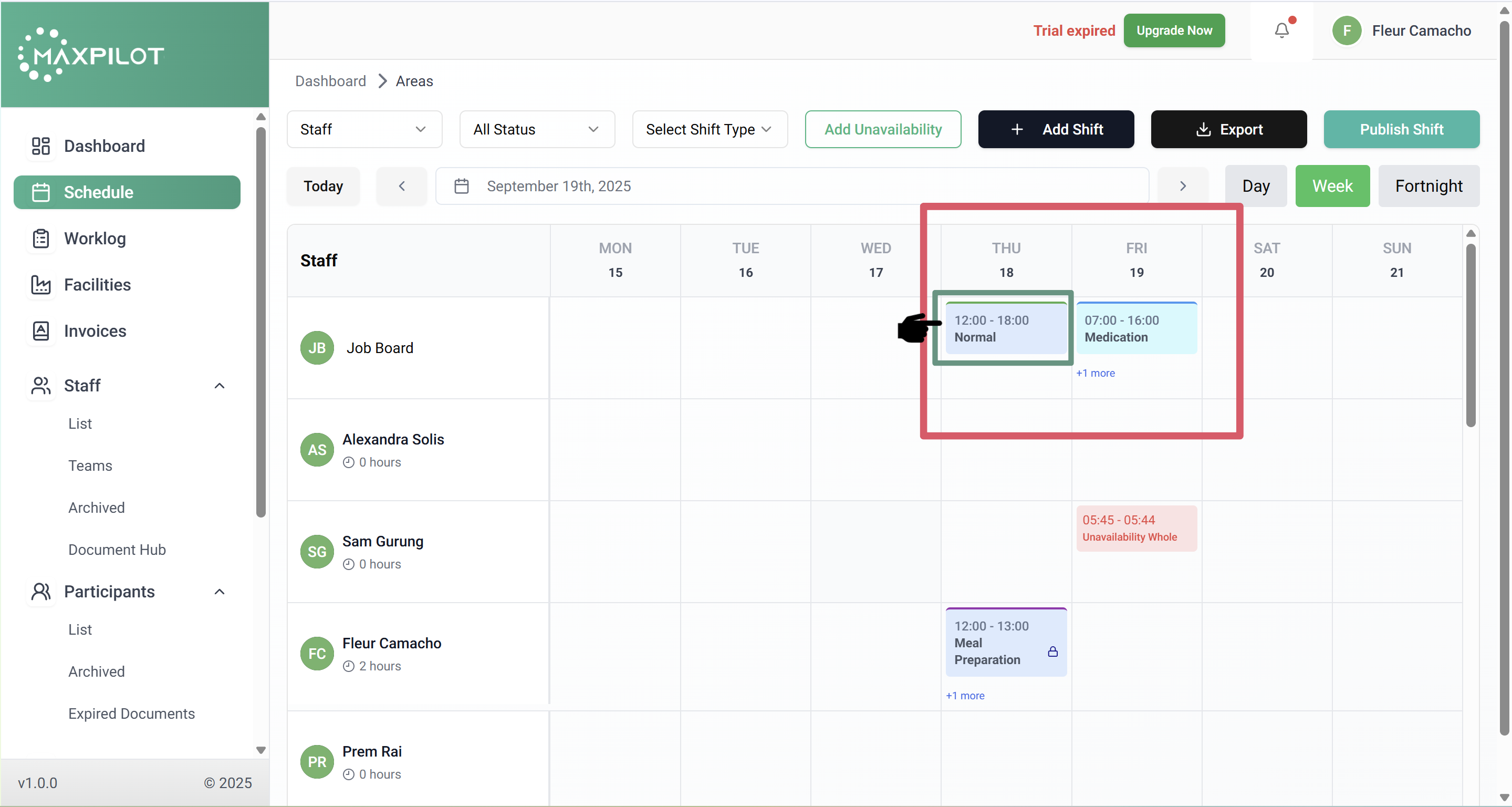
Step 3: View Published Shifts
After publishing, your calendar will show the updated shifts with their corresponding color codes and labels.
Each published shift becomes active and ready for tracking.
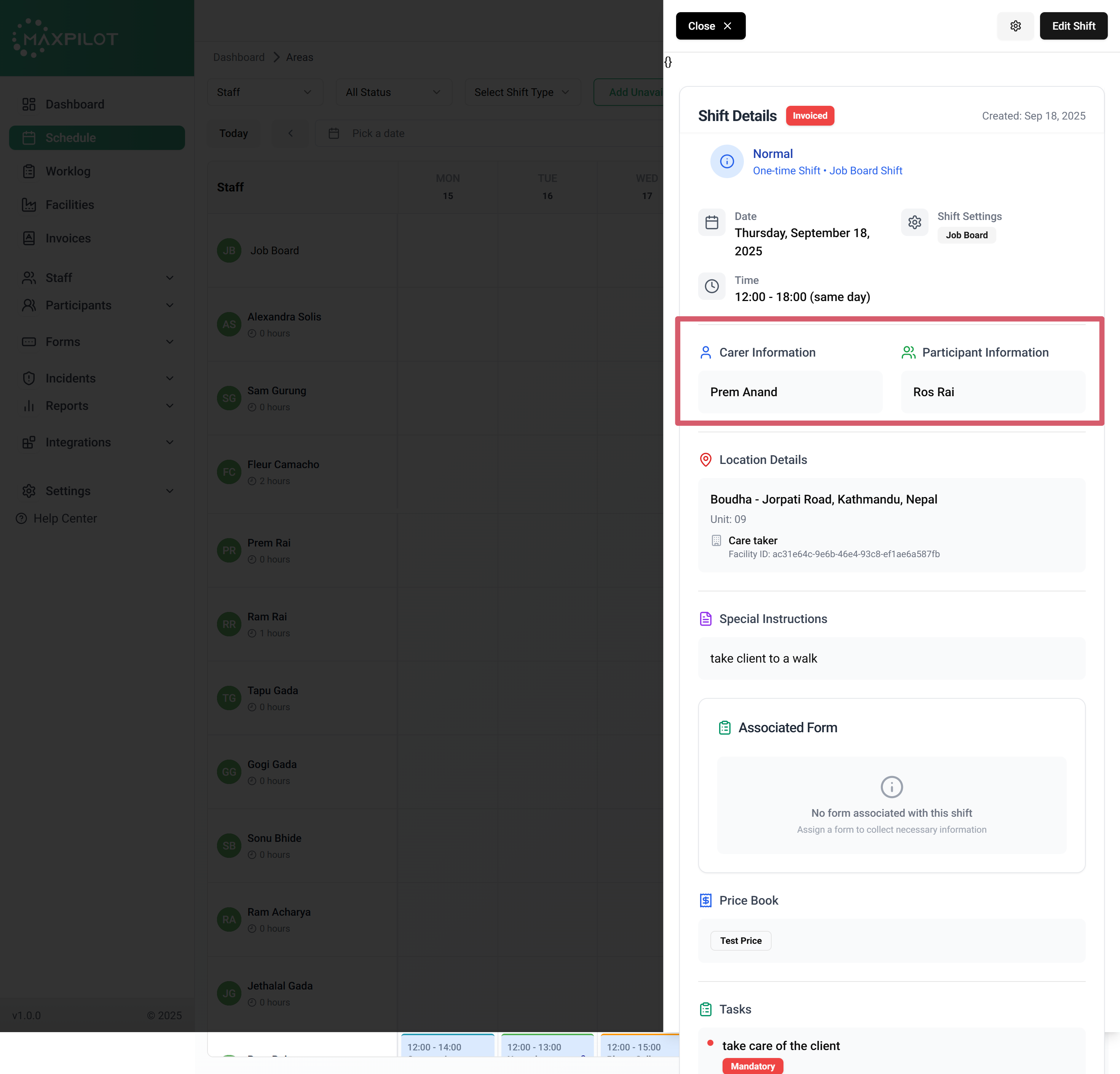
Step 4: Review Shift Details
Click on any scheduled shift to open its details panel.
You’ll find all relevant information, including:
This helps ensure that every staff member and participant involved in the shift is correctly assigned and documented.
Step 5: Access Worklogs via the Worklog Tab
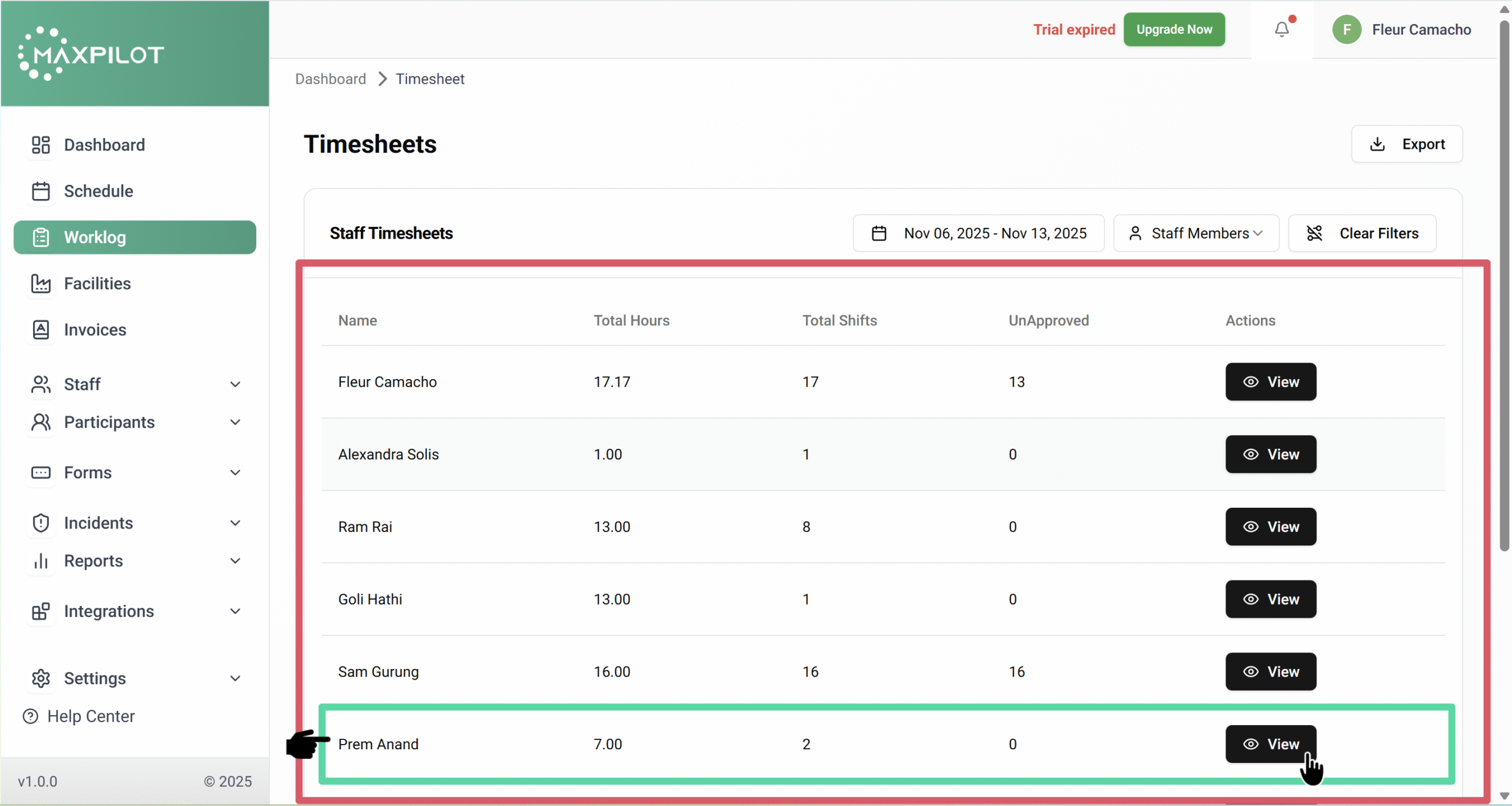
To view and manage work hours, navigate to Worklog from the left sidebar.
Here you’ll find the Staff Timesheets, which display:
Click View next to a staff name to review their detailed worklogs.
Step 6: View Individual Staff Worklogs
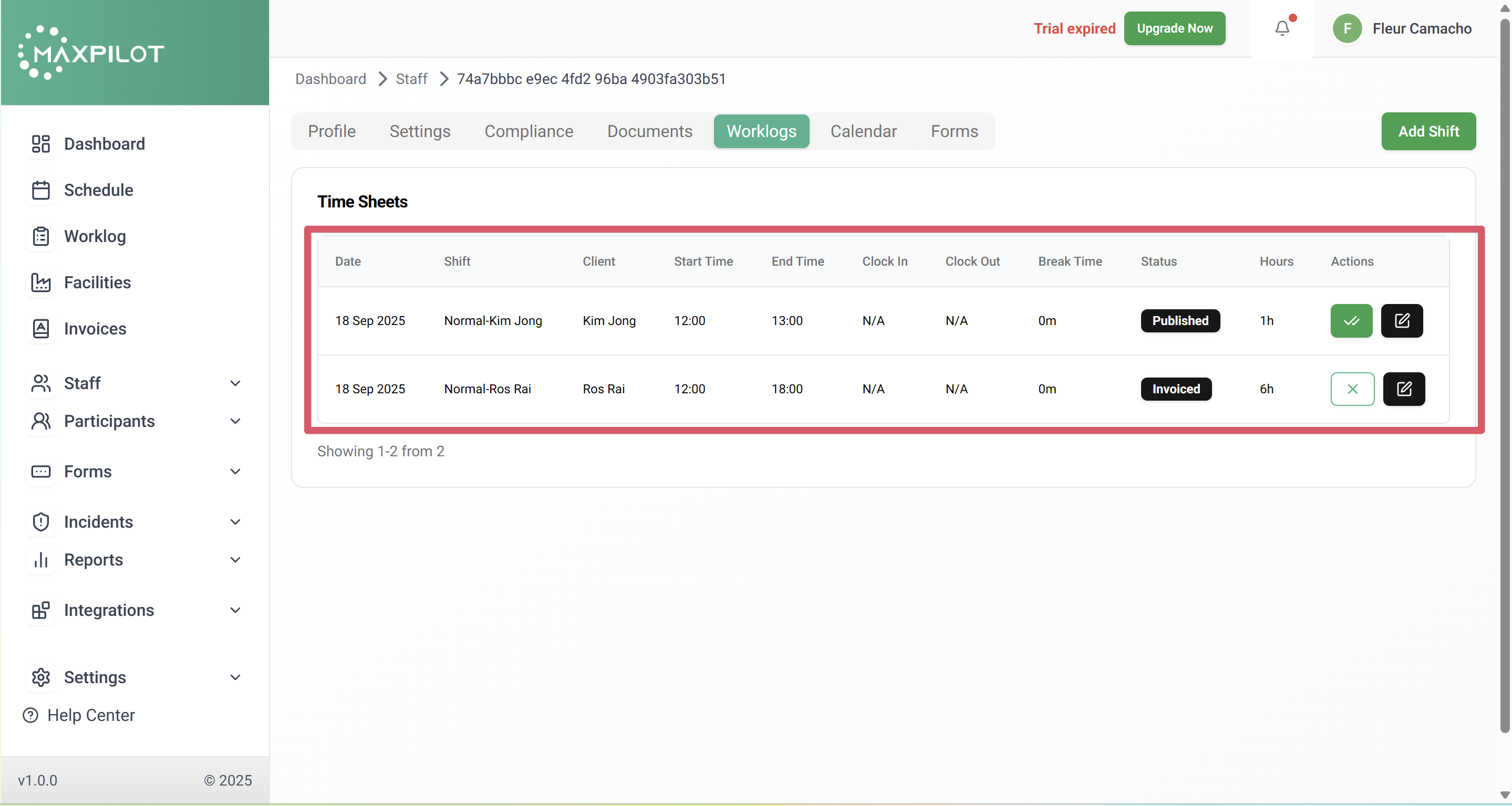
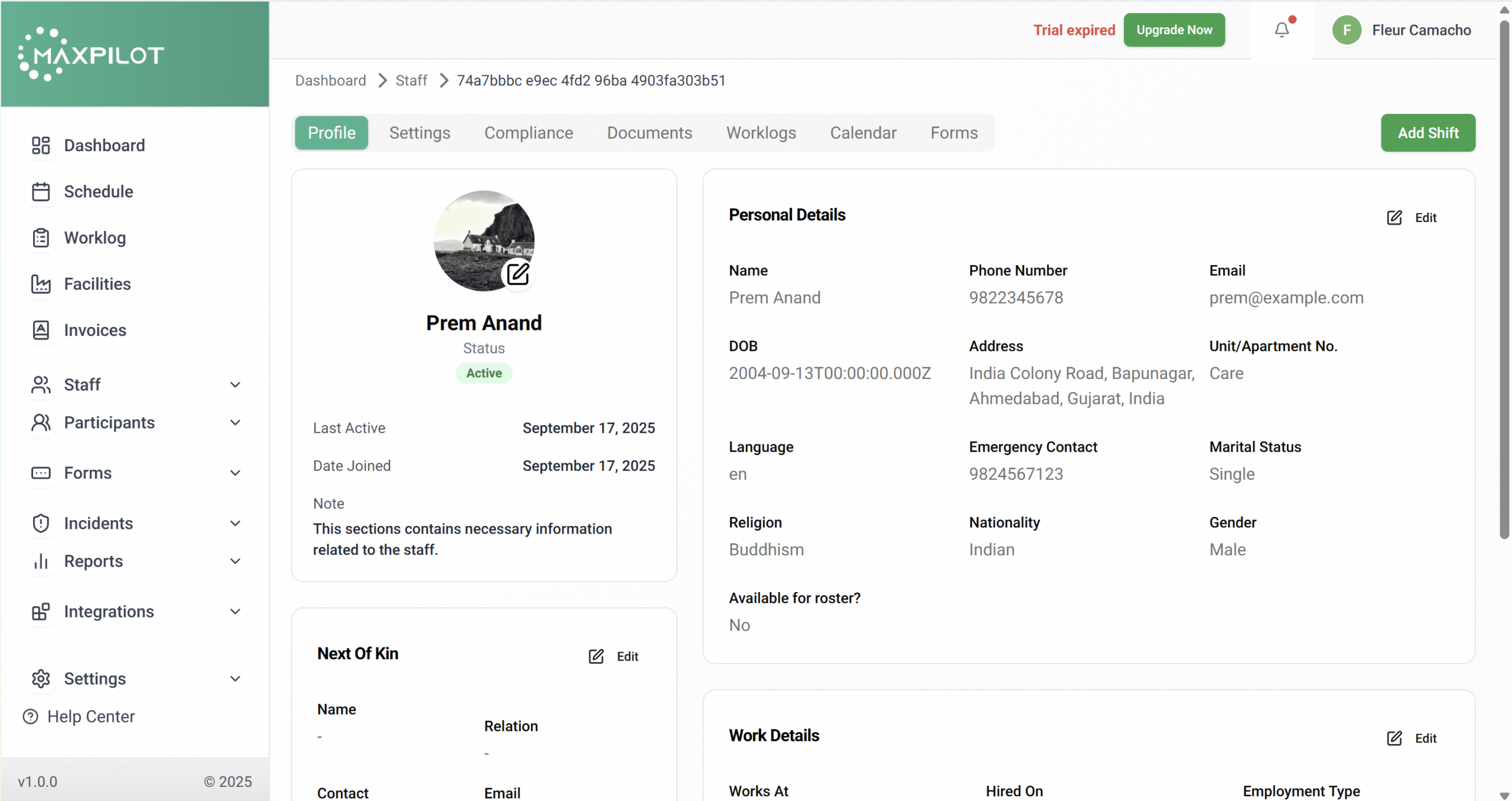
Upon clicking View, you’ll be redirected to that staff member’s profile.
Under the Worklogs tab, you can see all recorded shifts along with:
This enables admins to verify attendance, performance, and shift completion.
💡 Tip:
Want to learn how to schedule a task before managing worklogs?
Check out our detailed guide 👉 How to Schedule a Task