
The Reminders feature allows administrators to create and send important alerts or motivational messages to staff, managers, providers, or participants. This ensures everyone stays informed or encouraged with timely updates or reminders.
Step 1: Open Reminders
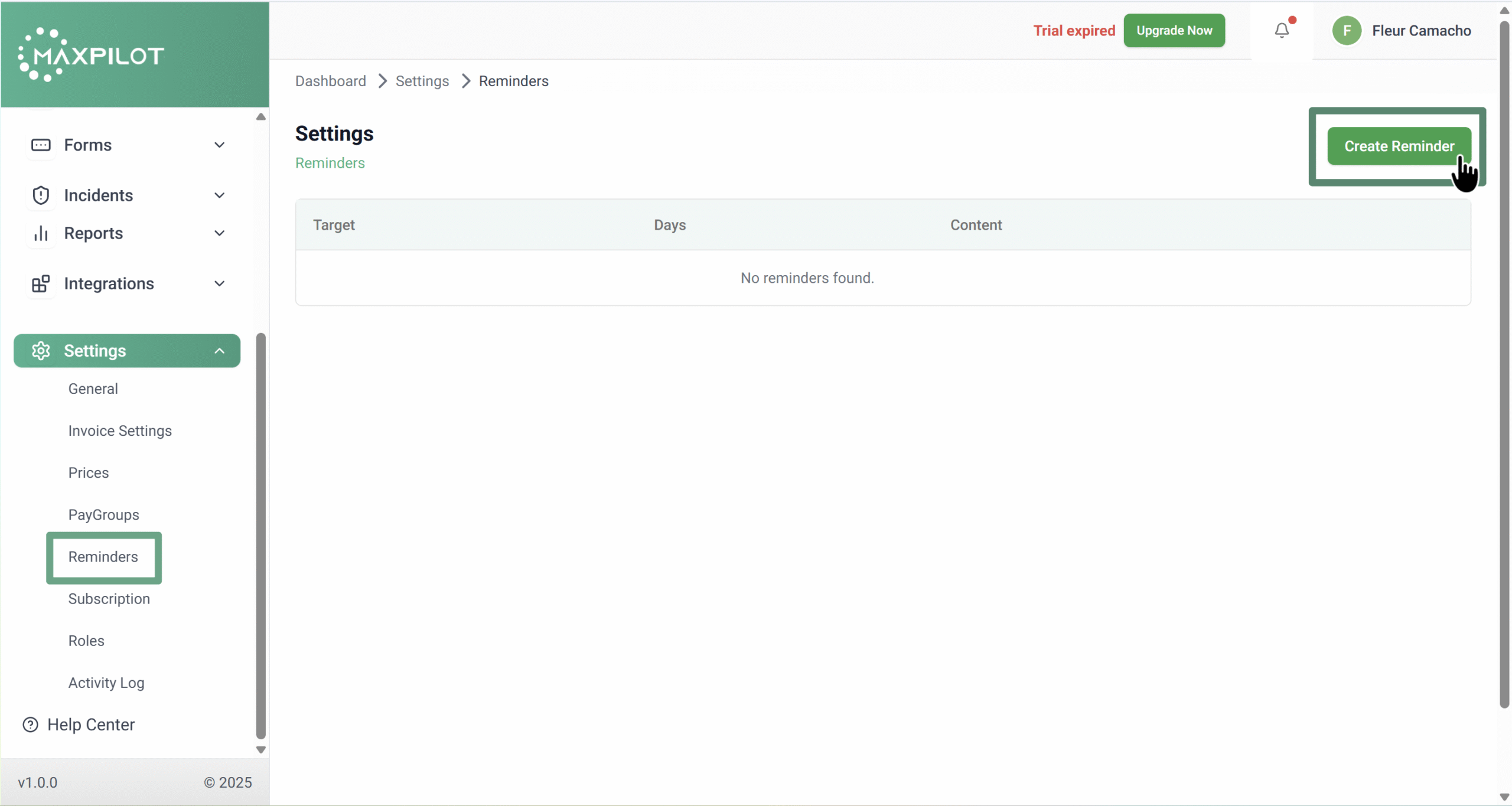
From the left-hand menu, click Settings → Reminders.
The Reminders page will open, displaying any existing reminders.
Click the Create Reminder button on the top right.
Step 2: Fill Out Reminder Details
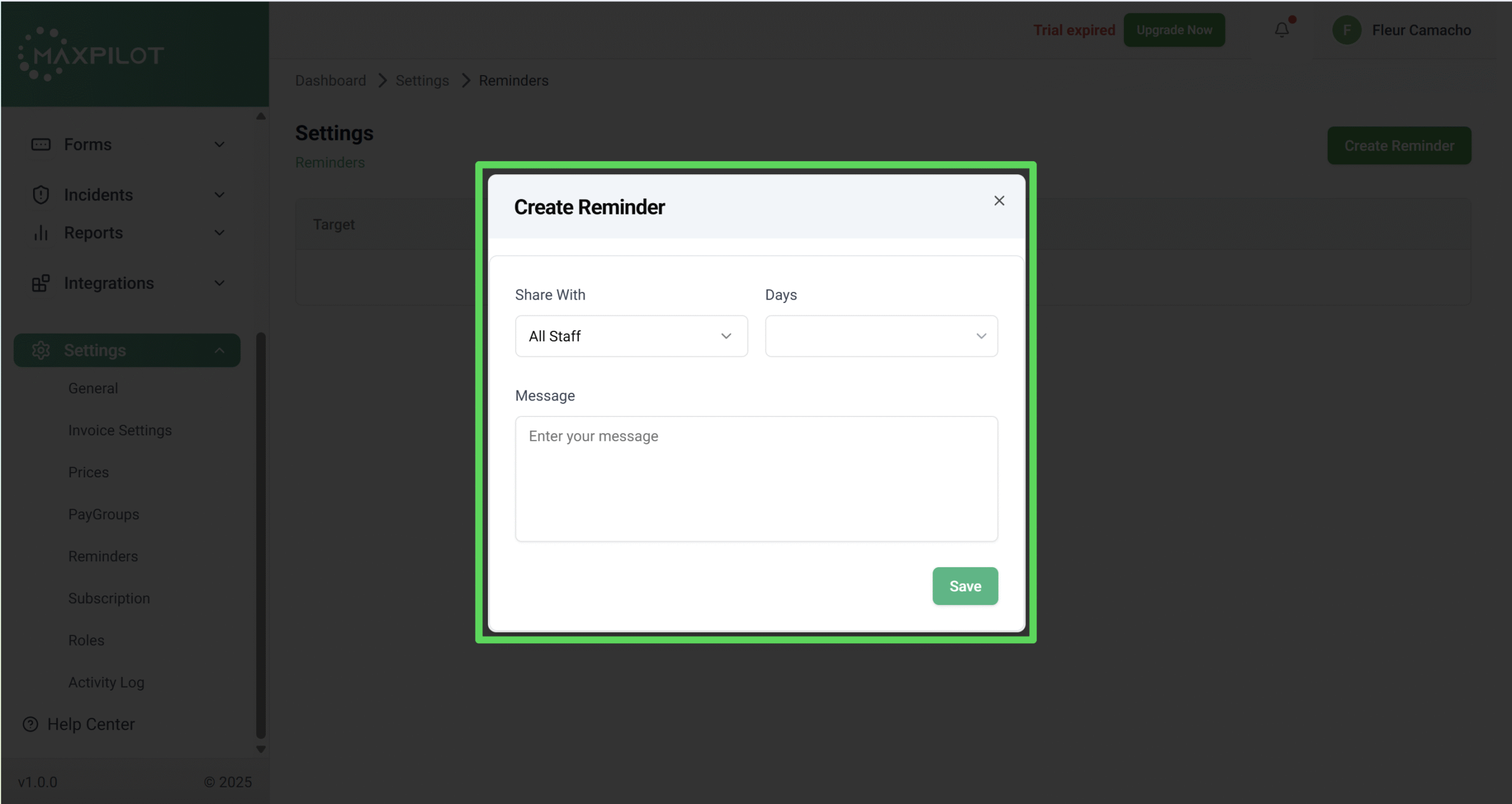
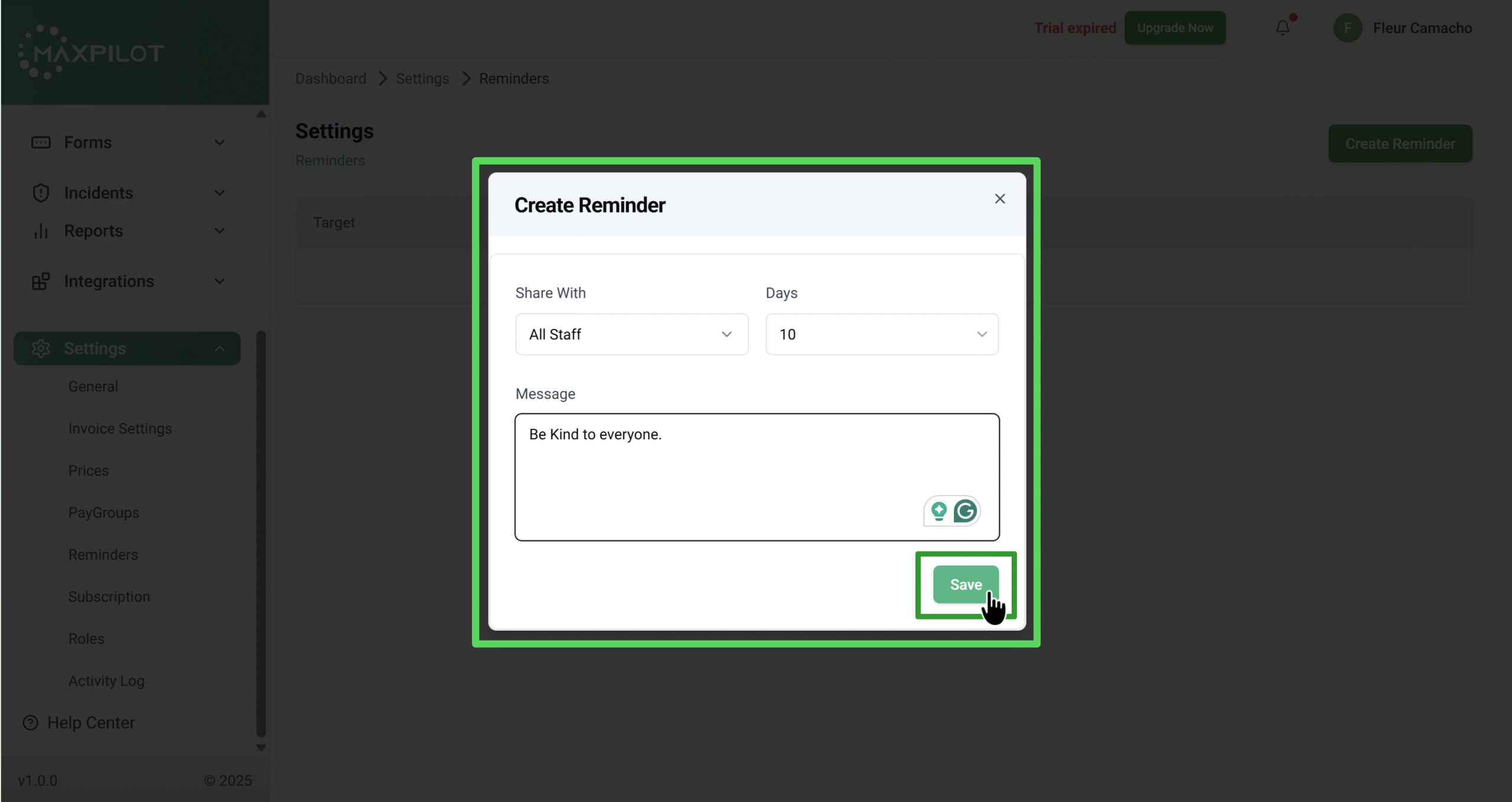
A Create Reminder form will appear.
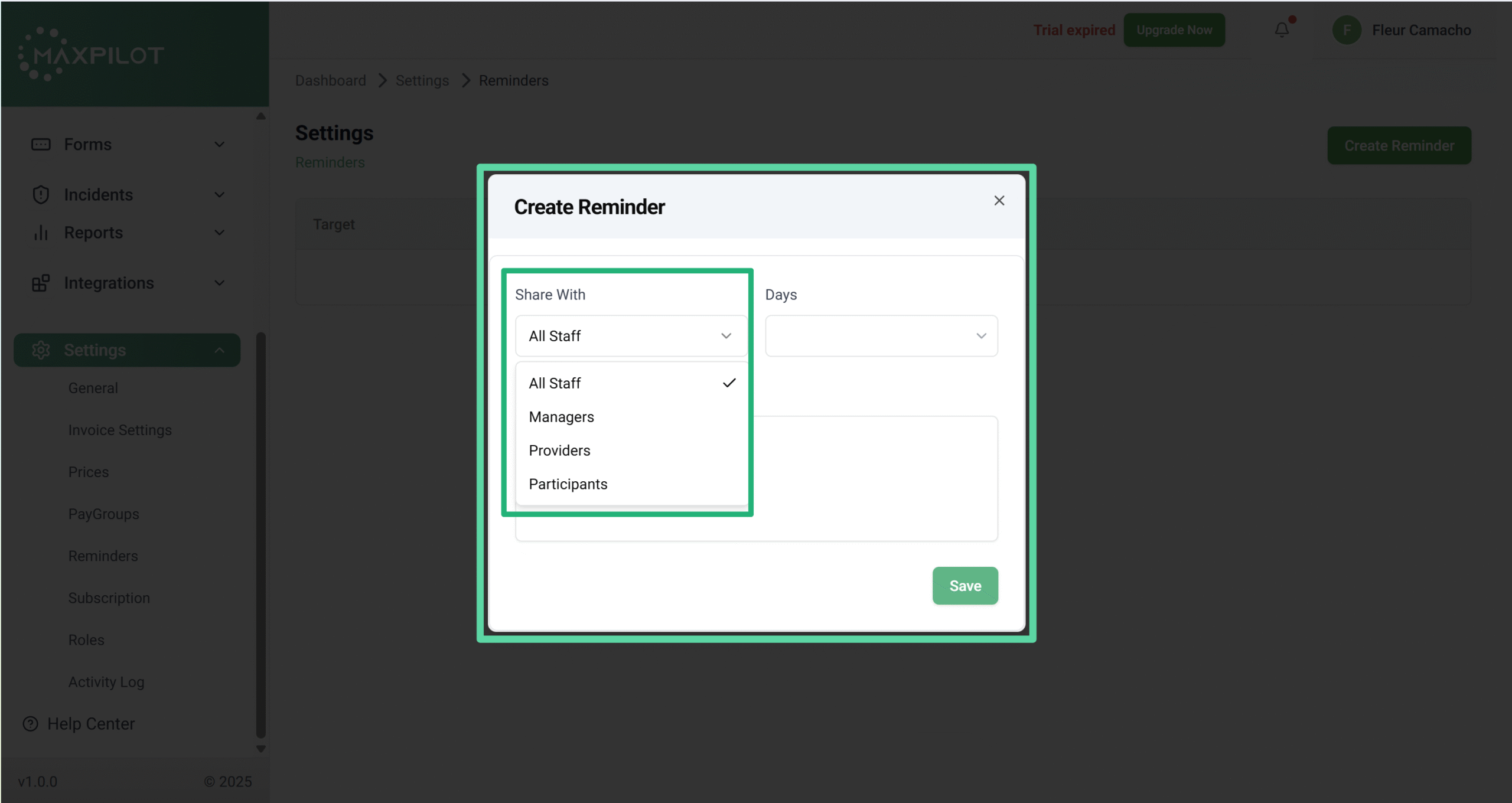
Here, you can set who the reminder will be shared with, specify the number of days before the alert should be sent, and write your message.
Step 3: Save the Reminder
After filling out the form, click the Save button.
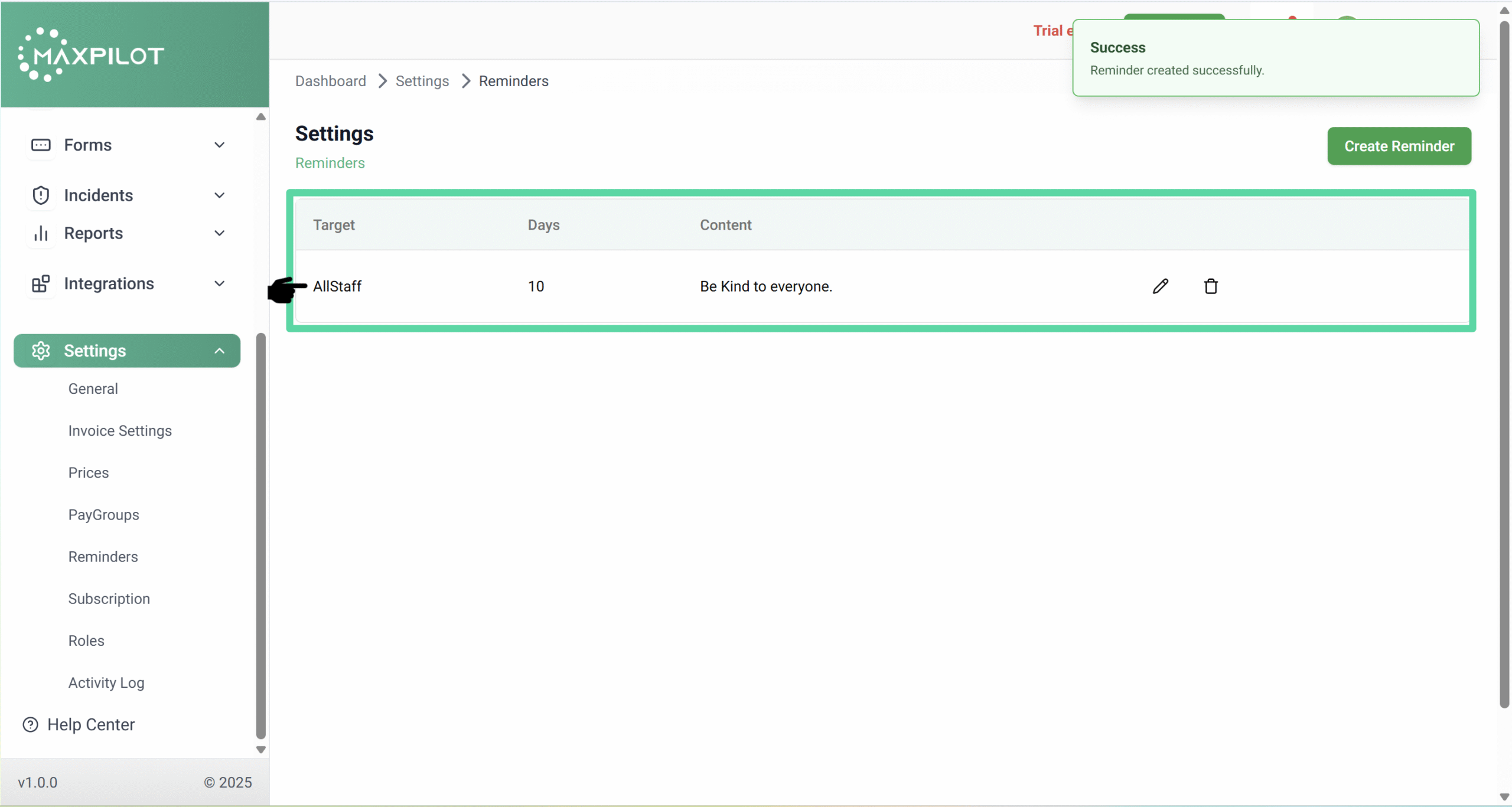
A success message — “Reminder created successfully” — will appear on the top right.
Step 4: View the Reminder
The newly added reminder will now appear in the list with details such as Target, Days, and Content.
You can also edit or delete the reminder from this page at any time.