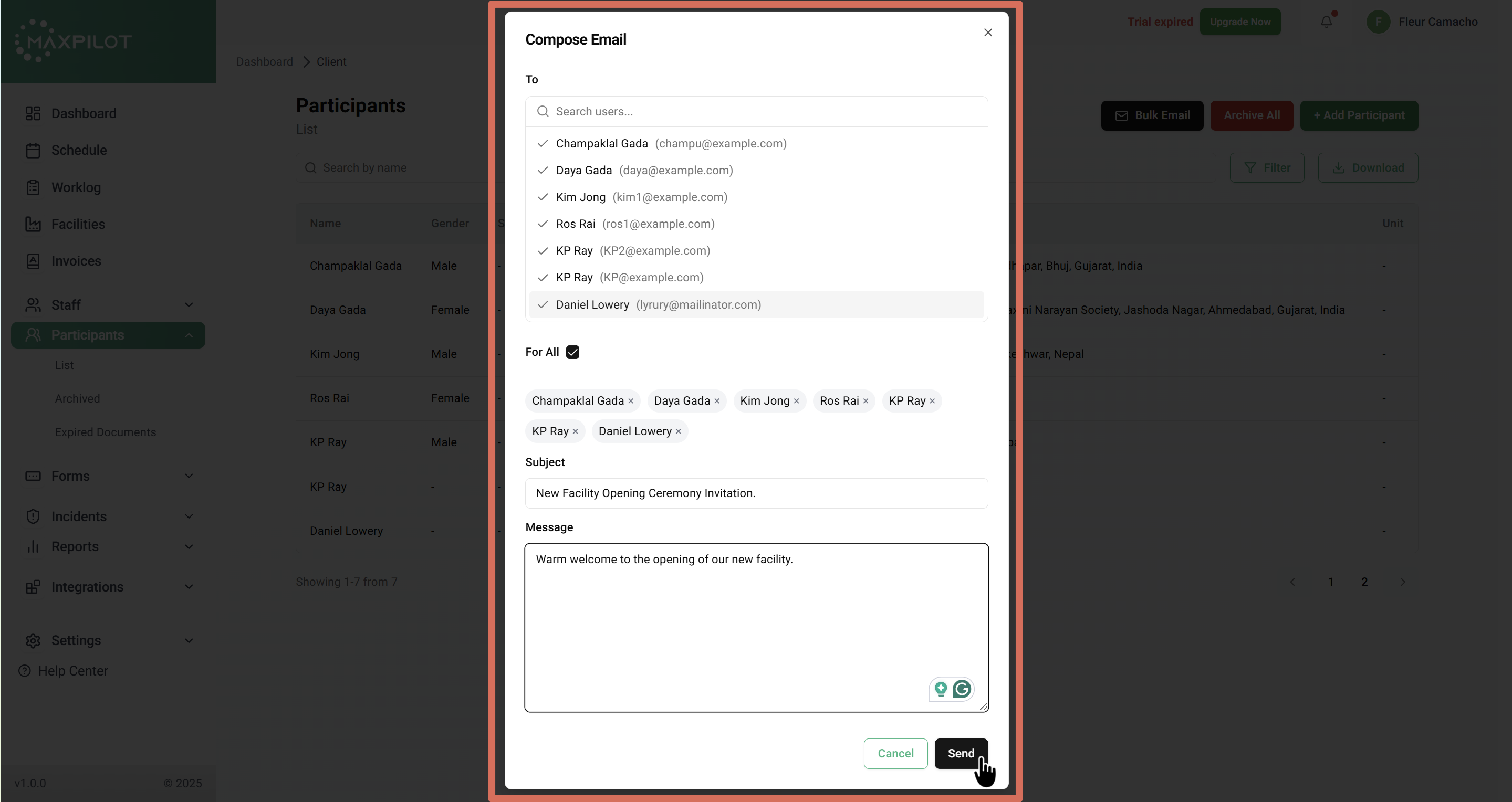

Need to send an important update, announcement, or event invitation to multiple participants at once?
The Bulk Email feature lets you quickly send messages to one or more participants without the need to contact them individually.
Step 1: Go to Participants
From the left sidebar, click Participants and open the List page.
Here, you’ll see all participants with their basic information, such as name, gender, email, mobile number, and address.
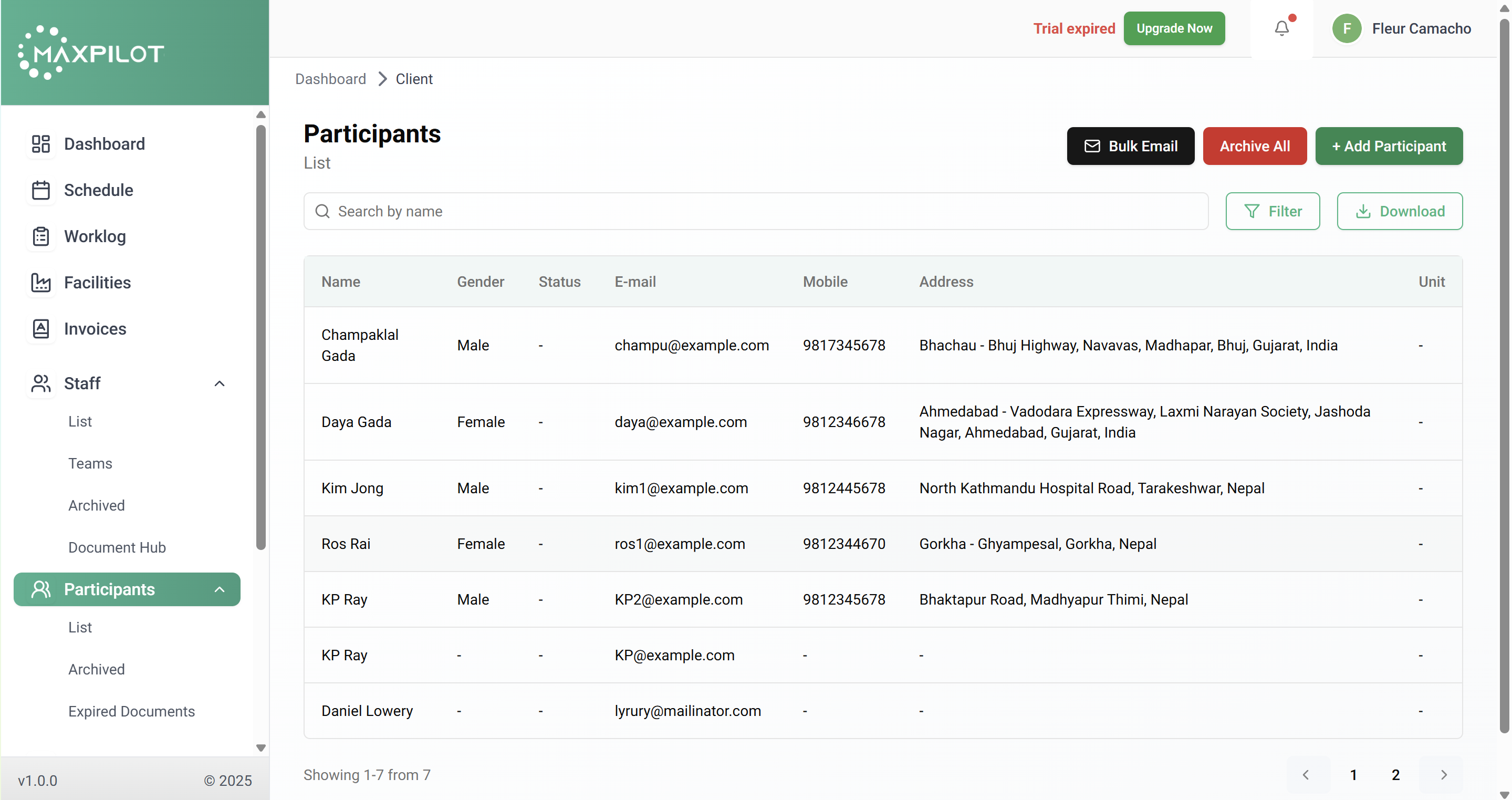
Step 2: Click the Bulk Email Button
In the top-right corner of the Participants page, click Bulk Email.
This opens the Compose Email pop-up window, where you can select recipients and draft your message.
Use this option when you need to reach several participants at once — for example, sending an announcement or invitation.
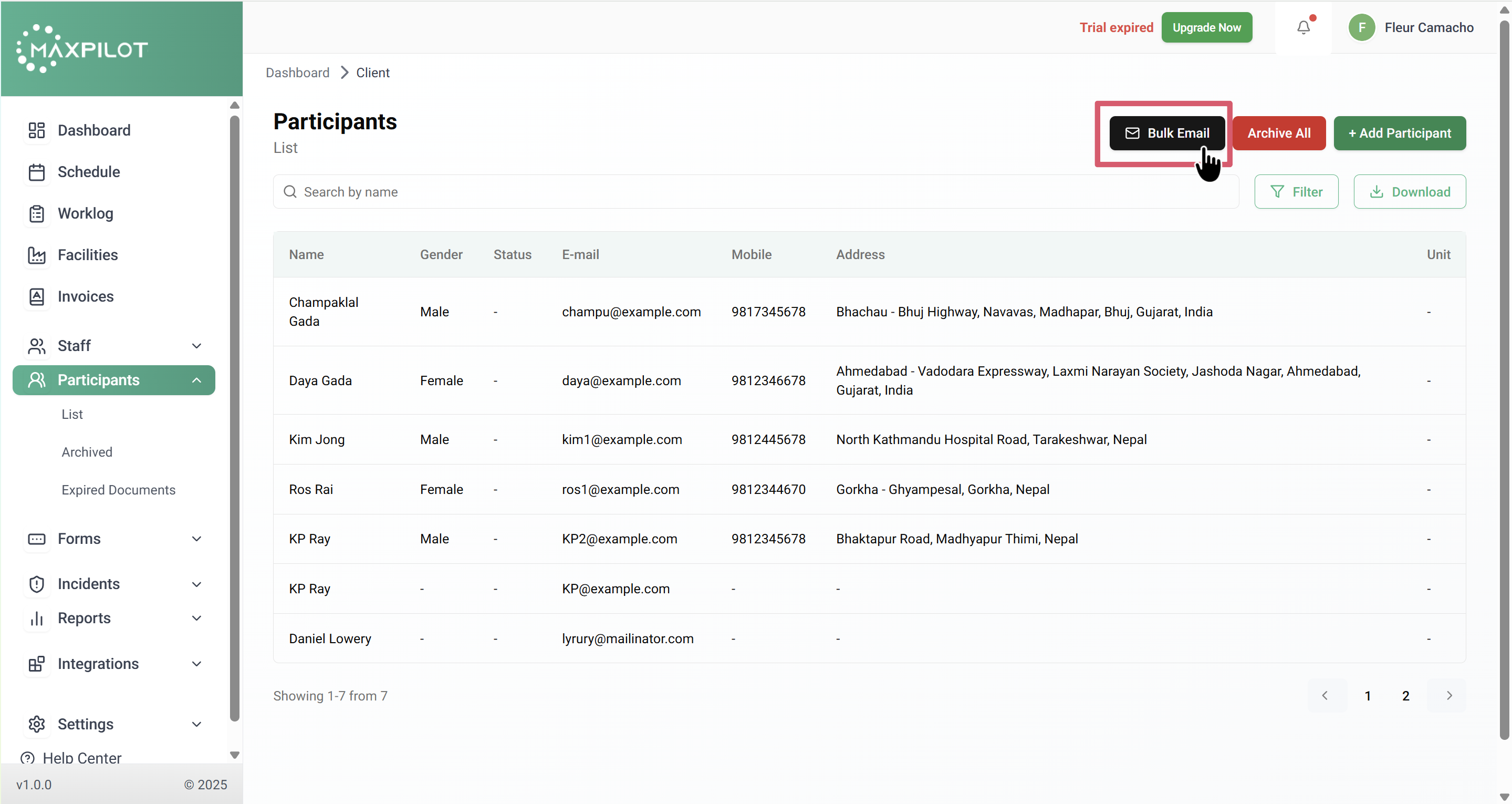
Step 3: Select Recipients
In the To field, you can:
This flexibility allows you to target a small group or send messages to all participants simultaneously.
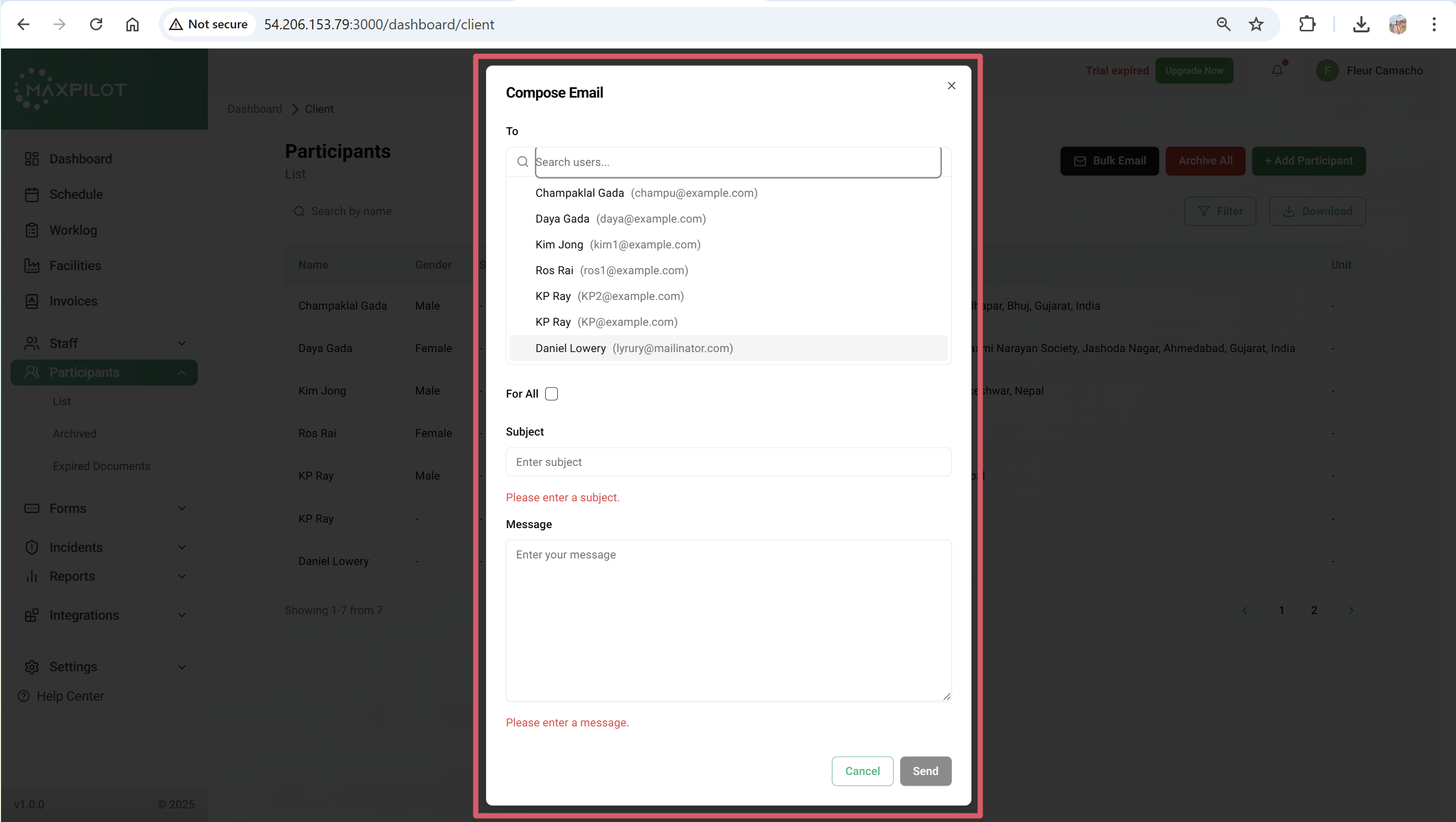
Step 4: Add Subject and Message
Enter your Subject line, a short summary of what your email is about (e.g., New Facility Opening Invitation).
Then, type your main message in the Message field.
You can write anything from a reminder, notice, update, or formal communication.
Example:
Subject: New Facility Opening Ceremony Invitation
Message: Warm welcome to the opening of our new facility.
Step 5: Send the Email
After reviewing your message, click Send.
The email will be delivered instantly to all selected participants.
Once sent, your participants will receive the email in their registered inbox — keeping communication fast, simple, and professional.