
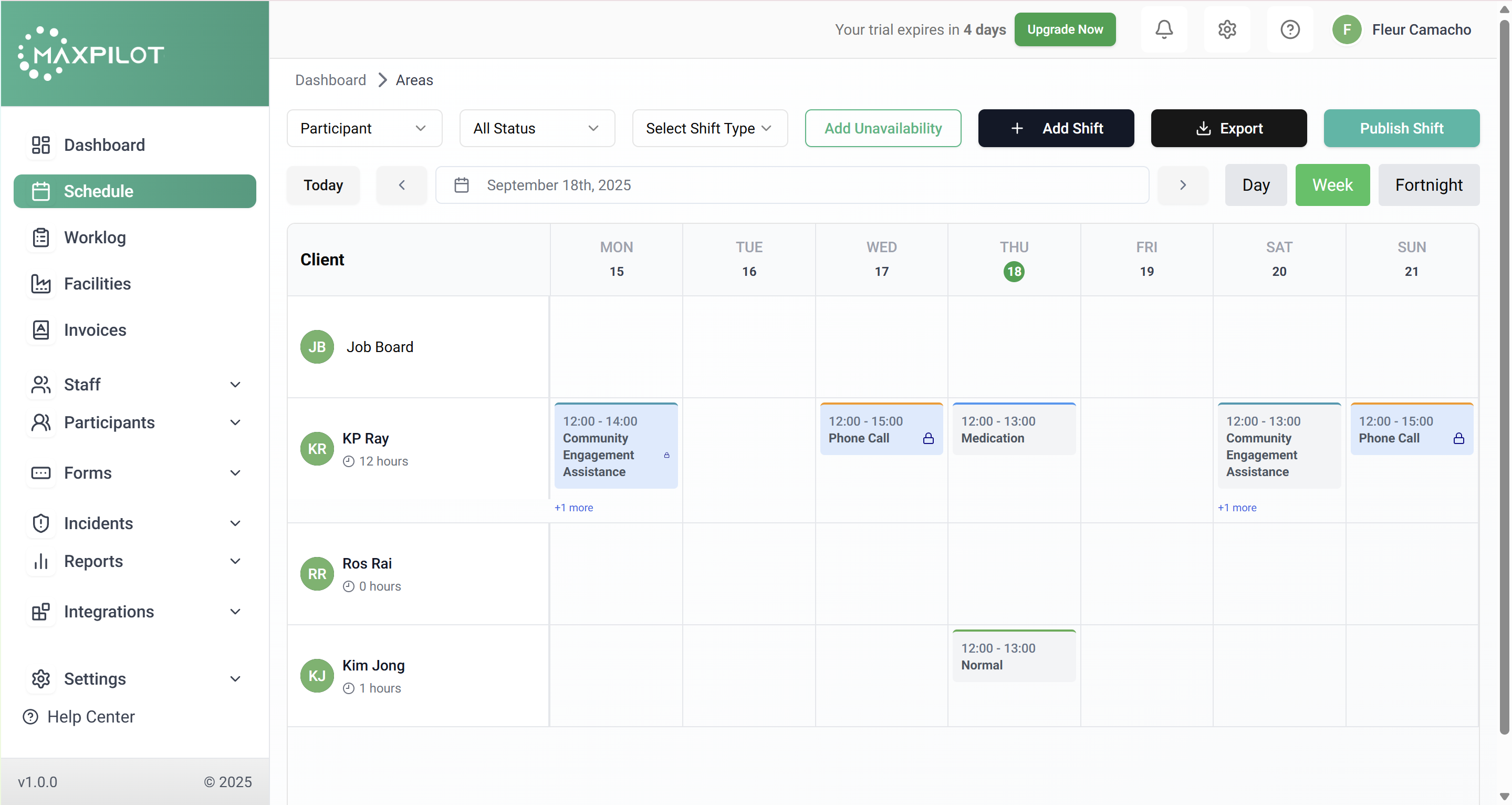
On the Filter & Schedule page, you can quickly narrow down and view shifts by participant, staff or facility, select specific statuses, and choose shift types. This helps you focus on only the relevant shifts instead of sifting through everything.
Step 1: Open the Schedule
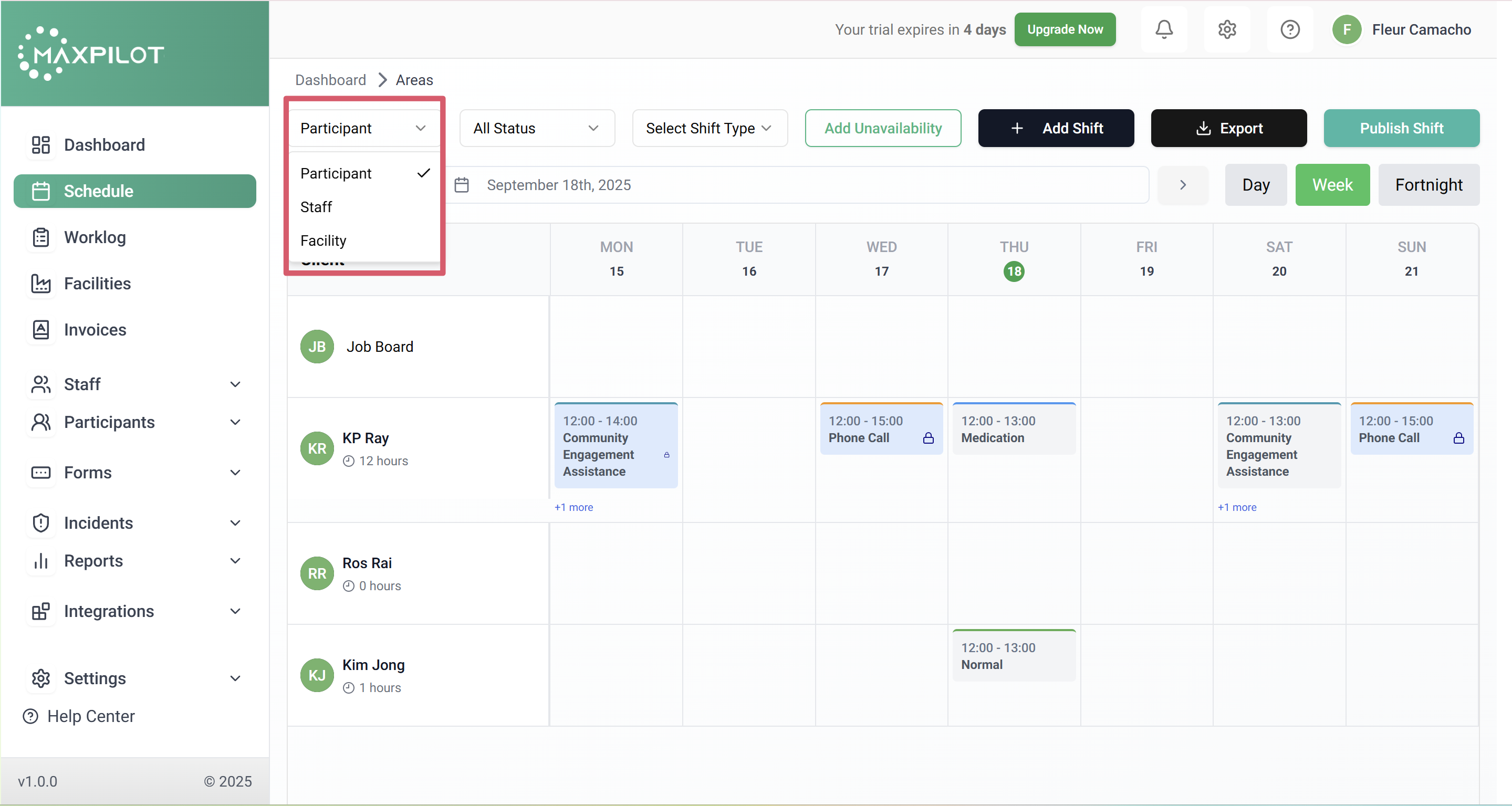
Step 2: Select View (Participant / Staff / Facility)
Click on the Participant dropdown and choose one of the available options to decide how you want the shifts displayed. Selecting Participant will show shifts grouped by clients, Staff will display shifts grouped by staff members, and Facility will organize shifts based on different locations.
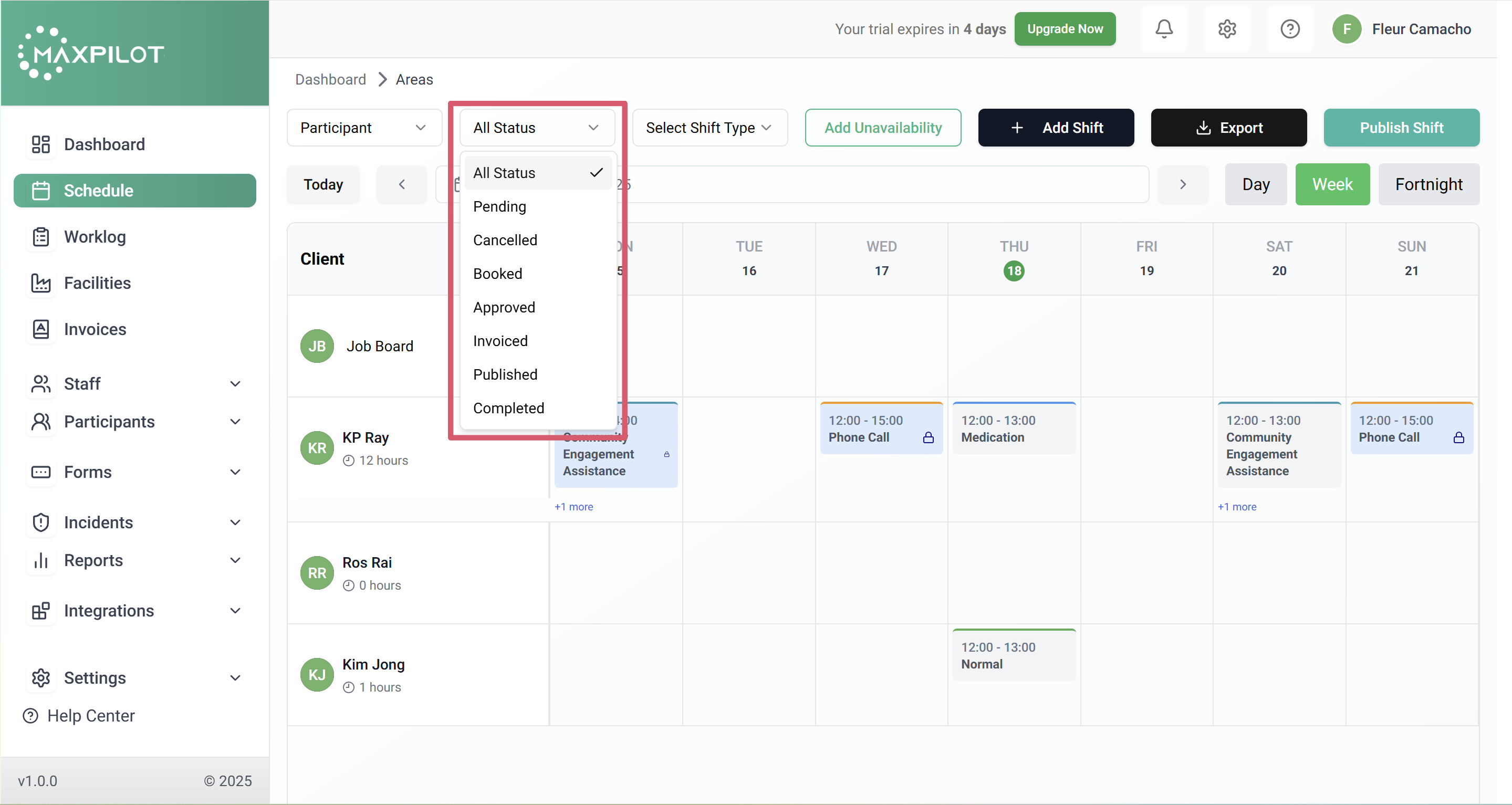
Step 3: Select Shift Status
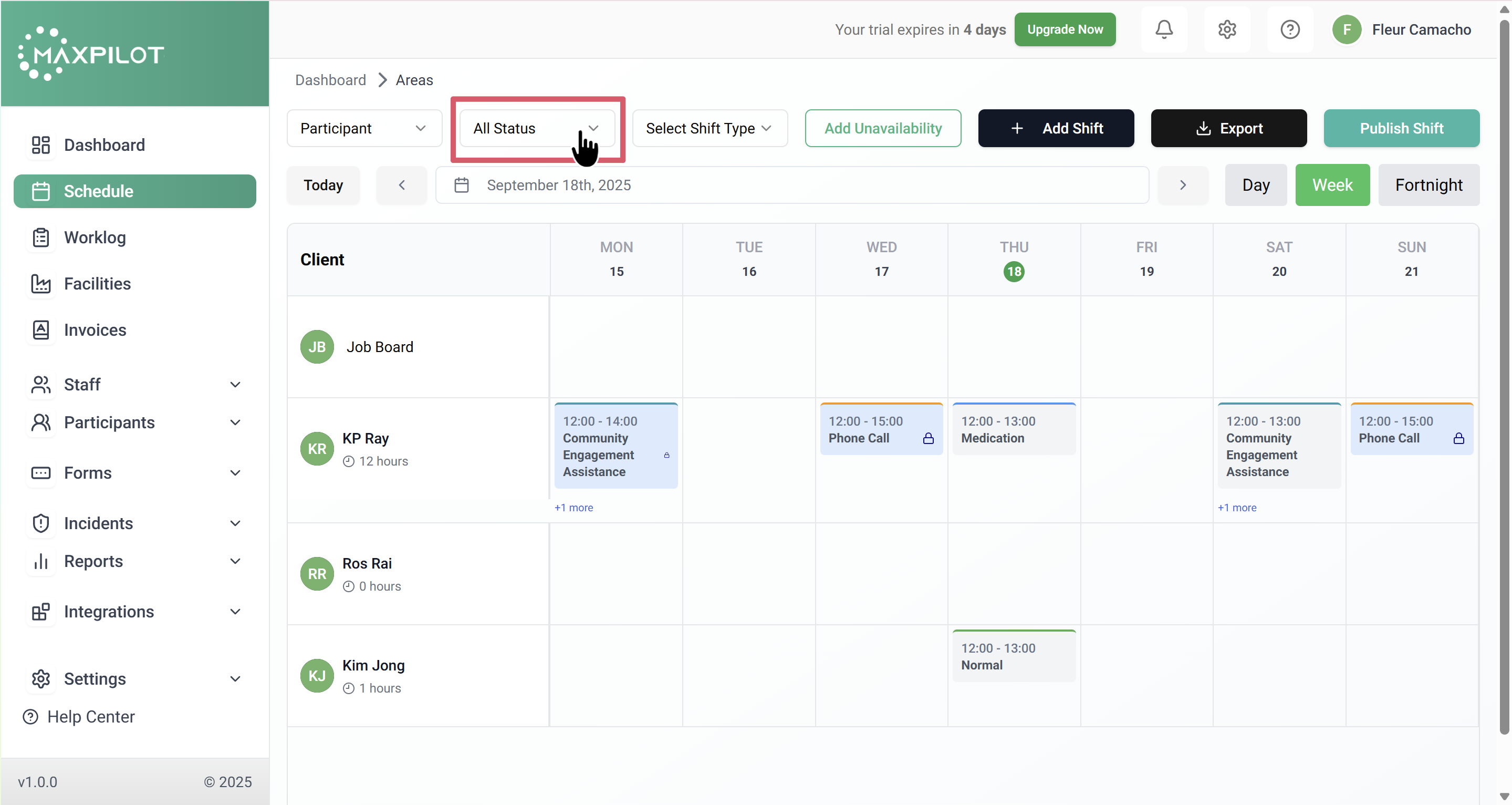
Choose one of the following:
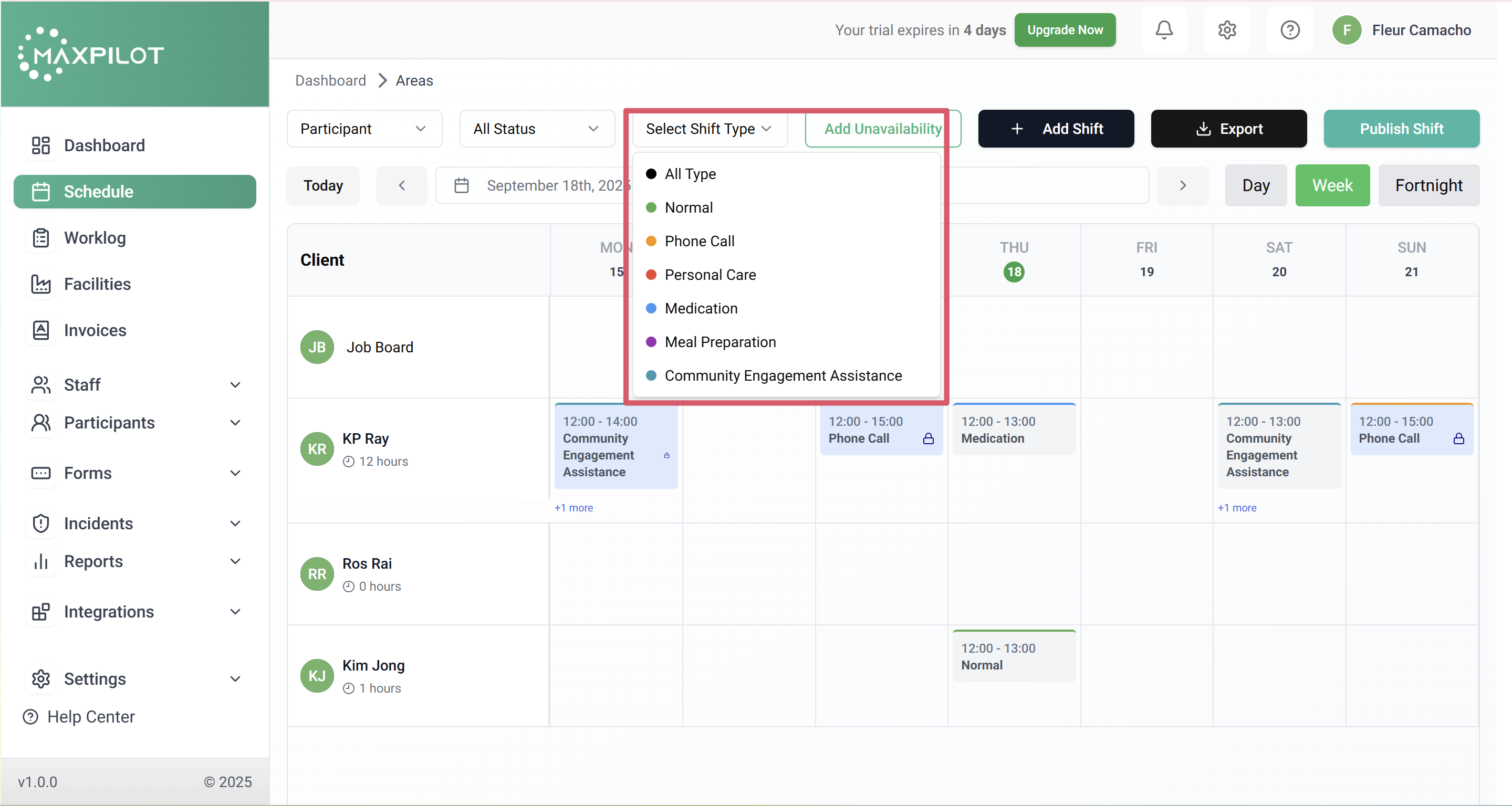
Step 4: Select Shift Type
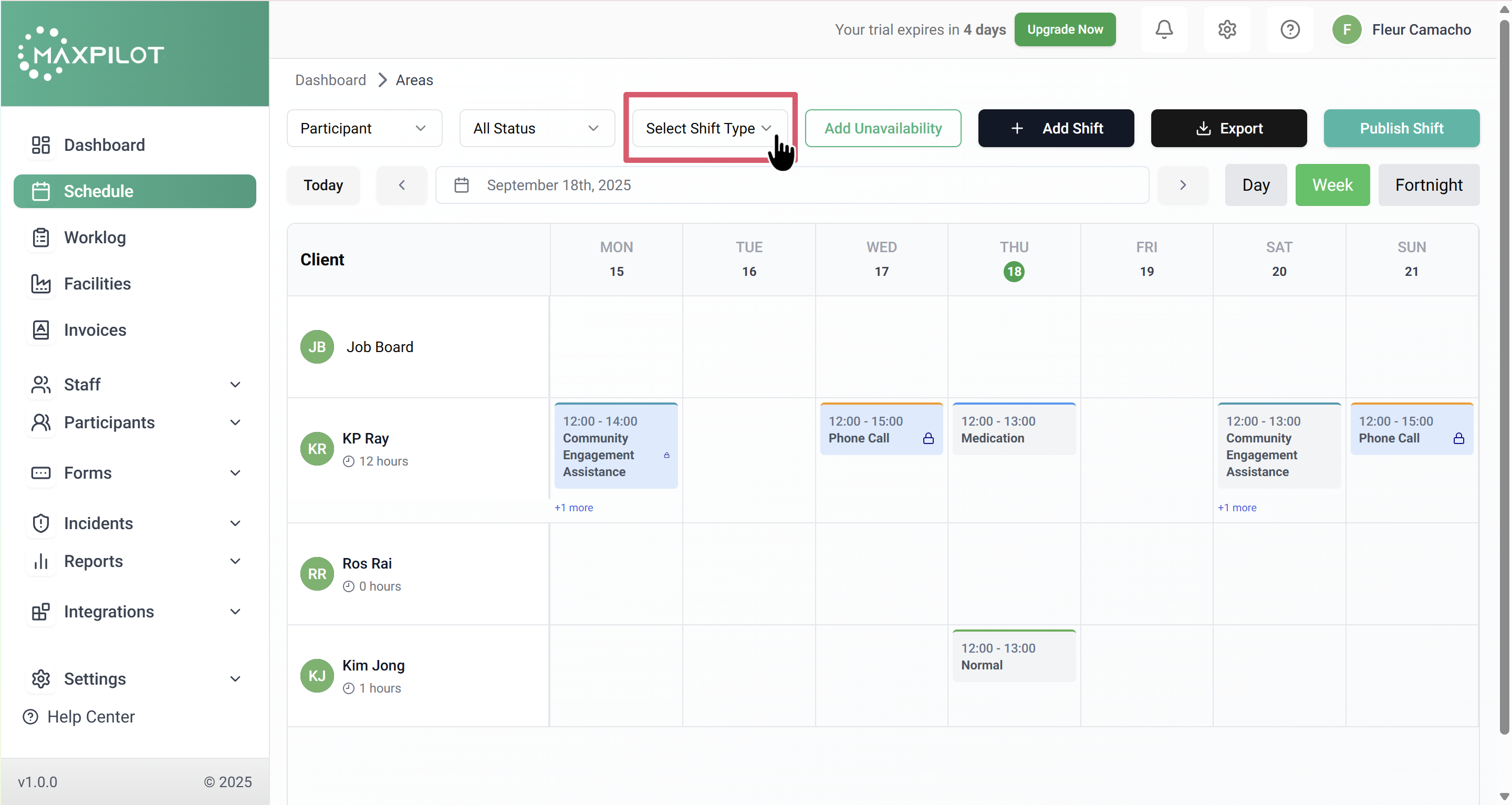
Click the Select Shift Type dropdown.
Choose one of the following:
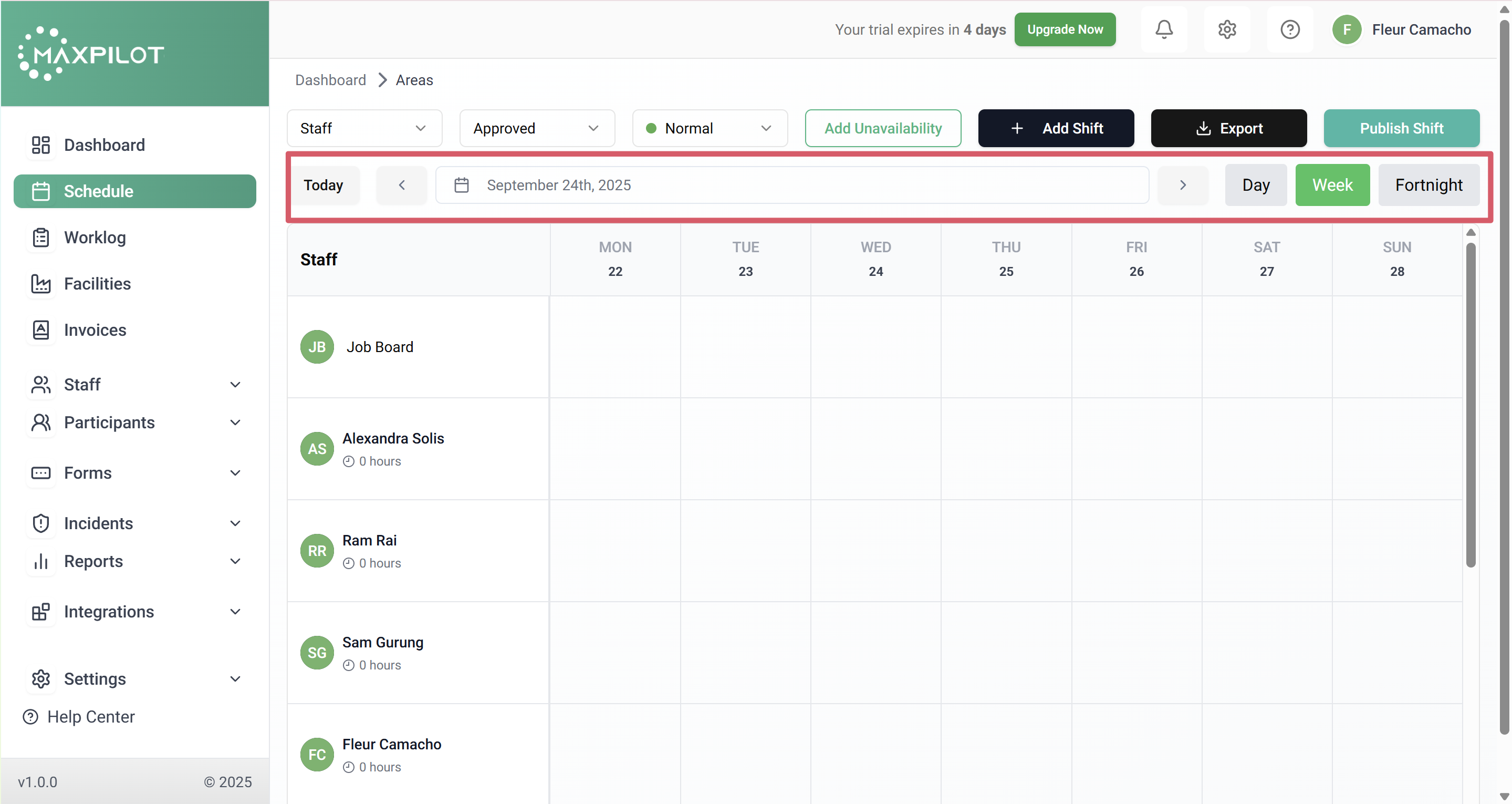
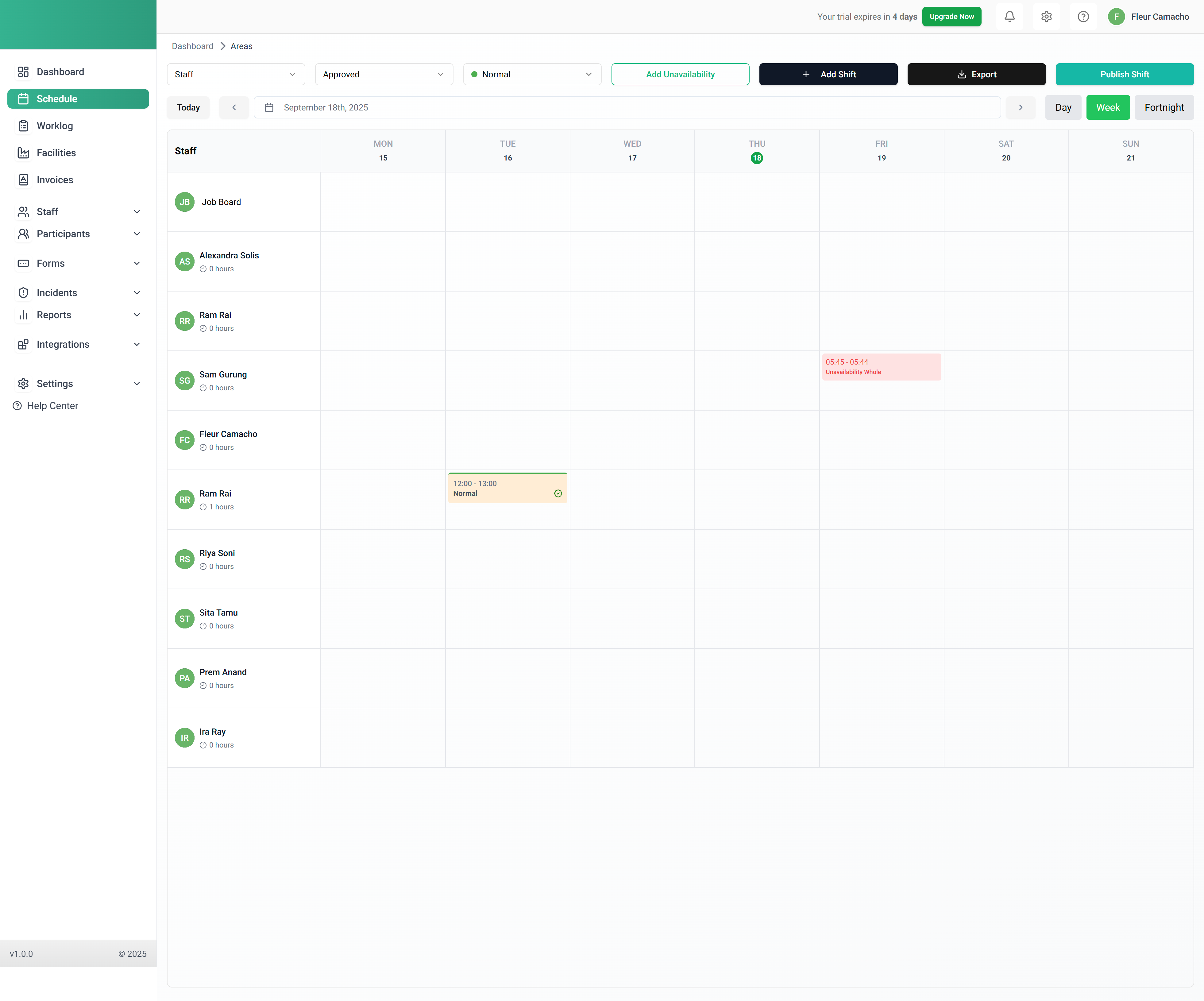
You can apply all three filters at the same time to narrow down the schedule results. For example, you can select Staff as the view, choose Approved as the status, and set the shift type to Normal. This combination will display only the approved normal shifts assigned to staff, giving you a more focused view of the schedule.
You can use the Today button or the arrow icons to move between different dates in the schedule. You can also choose how the calendar is displayed by switching the view to Day, Week, or Fortnight, depending on whether you want a narrow or broader view of shifts.